
Advanced Products (Variants) in TimeFlow
Create a product with multiple variants — like different colours or storage sizes — under one listing, complete with images and per-variant pricing and stock.
Updated · Inventory & purchasing
Before you start
You need inventory permission.
Finding this in the UI
- Left sidebar → Inventory Manager → Products, then Add Product, or go directly to
/dashboard/inventory/products/advance/add. - This is a separate, richer form from the simple Items form (see Inventory Items, Categories, Brands & Suppliers) — use it when a product needs variants, multiple images, or its own tracking beyond a single item record.
- The header and footer do not have direct links here.
Building the product
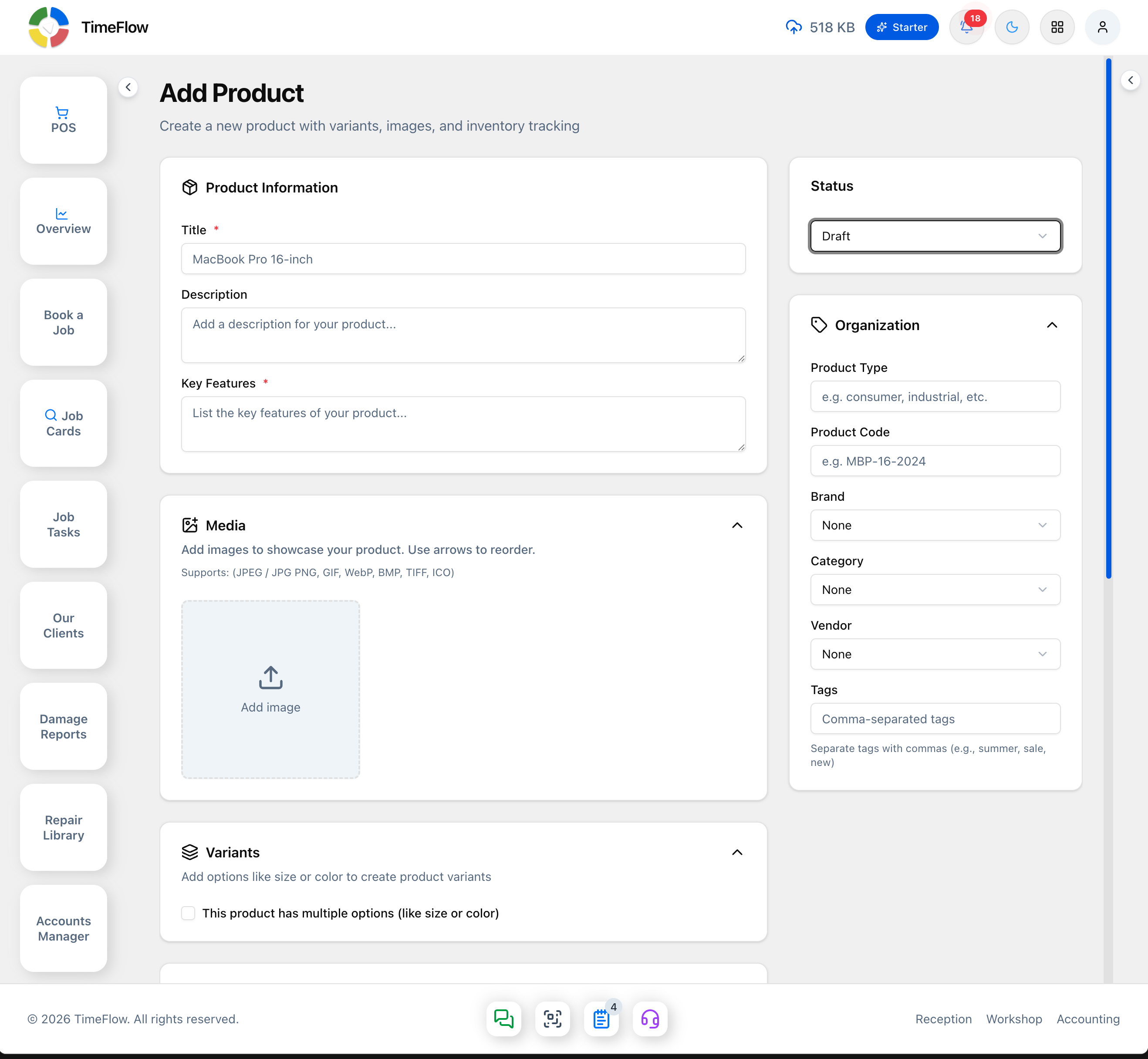
The page is a two-column layout: the main column (Product Information, Media, Variants or Pricing & Inventory, Tax Settings) on the left, and a narrower Status/Organization column on the right. Each card has a collapse chevron.
Left column:
- Product Information — Title* (e.g. "MacBook Pro 16-inch"), Description (optional), and Key Features* (required).
- Media — upload one or more product images (JPEG/JPG, PNG, GIF, WebP, BMP, TIFF, ICO); reorder with the arrows.
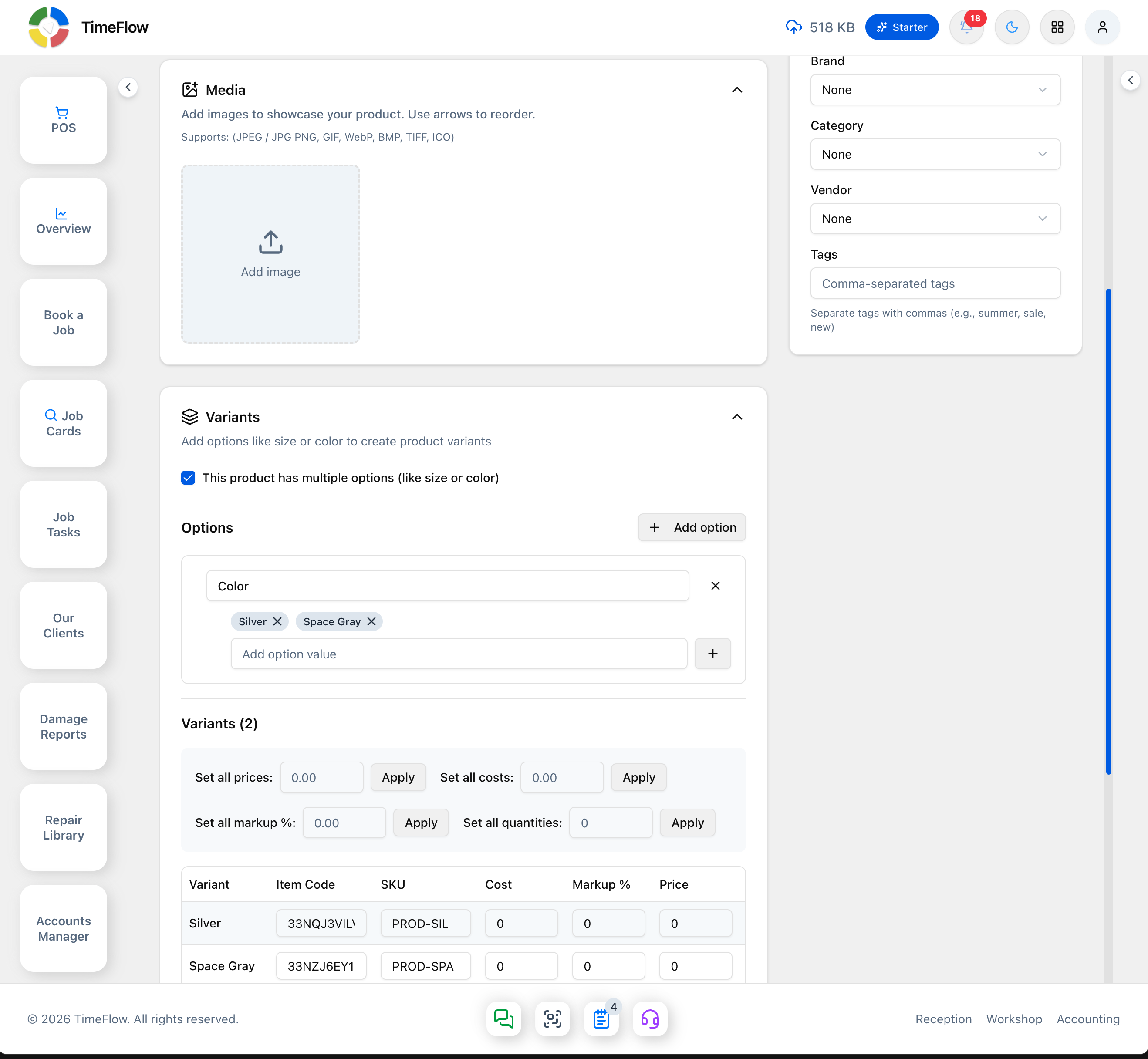
- Variants — check "This product has multiple options (like size or color)" to switch from single-SKU pricing to variants. Once checked, click + Add option, name it (e.g. "Color"), and add its values one at a time (type a value, Enter). Each option/value combination becomes a row under Variants (N). Bulk-fill every row at once with the Set all prices / costs / markup % / quantities helpers (each has its own Apply button), then adjust individual rows as needed. The variant table scrolls horizontally and has: Variant, Item Code, SKU, Cost, Markup %, Price, Quantity, Sold, Available, Defective, Barcode (optional), and a delete action per row.
- Pricing & Inventory (shown instead of Variants' table when the multiple-options checkbox is off) — Item Code* and SKU* (both pre-filled with a generated placeholder like "ITEM-001"/"SKU-001"), Cost*, Markup %, Price, Barcode (optional), Quantity*, and read-only-at-creation Sold/Available/Defective fields.
- Tax Settings — Tax Category, a "Charge tax on this product" checkbox, and a Tax Inclusive checkbox (whether the price already includes tax).
Right column:
- Status — Draft (default), Active, or Archived.
- Organization — Product Type (free text, e.g. "consumer"), Product Code, Brand (optional dropdown), Category (optional dropdown), Vendor (optional dropdown), and Tags (comma-separated, optional).
Click Save product once every required field is filled in (or Discard to leave without saving). Use the equivalent Edit page later to change variants, images, or pricing.
Tips
- Use variants when the same product genuinely comes in different SKUs a client would choose between (colour, size, capacity); otherwise the simpler Items form is faster for one-off stock.
- Markup % and Cost are linked — set one and TimeFlow can calculate the Price for you, so decide which you want to drive pricing before bulk-filling variant rows.
Frequently asked questions
When should I use variants instead of separate items?
Use variants when the same product comes in options a customer chooses between, like colour or capacity. For one-off stock, the simpler Items form is faster.
Related guides
- Items, categories, brands & suppliersSet up repair parts and stock items with cost, markup, VAT, warranty, and low-stock thresholds, organised by category, brand, and supplier.
- Point of sale (POS)Sell accessories and devices at the counter with TimeFlow POS: barcode and IMEI scanning, held orders, discounts, and cash, card, EFT and other payments.
