
Point of Sale (POS) in TimeFlow
Process retail sales quickly with barcode scanning, cart management, and multiple payment methods.
Updated · Sales, invoicing & POS
On this page
Before you start
You need POS permission.
Finding this in the UI
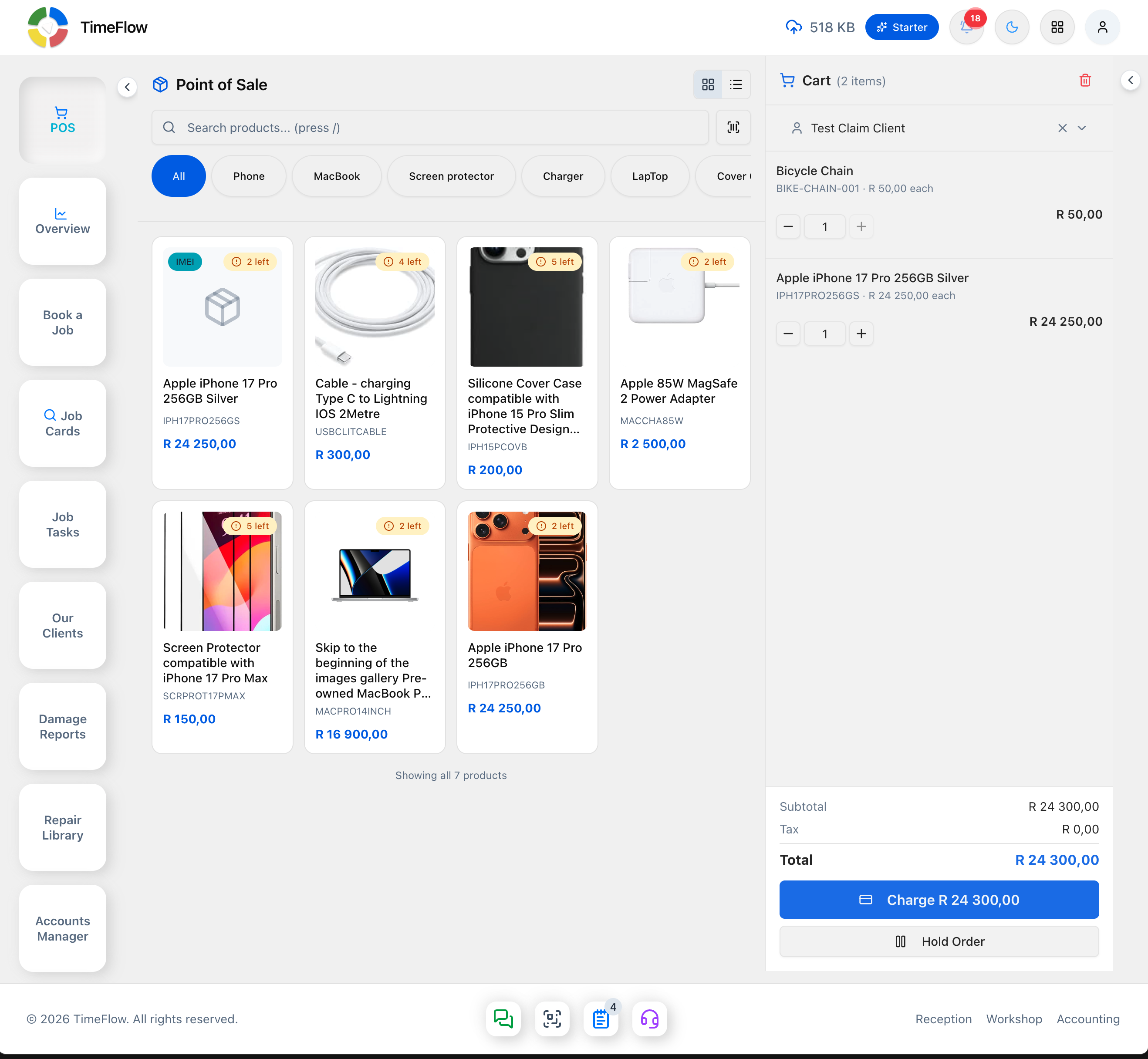
- Left sidebar → POS opens the Point of Sale screen directly. Not in the header or footer.
Building a sale
- Browse products in grid or list view (toggle in the header), or search by name, SKU, item code, or barcode (press / to jump to the search bar).
- Filter by category using the tabs below the search bar.
- Click a product card to add it to the cart; click again to increase quantity.
- Use the barcode scanner button to scan (or type) codes — for IMEI-tracked items, scanning a device's IMEI or serial adds that exact unit. IMEI/serial-tracked products show a teal IMEI badge on their card in place of a stock-count badge.
- Select a client from the cart panel (search existing clients or create a new one on the spot — a Search clients... box lists matches with a + New Customer option at the top). A client with a financial account is required to complete checkout.
- Adjust quantities with +/- or by typing a number.
- Expand a cart line (chevron) to add a Discount, an "Add a note..." field, or — for serialized items — an "IMEI / serial (optional — leave empty to pick FIFO)" scan box with a live "X of N identifiers scanned" counter. Leave them empty to sell the oldest in-stock unit automatically (FIFO); if you scan any, the scanned count must match the quantity.
- Remove a line with its trash icon, or clear the whole cart from the header trash button.
Holding and resuming orders
Click Hold Order to save the current cart for later (useful if a customer steps away), and Held Orders to resume or delete one. Held orders persist locally across browser sessions.
Checking out
- Click Charge to open the Checkout dialog: Subtotal, Tax, Total, and a pre-assigned invoice number.
- Choose a payment method: Cash, Card, Online, EFT, Cheque, Takealot, Amazon, PayPal, Bobshop, or Website.
- For cash, enter the amount tendered — change due is calculated automatically; a quick-cash button for the exact total speeds up common amounts.
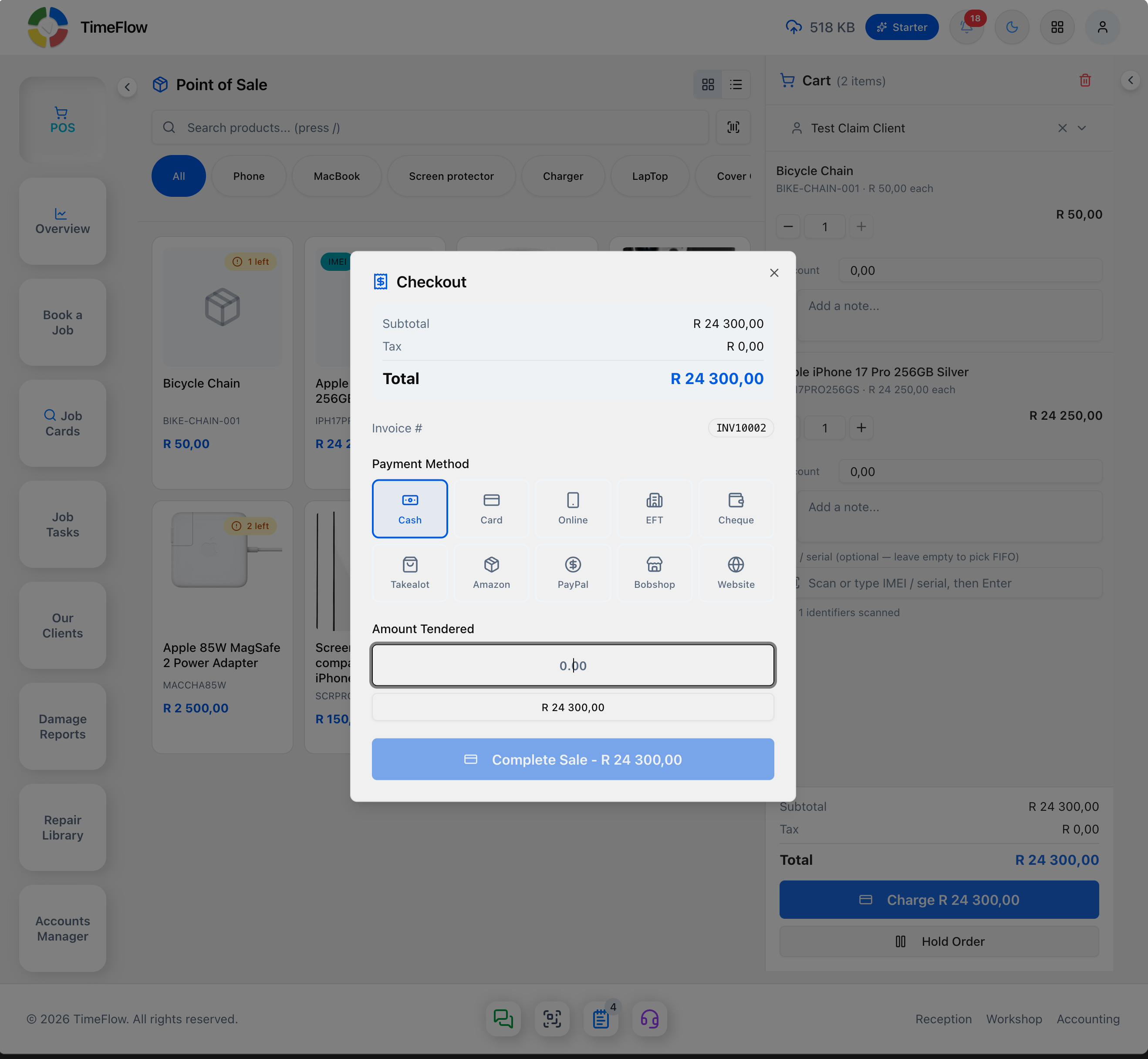
- Click Complete Sale to finalize — this creates an invoice and records the payment in one step.
- After checkout, print the invoice PDF or email it to the client, then click New Sale to start fresh.
Tips
- Only active products with available stock show in the grid; low stock (5 or fewer) shows a warning badge, and out-of-stock items are disabled.
- Serialized items can't be restocked from POS — receive new units on the item's edit page first (see the Serialized Items guide).
- If a scanned IMEI is already sold or otherwise unavailable, use Add in-stock unit in the dialog that appears, or search by product name instead.
- Tax is calculated automatically from each item's tax category and your company's tax configuration.
Frequently asked questions
Can TimeFlow POS sell IMEI-tracked phones?
Yes. Scan a device's IMEI or serial to sell that exact unit, or leave it empty and TimeFlow sells the oldest in-stock unit (FIFO).
Which payment methods does the POS accept?
Cash, Card, Online, EFT, Cheque, Takealot, Amazon, PayPal, Bobshop, and Website. Change due is calculated automatically for cash.
Related guides
- IMEI & serial trackingTrack phones, tablets, and laptops as individual units by IMEI or serial: receive units, print labels, and sell or consume them FIFO across POS and invoices.
- Cash-upReconcile your till at the end of a shift or day: expected cash on hand, tender breakdown by payment method, staff and branch totals, and a PDF.
- Receipt & label printersConnect thermal receipt printers (58/80mm ESC/POS) and barcode label printers (Zebra ZPL, Brother, Dymo) to TimeFlow using QZ Tray.
- InvoicesCreate repair invoices for parts and labour with per-line VAT and discounts, link job cards and insurance claims, take payments, and post to the ledger.
