
Invoices in TimeFlow
Bill a client for parts and labour, add tax and discount detail per line, and post the sale straight into your General Ledger.
Updated · Sales, invoicing & POS
On this page
Before you start
You need accounting permission.
Finding this in the UI
- Left sidebar → Accounts Manager, then Invoices, then click Add Invoice on the Invoices list page.
- From a job card ticket's ⋯ more actions menu, choose Invoice to start one pre-linked to that job.
- The header and footer do not have direct links to Invoices.
Creating an invoice
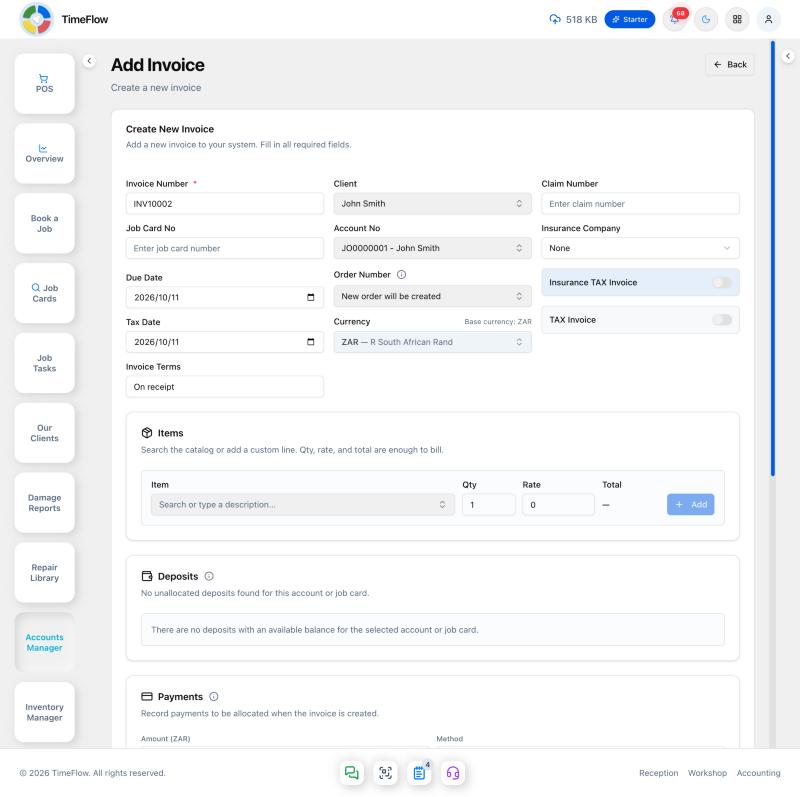
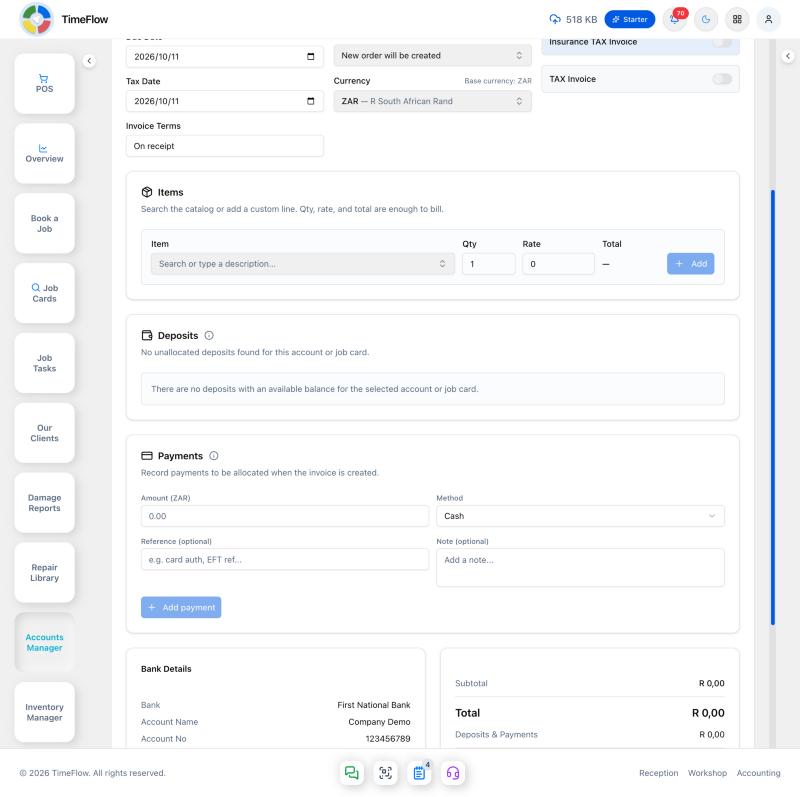
Fill in:
- Invoice Number — assigned automatically (e.g.
INV10002) and read-only. - Client — search and select.
- Claim Number — if this invoice relates to an insurance claim.
- Job Card No — optional link back to a job card.
- Account No — search and select the client's financial account this invoice posts against.
- Insurance Company — select an insurer, or leave as "None".
- Due Date and Tax Date.
- Order Number — pick an existing order, or leave it as "New order will be created."
- Currency — the invoice currency; your company's base currency is shown alongside it for reference, and a foreign currency adds an exchange-rate field.
- Invoice Terms — e.g. "On receipt".
- Insurance TAX Invoice and TAX Invoice — two separate toggles; switch on whichever applies (an insurance-billed tax invoice needs both context and tax treatment, so they're controlled independently).
Adding line items
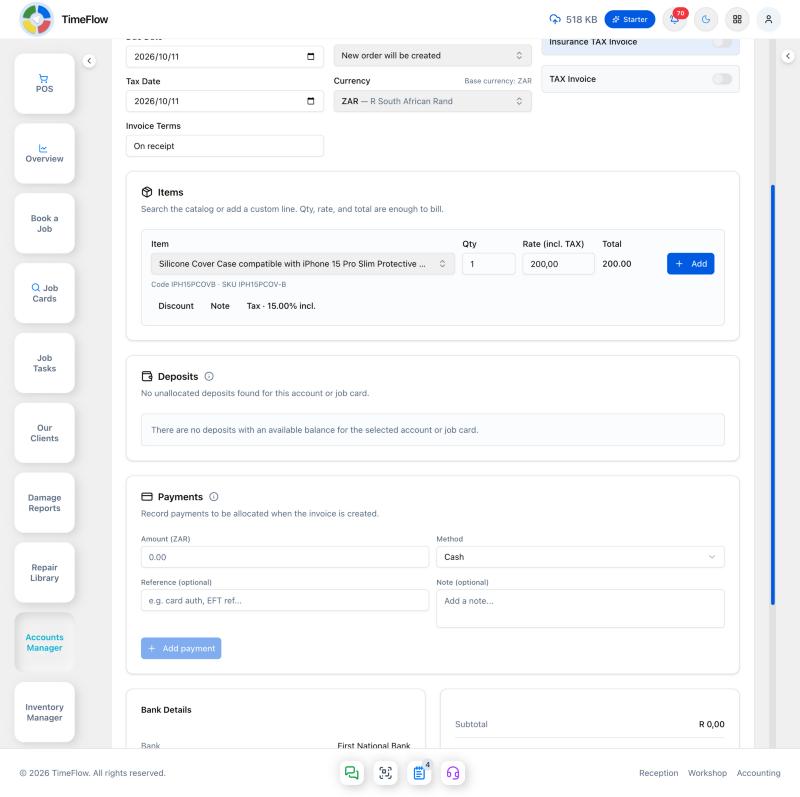
The section is titled Items. One row is enough to add a line: Item, Qty, Rate, a calculated Total, and Add. Item code and SKU sit under that row, so they don't shift the other fields. If you link an Order Number, that order's lines load into the table and stay read-only — add any extra lines below them.
- Item — search the catalog, or type a description. The last option in the menu is Add a custom line, highlighted with a plus icon; after you type a search it reads Add "…" as a custom line.
- Choosing a catalog item fills the description, rate, and tax. Its code and SKU appear under the row.
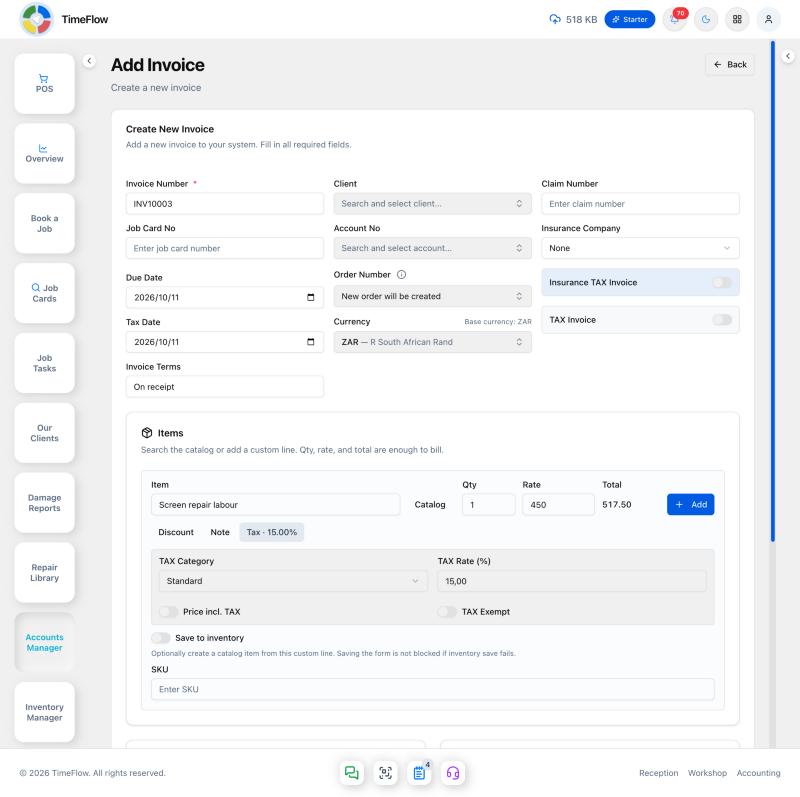
- A custom line replaces the search with a description and a Catalog button to go back. SKU stays visible. Save to inventory is off until you turn it on; then Item Code and SKU are required and a catalog item is created from the line. The invoice still saves if that inventory save fails.
- Discount, Note, and Tax stay closed until you open them. Tax sets the category, rate, Price incl. TAX, and TAX Exempt. The line Total already includes tax; the invoice totals still show tax separately.
- Serial or IMEI fields appear only for a serialized catalog item. Leave them empty to use the oldest in-stock units.
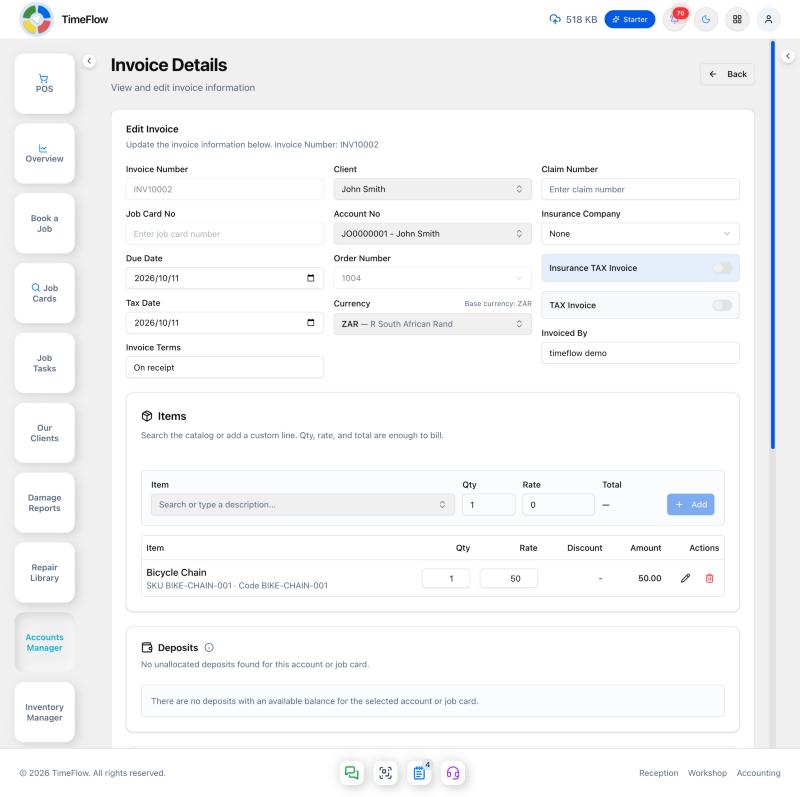
Add stays disabled until you pick a catalog item or enter a custom description. The line then appears in the table below (Item, Qty, Rate, Discount, Amount) — qty and rate on a line you just added can be changed right there in the table before you save. Remove a line with the trash icon. Repeat Add for each item. New lines are saved when you click Create Invoice.
Bank details, totals, and saving
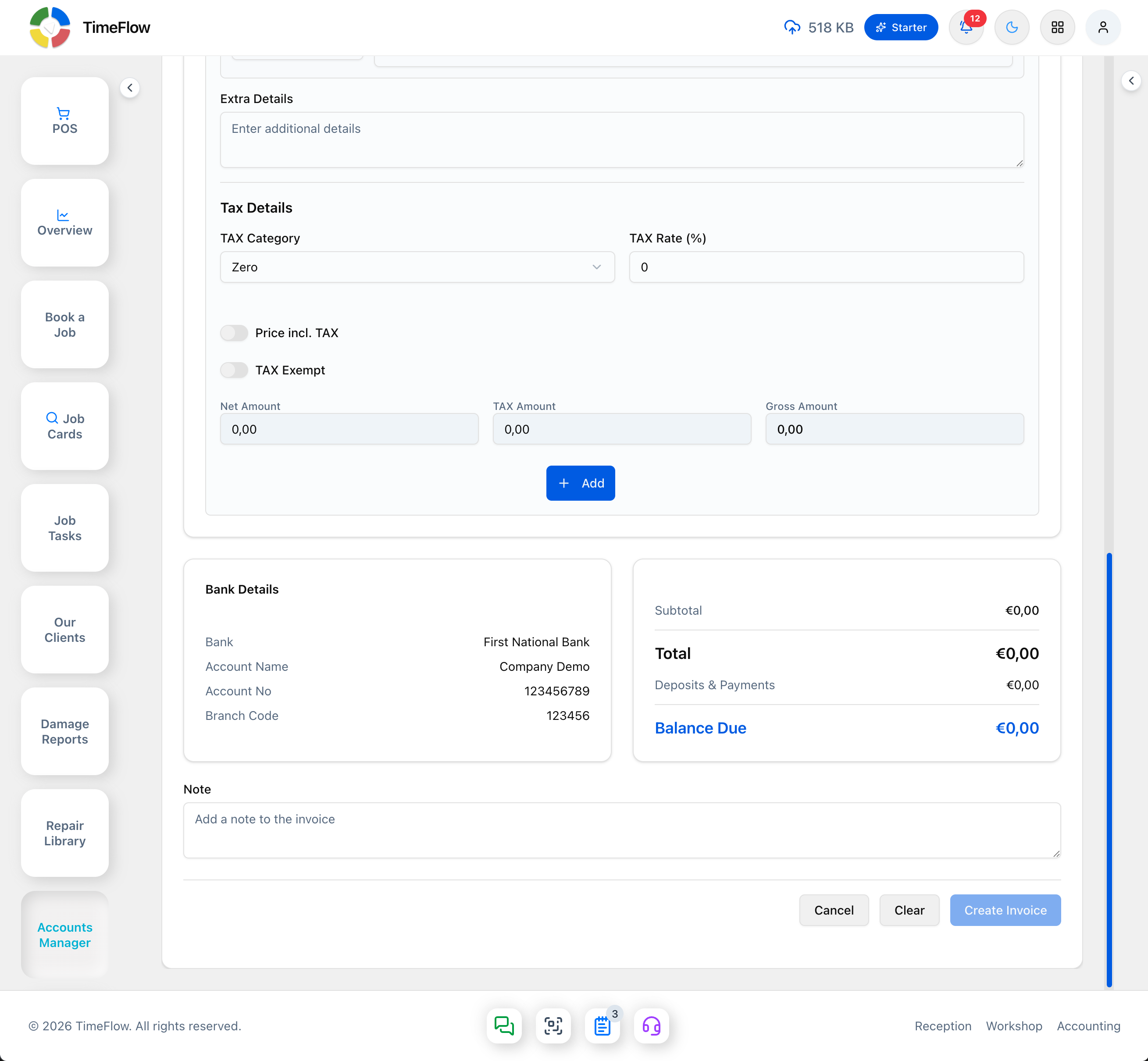
- Bank Details shows your company's banking details (as set in Company Account → Banking) for reference — it's read-only here, not something you edit per invoice.
- Subtotal, Total, Deposits & Payments, and Balance Due update as you add line items.
- Note — an optional note printed on the invoice.
- Click Create Invoice to save, or Clear to reset the form, or Cancel to leave without saving.
Below the items, Deposits lists credits already held for this account or job card, and Payments lets you record money to allocate when the invoice is created. See Capturing Payments & Deposits for applying money to an invoice that's already saved.
Editing an invoice
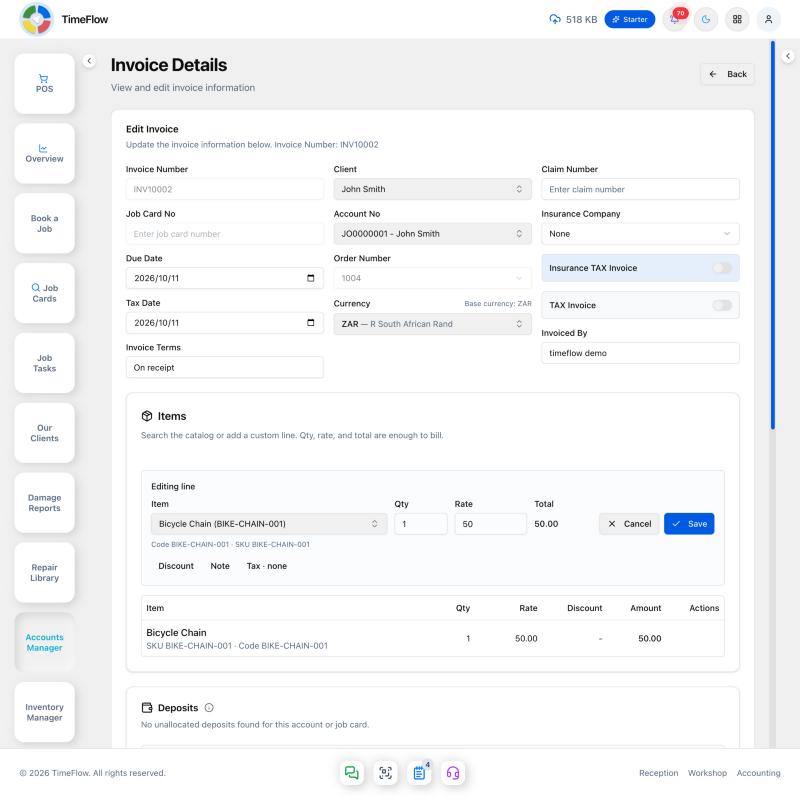
From Accounts Manager → Invoices, click the pencil on a row. The same Items row adds another line, and that line is saved as soon as you click Add. Each saved line can be changed right in the table — qty and rate save as soon as you leave the field. The pencil on a saved line opens Editing line, with Save and Cancel. Removing a saved line asks you to confirm. Invoiced By shows who created the invoice and is read-only. Click Update Invoice to save the invoice header; line adds, edits, and removals are already saved as you make them. Deposits and payments on this page apply immediately — see Capturing Payments & Deposits.
After saving
- Reopen the invoice (Invoices list → edit icon) to record a payment or apply a deposit against it — see Capturing Payments & Deposits.
- Saving an invoice automatically posts a balanced journal entry to the General Ledger (revenue, VAT output, receivable/cash) — see the General Ledger guide.
Tips
- Set your VAT settings before invoicing so the Tax Category/Rate options are correct (see Tax Reports & VAT Settings).
- A foreign-currency invoice keeps its own currency on the printed document while reports convert it to your base currency (see Multi-Currency).
Frequently asked questions
Can I invoice an item that isn't in my inventory?
Yes. Choose Add a custom line and type a description. You can optionally switch on Save to inventory to create a catalog item from it.
Does saving an invoice update my accounts?
Yes. Saving an invoice automatically posts a balanced journal entry (revenue, output VAT, receivable or cash) to the General Ledger.
Related guides
- Payments & depositsTake an up-front deposit on a repair job card, record and allocate payments against invoices, and capture or search payments for any client account.
- QuotationsSend customers a priced repair quote linked to a job card, with catalog or custom lines, VAT, discounts, and expiry date — then convert it to an invoice.
- Credit notesCreate credit notes for returns, defective goods, overcharges, or discounts, link them to the original invoice, then issue, apply, and download as PDF.
- General ledgerDouble-entry books for your repair shop: chart of accounts, automatic journal posting from invoices and payments, period locking, and trial balance.
