
General Ledger in TimeFlow
The double-entry books behind every invoice, payment, and credit note: chart of accounts, automatic journal posting, period locking, trial balance, and per-account ledgers.
Updated · Accounting & VAT
Before you start
You need accounting permission.
Finding this in the UI
- Left sidebar → Accounts Manager, then in the Reports section click Open General Ledger, or go directly to
/dashboard/accounting/general-ledger.
First-time setup
On the General Ledger hub (or Chart of Accounts), click Seed Default Accounts (the Chart of Accounts page shortens this to Seed Defaults) to create a starter chart of accounts and default account mappings. It's safe to run — it won't duplicate existing accounts.
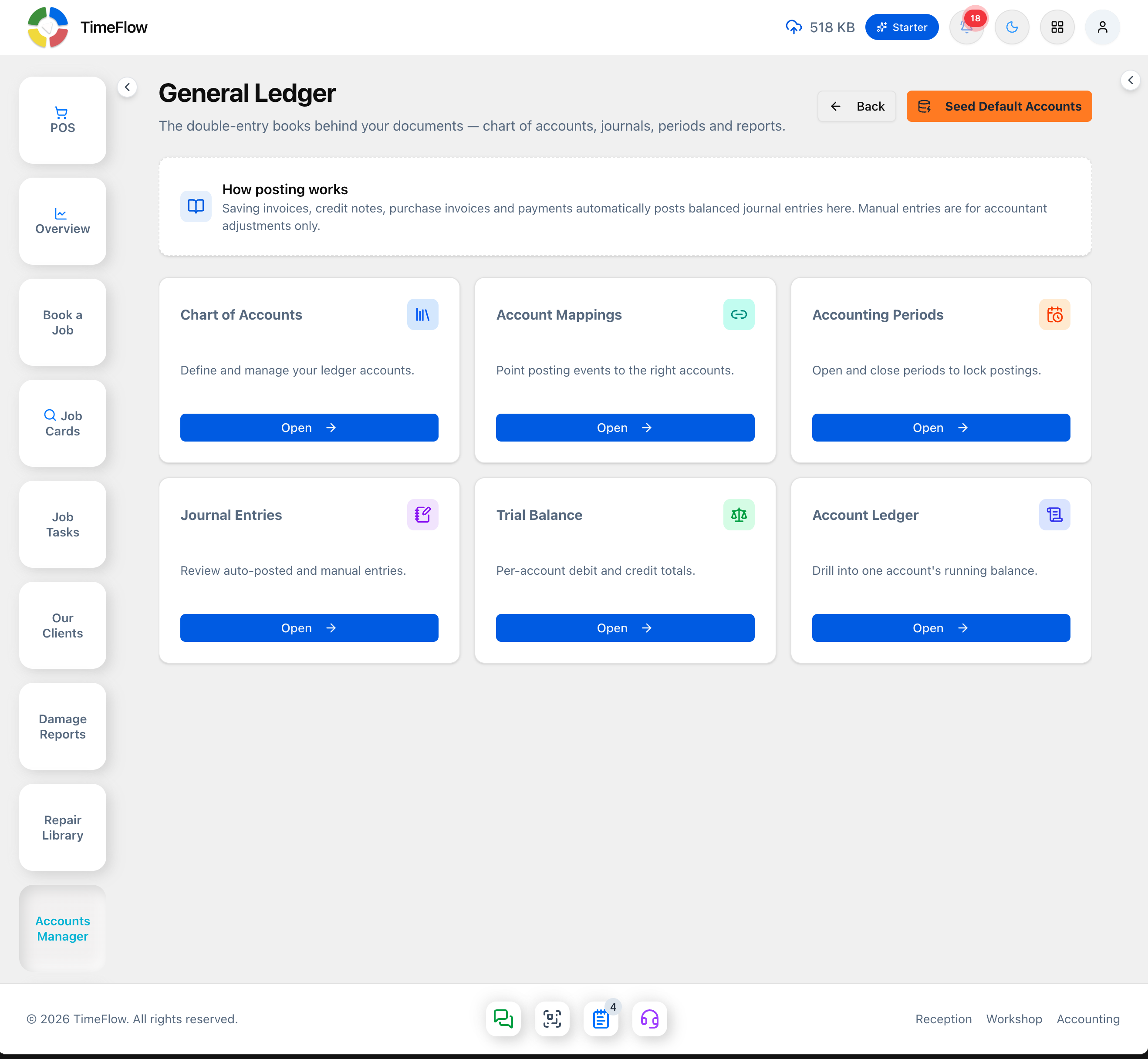
Once set up, saving sales invoices, credit notes, purchase invoices, and payments automatically writes balanced journal entries behind the scenes. Manual entries are reserved for accountant adjustments.
The sub-pages
- Chart of Accounts (
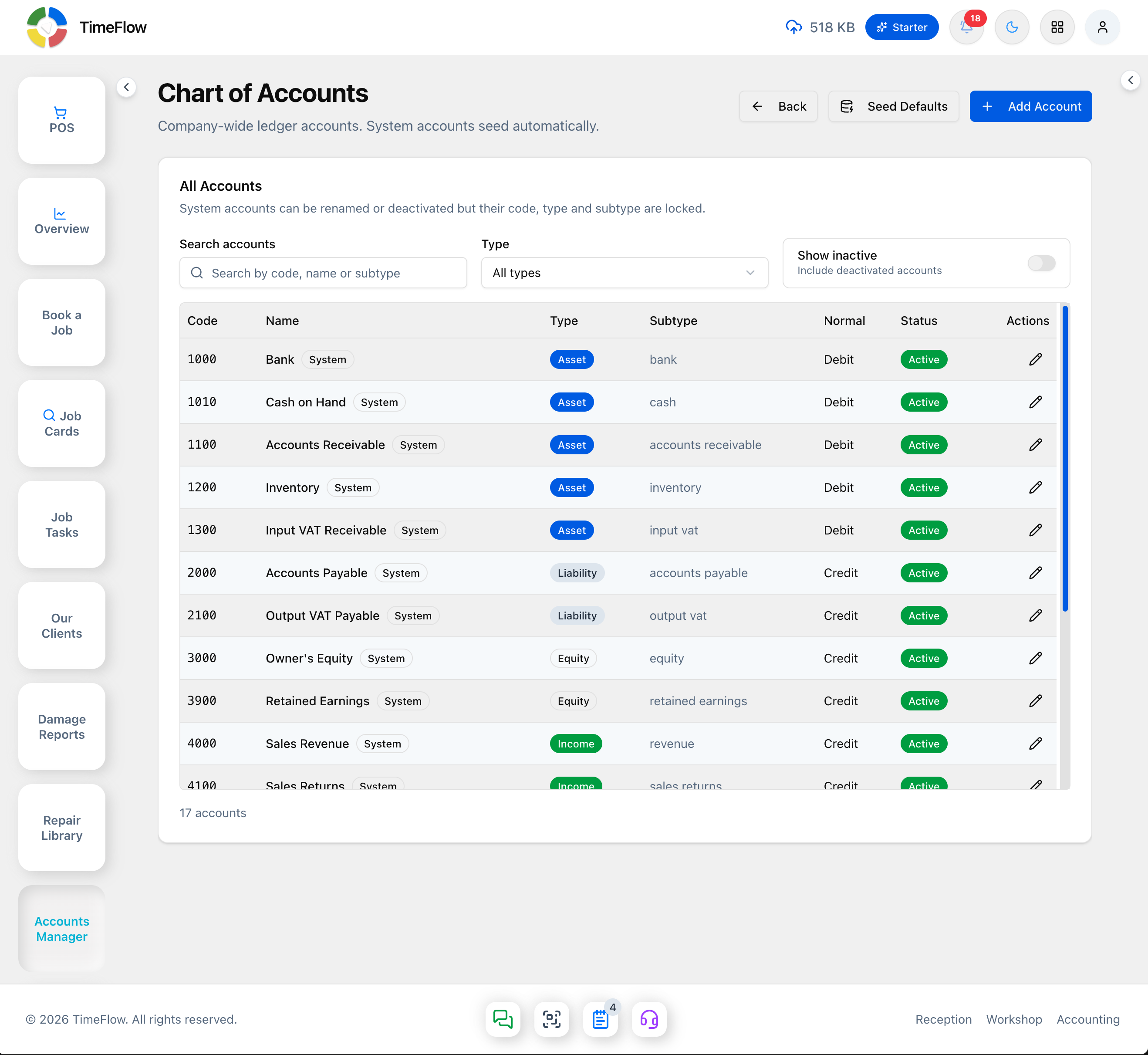
/general-ledger/chart-of-accounts) — every ledger account, with search, a type filter (asset/liability/equity/income/expense), and a "Show inactive" toggle. Columns include each account's Normal balance side (Debit/Credit). Add Account to create your own; system accounts can be renamed or deactivated but not have their code/type/subtype changed, and can't be deleted once they have journal lines (deactivate instead).
- Account Mappings (
/general-ledger/account-mappings) — links a posting event (e.g. sales revenue, accounts receivable, output VAT) to a specific ledger account. Edit a mapping to redirect where automatic entries post. - Accounting Periods (
/general-ledger/periods) — create periods with a name, start, and end date. Close a period (lock icon) to block new entries dated inside it; reopen if needed. - Journal Entries (
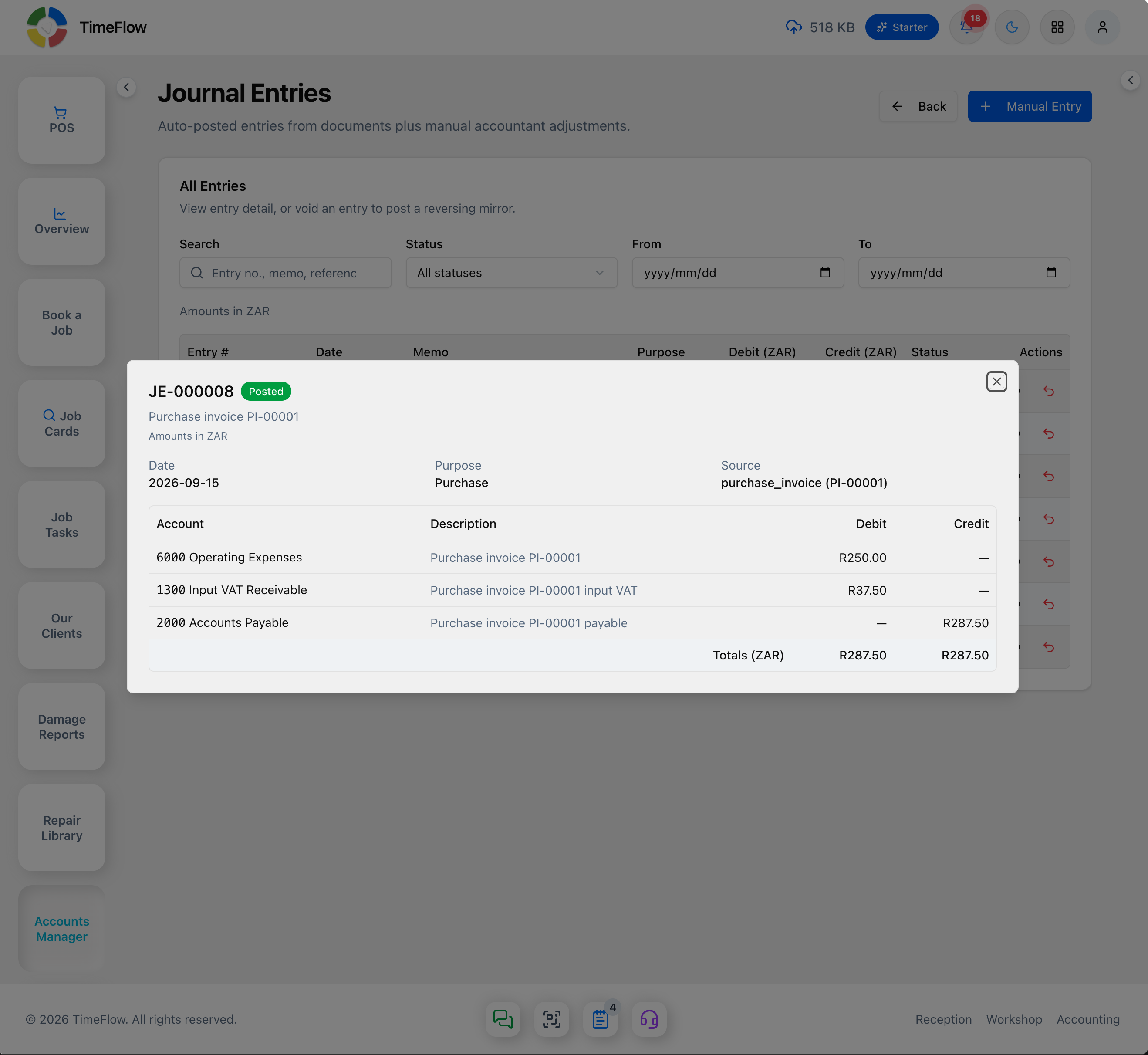
/general-ledger/journal-entries) — every auto-posted entry (some tagged FX for multi-currency entries) and manual entry, filterable by search, status (draft/posted/reversed/void), and date range. Click the eye icon to open a detail dialog showing the entry's date, purpose, source document, and its full Account/Description/Debit/Credit lines with totals — e.g. a purchase invoice for R287.50 posts Debit 6000 Operating Expenses R250 + Debit 1300 Input VAT Receivable R37.50, against Credit 2000 Accounts Payable R287.50. Void posts a reversing mirror entry rather than deleting anything.- Manual Entry — date, memo, and at least two balanced lines (debits must equal credits); only accounts that allow manual entry appear in the picker.
- Trial Balance (
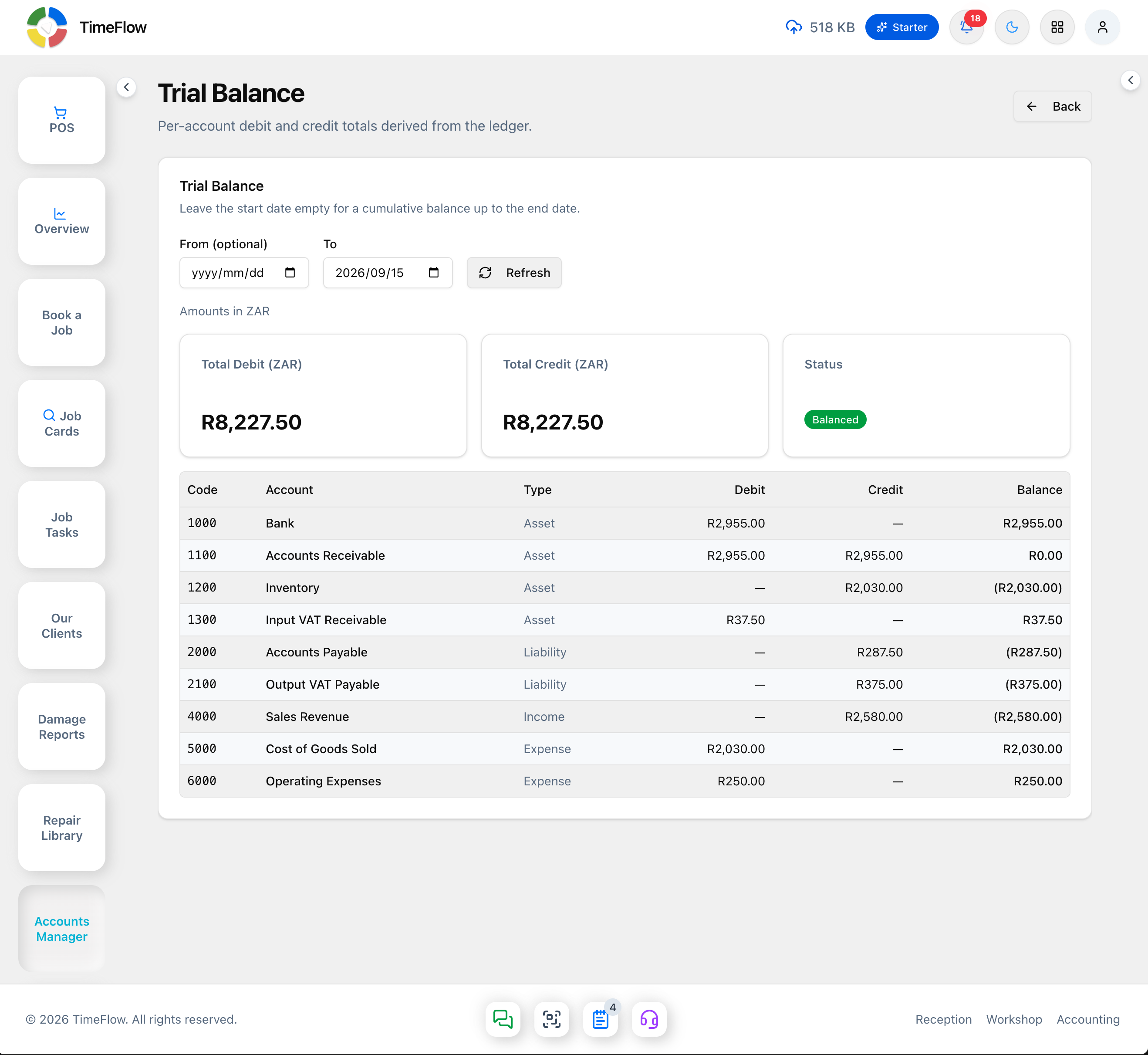
/general-ledger/trial-balance) — every account's debit, credit, and net balance for a date range (leave From empty for a cumulative balance up to To); set the range and Refresh. Total Debit (ZAR) and Total Credit (ZAR) summary cards plus a Balanced status badge confirm debits equal credits.
- Account Ledger (
/general-ledger/ledger) — pick one account, optional date range, and see every movement with a running balance, like a bank statement for that account.
Tips
- Standard account numbering: 1000s assets, 2000s liabilities, 3000s equity, 4000s income, 5000s cost of sales, 6000s expenses — all seeded automatically.
- Recognition date (tax date, else document date, else created date) decides which period an entry lands in — the same rule applies to tax reports and financial statements.
- Re-saving the same invoice or re-running setup tools won't create duplicate journal entries.
Frequently asked questions
Do I have to post journal entries manually?
No. Once the default accounts are seeded, sales invoices, credit notes, purchase invoices, and payments post balanced journal entries automatically. Manual entries are only for accountant adjustments.
Related guides
- Financial statementsGenerate your income statement, balance sheet, cash flow statement, and receivables/payables aging report from the general ledger, with PDF export.
- Expense categoriesClassify supplier bills and expenses — rent, salaries, stock purchases — as cost of sales, operating, or other expenses so your P&L is right.
- InvoicesCreate repair invoices for parts and labour with per-line VAT and discounts, link job cards and insurance claims, take payments, and post to the ledger.
