
Expense Categories in TimeFlow
Define the categories your purchase invoices and expenses are classified under, so they land in the right place on your Income Statement.
Updated · Accounting & VAT
On this page
Before you start
You need accounting permission.
Finding this in the UI
- Left sidebar → Accounts Manager → Expense Categories, or go directly to
/dashboard/accounting/expense-categories. - The header and footer do not have direct links to Expense Categories.
The Expense Categories list
TimeFlow seeds 11 built-in categories out of the box (tagged System next to their name — Inventory Purchases, Insurance, Marketing & Advertising, Office Supplies, Professional Fees, Rent, Repairs & Maintenance, Salaries & Wages, Utilities, and more), alongside any you create. The list has Search Categories (name or description), a Kind filter, and a Show inactive toggle, with columns Name, Kind, Description, Status, and Actions (edit pencil, delete trash icon) — System categories aren't protected from editing or deletion.
Creating a category
Click Add Category and fill in:
- Name* — e.g. "Rent" or "Stock Purchases".
- P&L Kind* — one of:
- Cost of Sales / Inventory — "For stock and inventory purchases. Excluded from operating expense totals (COGS handles inventory cost)."
- Operating Expense — "Rent, salaries, utilities, and other day-to-day operating costs."
- Other Expense — anything that doesn't fit the two categories above.
- Description — optional free text.
- Active toggle (on by default) — "Inactive categories are hidden from pickers but remain on historical invoices."
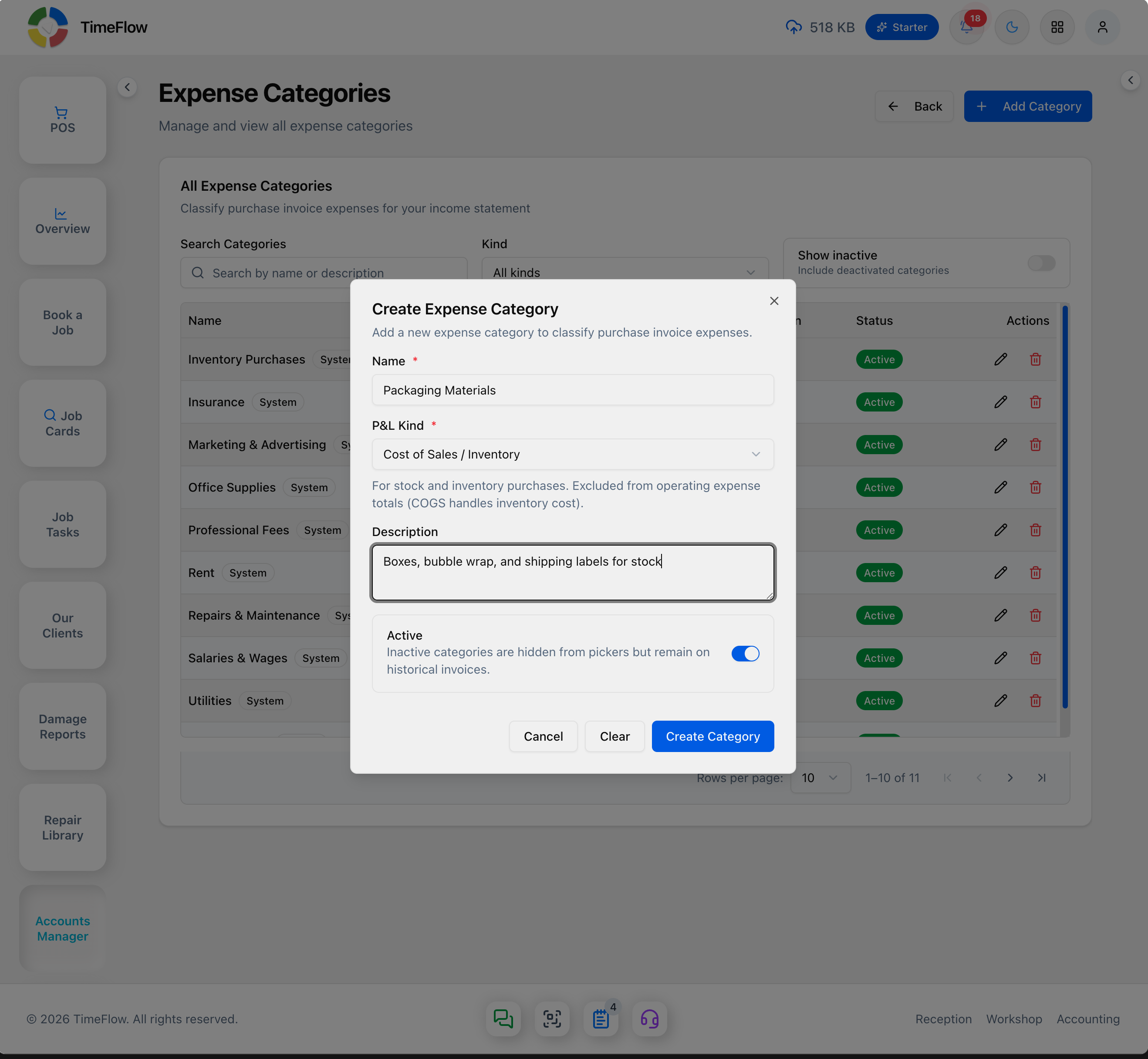
Click Create Category to save it. Click the pencil icon on a row to Edit it (Update Category to save), or the trash icon to Delete one — a confirmation dialog warns that linked purchase invoices will become uncategorized and appear as operating expenses on reports.
Tips
- Choosing the right P&L Kind matters — it decides whether the expense shows under Cost of Sales or Operating Expenses on the Income Statement (see Financial Statements).
- Deactivate a category you no longer use instead of deleting it, so past purchase invoices keep their category label.
Frequently asked questions
Should I delete an expense category I no longer use?
Deactivate it instead. Deleting makes linked purchase invoices uncategorised; deactivating keeps their label on past invoices.
Related guides
- Purchase invoicesRecord supplier invoices with or without a purchase order, claim input VAT, approve, and track payment status from unpaid to paid.
- Financial statementsGenerate your income statement, balance sheet, cash flow statement, and receivables/payables aging report from the general ledger, with PDF export.
