
Purchase Invoices in TimeFlow
Record supplier bills (accounts payable) — with or without a linked purchase order — then approve, mark paid, or allocate bank payments against them.
Updated · Accounting & VAT
On this page
Before you start
You need accounting permission. This is a Beta feature.
Finding this in the UI
- Left sidebar → Accounts Manager, then Purchase Invoices (Beta), or go directly to
/dashboard/accounting/purchase-invoices.
Creating a purchase invoice
Click Add Purchase Invoice and fill in:
- Invoice number* — shown as a placeholder (e.g.
PI-00001) but you must actually type a value; it isn't auto-filled the way a purchase order's number is. Also optional internal reference, invoice date, tax date, and optional due/received dates. - Optionally select a Purchase Order — this can prefill line items and supplier details, though you can still adjust them. Choosing a supplier from Inventory suppliers prefills name/address/tax number; with no PO/supplier, "None (Manual Entry)" lets you type the Supplier Name* directly.
- An Expense Category dropdown (default "None (Uncategorized)") that classifies the invoice for income statement reporting.
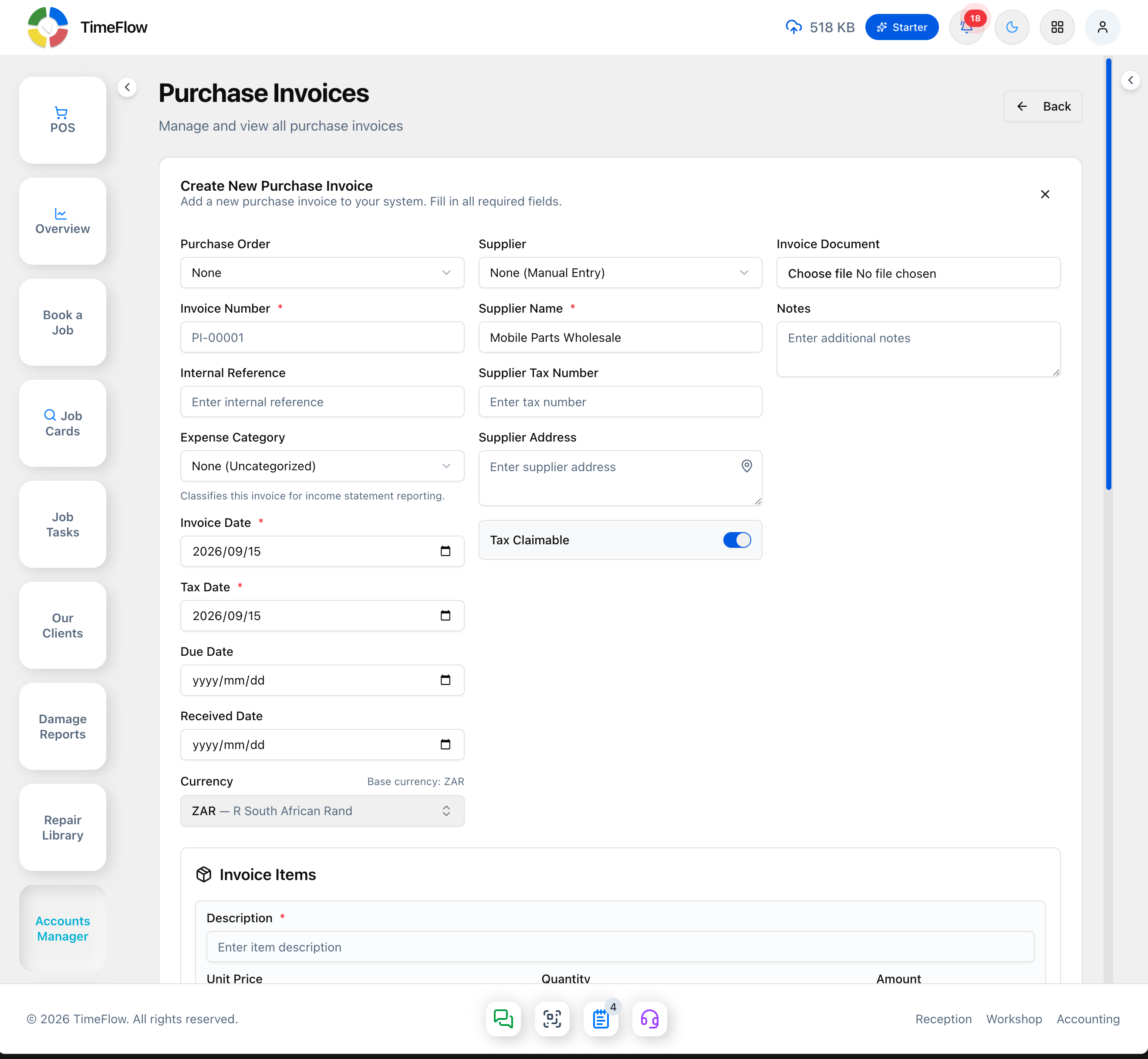
- Invoice Items — description, unit price, quantity, tax category, tax rate, and a per-line tax-claimable flag. Click + Add Item to commit the line into a running table below with calculated Net/Tax/Gross per line and Total Net/Tax/Gross Amount underneath (the same pattern as Purchase Orders) — filling in the entry fields alone doesn't add it to the invoice.
- Toggle invoice-level Tax Claimable.
- Optionally attach the supplier's invoice document (PDF/image) and notes.
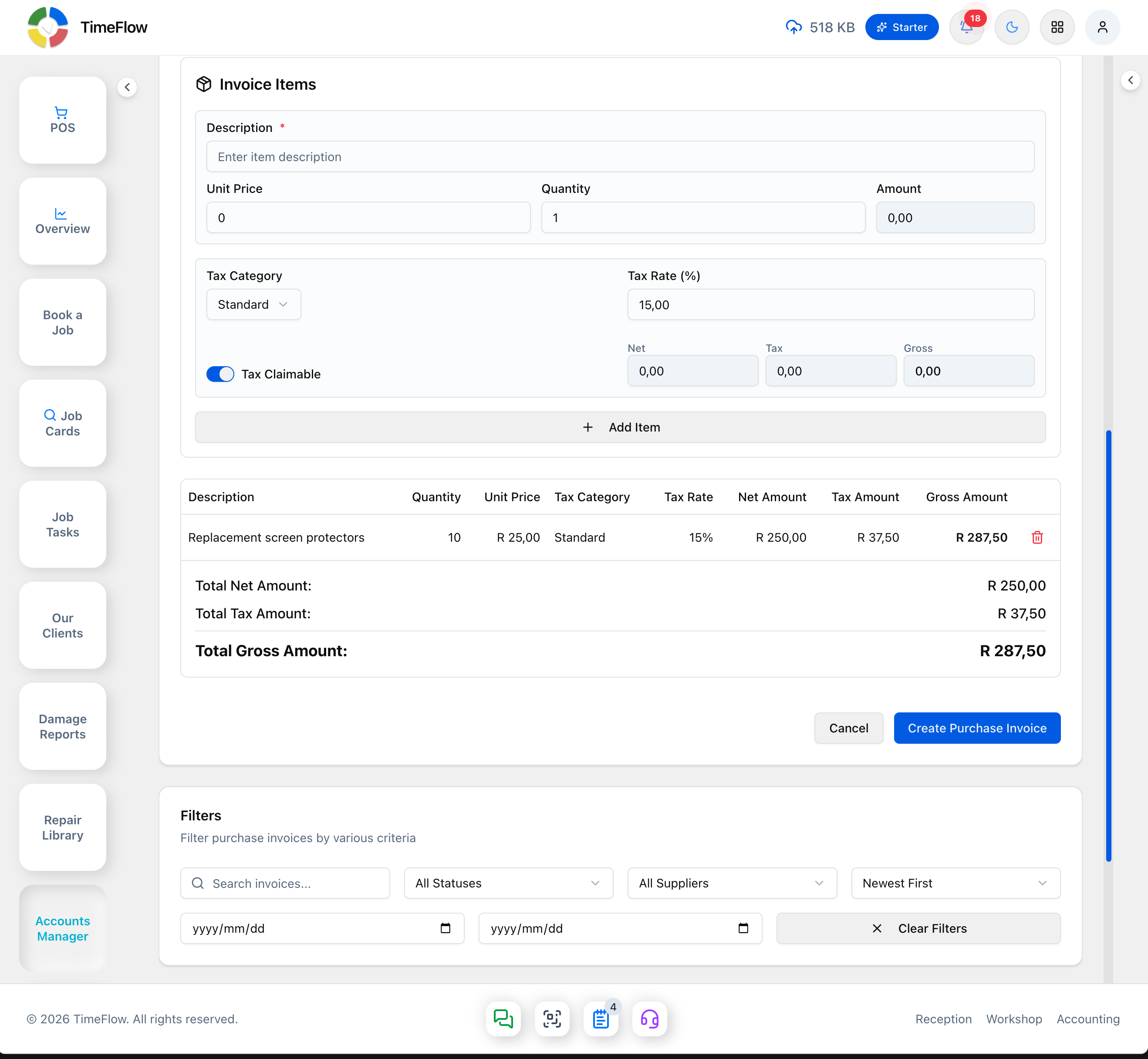
Click Create Purchase Invoice to save it as Draft, payment status Unpaid.
Managing the invoice
- Approve it from the list (check icon) or detail page — a confirmation dialog moves it straight to Approved (Draft and Pending can both be approved this way; approving also removes the Delete action).
- Mark as Paid once you've paid it (confirms against the full gross total).
- Edit or Delete from the detail page while still Draft (delete returns you to the list).
- Capture Payments: allocate a bank debit transaction to an unpaid/partially paid purchase invoice from Accounting → Capture Payments, keeping amount paid and payment status in sync.
Finding invoices
Filter by search text, status, supplier, invoice date range, and sort (date, amount, recently created).
Tips
- Workflow statuses: Draft → Pending → Approved → Paid (or Cancelled), shown separately from payment status (Unpaid/Partial/Paid).
- Linking a purchase order speeds up entry when procurement went through one, but it's entirely optional.
Frequently asked questions
Do I need a purchase order to record a supplier bill?
No. Linking a PO speeds up entry, but you can choose None (Manual Entry) and type the supplier details directly.
Related guides
- Purchase ordersCreate supplier purchase orders for parts and stock, send them, and track them from draft to partially received and received with goods receipt notes.
- Expense categoriesClassify supplier bills and expenses — rent, salaries, stock purchases — as cost of sales, operating, or other expenses so your P&L is right.
- Payments & depositsTake an up-front deposit on a repair job card, record and allocate payments against invoices, and capture or search payments for any client account.
