
Capturing Payments & Deposits in TimeFlow
Take an up-front deposit against a job card before an invoice exists, record and allocate payments against an invoice once it's been created, or capture and search payments centrally for any client account.
Updated · Sales, invoicing & POS
On this page
Before you start
You need accounting or reception permission depending on the screen.
Finding this in the UI
- Deposits are captured from a job card ticket's more actions menu (⋯), alongside Invoice and Quotation — open a job card from Reception → Search Job Cards to reach it.
- Payments on invoices can be entered on Add Invoice and are allocated when the invoice is created. On an already-saved invoice, open Accounts Manager → Invoices and click the pencil; payments and deposits there apply immediately.
- Left sidebar → Accounts Manager, then the Capture Payments card, is where payments across the whole company are captured and searched centrally, independent of any one invoice.
Taking a deposit
Open a job card ticket, click the ⋯ menu, and choose Deposit. In the dialog:
- Confirm the client and financial account.
- Enter the amount, payment method, and optionally toggle Taxable to break out VAT.
- Add a reference and note, then click Record Deposit.
The deposit is held as a credit against the client's account and job card — print a Deposit Receipt or Payment Receipt from there. It can later be applied to the invoice for that job.
Capturing a payment on an existing invoice
Open the invoice (Invoices list → edit icon). Below its line items, two cards handle money already available or newly received:
- Deposits — lists any unallocated deposits available for this account or job card ("No unallocated deposits found" if there are none).
- Payments — "Record a payment and allocate it to this invoice": enter an Amount, Method (e.g. Cash), an optional Reference, and an optional Note, then click + Add & Allocate to record and allocate it immediately. Once an invoice is fully paid, this card shows "This invoice is marked as paid. No further payments can be recorded." and the fields disable.
The central Capture Payments page
Open Accounts Manager → Capture Payments (its dashboard card shows the total number of captured payments) to reach a dedicated page with two tabs:
Capture Payment tab
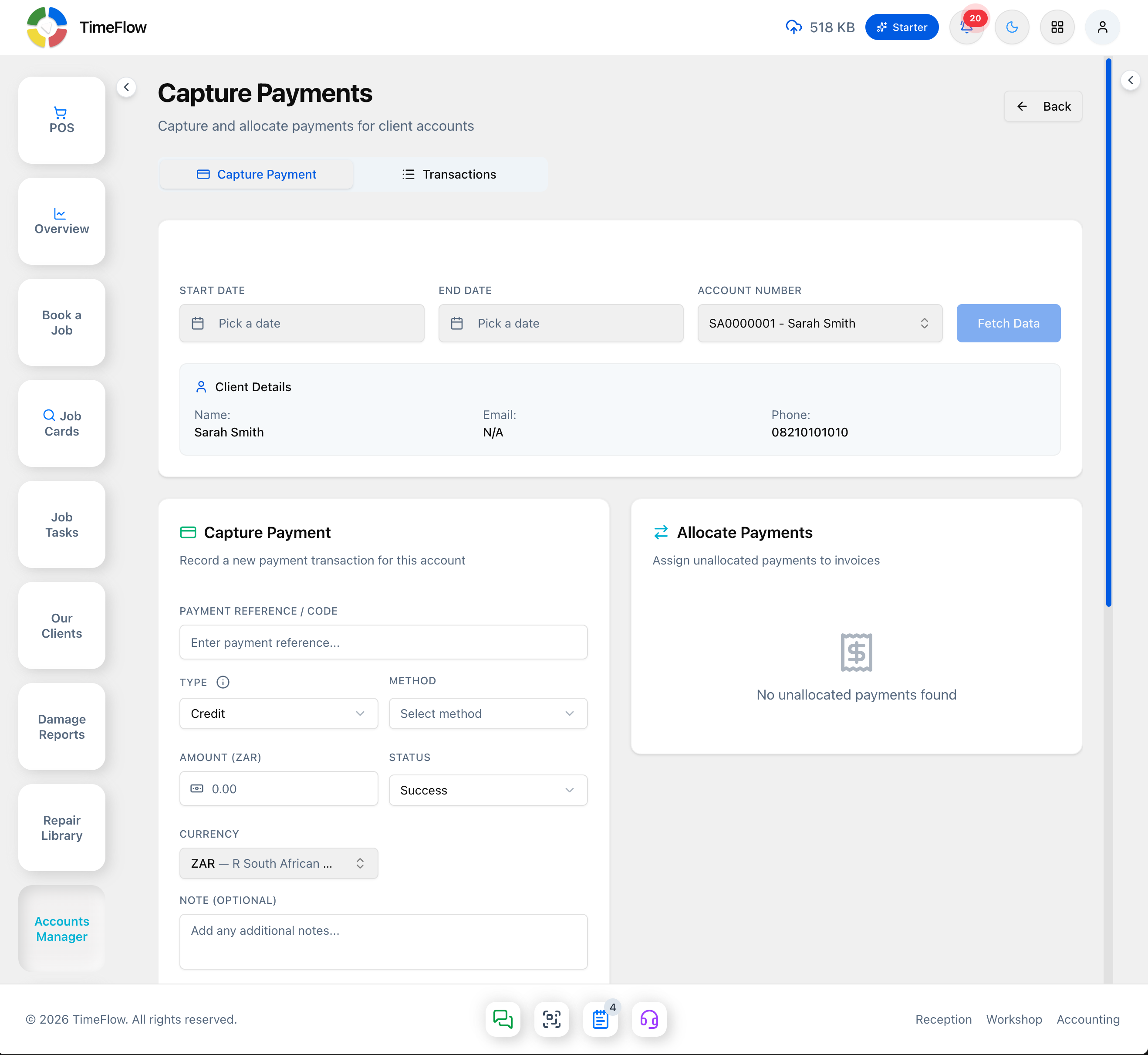
- Set a Start Date/End Date and pick an Account Number (searchable dropdown of financial accounts), then click Fetch Data. The account's Client Details (Name, Email, Phone) load above.
- The Capture Payment card records a new transaction for that account: Payment Reference/Code, Type (Credit or Debit), Method, Amount, Status (e.g. Success), Currency, an optional Note, and optional Transaction Documents (drag-and-drop upload, PDF/DOC/Images, max 25MB per file). Click Capture Payment to save.
- The Allocate Payments card ("Assign unallocated payments to invoices") lists any of this account's payments still waiting to be applied — "No unallocated payments found" when there are none.
- Below both cards, an Orders table (Order No, Date, Quotation, Invoice, Amount, Allocated Amount, Balance Due, Status, Actions) shows that account's orders for the selected date range, so you can see at a glance what a captured payment could be allocated against — "No orders found for the selected criteria" if the account/range has none.
Transactions tab
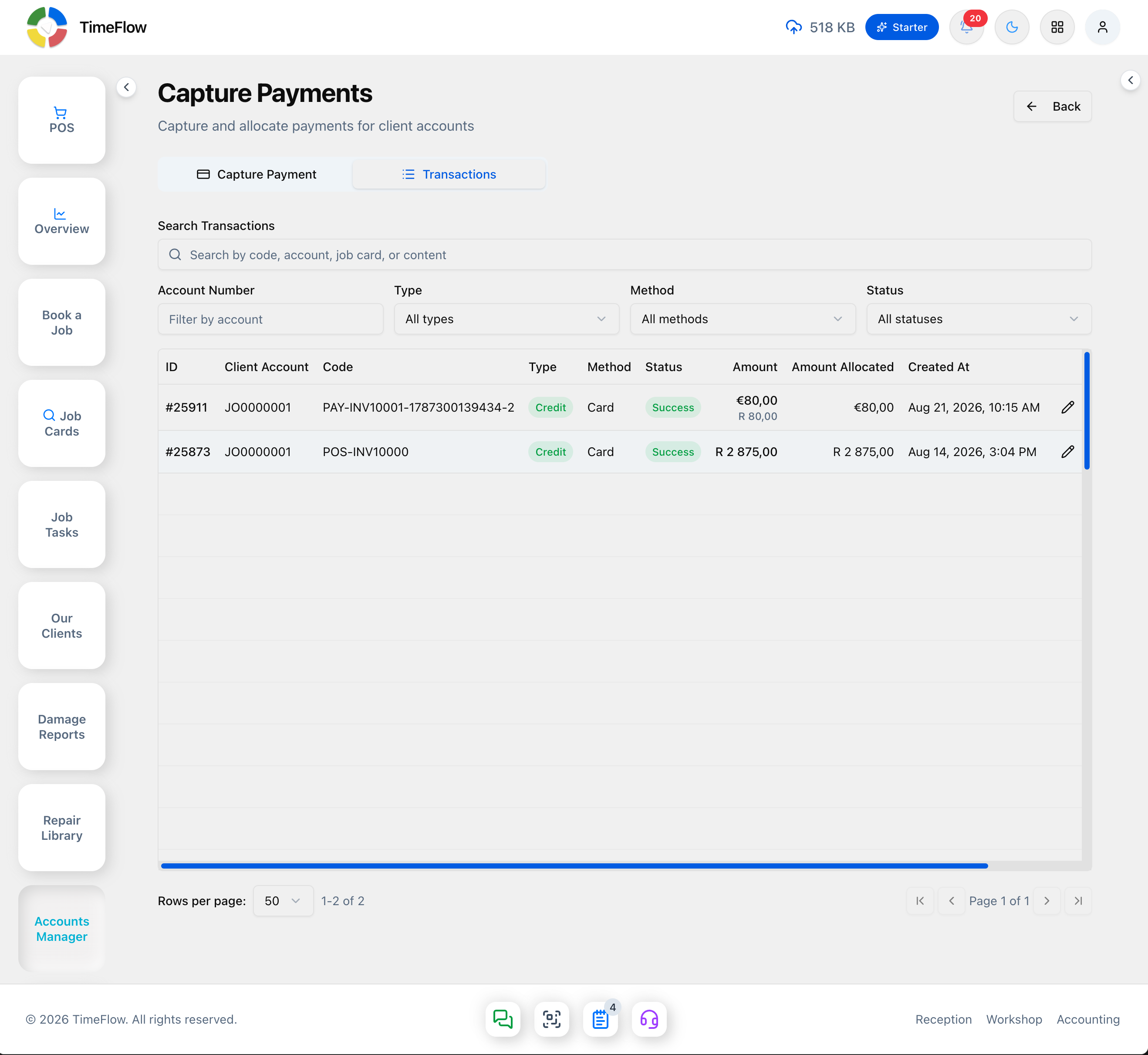
- A Search Transactions box plus Account Number, Type, Method, and Status filters narrow the list.
- The results table lists every captured payment company-wide: ID, Client Account, Code, Type, Method, Status, Amount, Amount Allocated, and Created At, with a pencil icon to edit a row.
Applying deposits or recovering unallocated payments
- In the Deposits card on the invoice edit page, an available deposit can be applied toward the balance.
- If a payment was captured but its allocation failed, check the central Capture Payments page's Allocate Payments card (Capture Payment tab, with that account selected) for it as an unallocated payment you can allocate from there.
Tips
- A deposit is money taken before the invoice exists; a payment is money taken against a specific invoice — both post as credit transactions on the client's financial account, so the client needs one set up.
- Nothing is lost if an allocation fails — it just waits as "unallocated" until you retry.
- Use the central Capture Payments page's Transactions tab when you need to find or audit a payment company-wide rather than by digging through individual invoices or job cards.
Frequently asked questions
How do I take a deposit before a repair?
Open the job card, click the ⋯ menu, choose Deposit, and enter the amount and payment method. It's held as a credit and can be applied to the invoice later.
What happens if a payment allocation fails?
Nothing is lost. The payment waits as unallocated, and you can allocate it from Accounts Manager → Capture Payments.
Related guides
- InvoicesCreate repair invoices for parts and labour with per-line VAT and discounts, link job cards and insurance claims, take payments, and post to the ledger.
- Customer accountsSet up the per-client financial account that invoices, quotes, deposits, and payments post against, including insurance-billed accounts.
- Client statementsGenerate a customer statement of open invoices, credits, and unapplied payments, with 30/60/90/120+ day aging and a downloadable PDF.
