
Statements in TimeFlow
Pull a client account statement of what is still open — unpaid invoices, available credits, and unapplied payments — with an aging view and a printable PDF.
Updated · Sales, invoicing & POS
Before you start
You need statement or accounting permission.
Finding this in the UI
- Left sidebar → Accounts Manager → Statements, or go directly to
/dashboard/accounting/statements. - The header and footer do not have direct links to Statements.
Generating a statement
At the top, choose either:
- Account Number — search and select a financial account directly, or
- Client — search and select a client; TimeFlow finds their financial account for you (and vice versa — picking one fills in the other).
The statement loads as soon as you select an account. While it loads, the page shows Loading statement… and the actions are disabled.
- Refresh reloads that account’s open invoices, credit notes, and unapplied payments.
- Create saves the aging snapshot for the account. The button reads Update once a snapshot already exists. Each account keeps one snapshot.
- Download exports the same open items as a PDF. The Paid card stays on screen only and is not on the PDF.
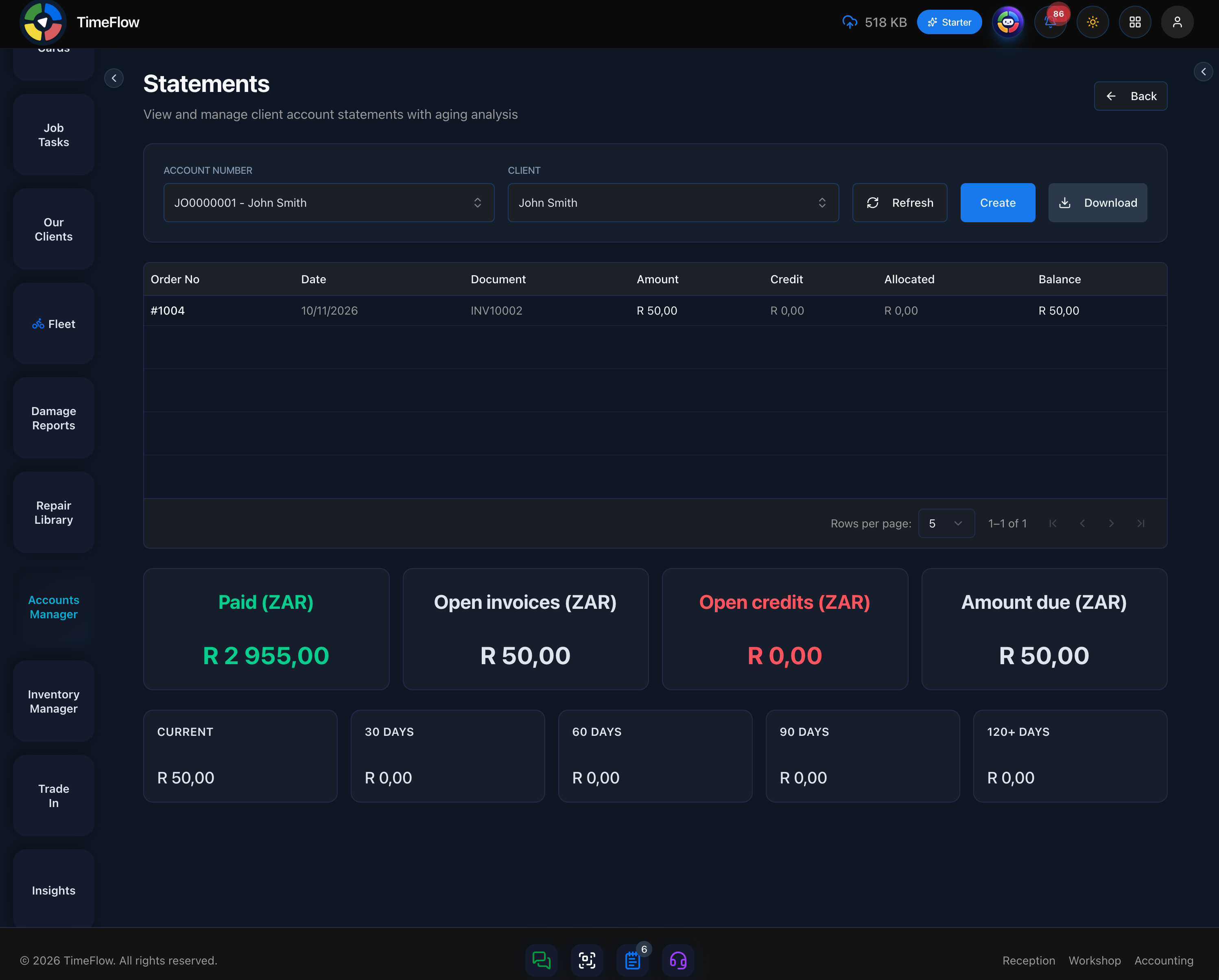
Reading the statement
The table lists open items in date order. Fully paid invoices are left off.
- Order No — the order number. Credit notes and payments are labeled as such.
- Date
- Document — the invoice number, credit note number, or payment code.
- Amount — the invoice total. Credit lines show zero here.
- Credit — an open credit note, or the unapplied remainder of a customer payment.
- Allocated — how much of that document has already been matched.
- Balance — the amount still open. Credits are negative.
A credit note appears in one of two ways:
- Issued — the credit is finished but has not been used on an invoice yet. The full amount is listed and reduces the amount due.
- Applied — the credit has already been used on its invoice. It stays off the statement when that invoice is still open, because the invoice balance already includes it. It stays on the statement when the invoice it closed is no longer open, so a customer who paid that invoice still shows a credit.
Draft and cancelled credit notes stay off. A successful customer payment that is not fully allocated appears for the unapplied remainder until it is matched to an invoice.
Below the table, summary cards show Paid, Open invoices, Open credits, and Amount due in the company base currency. Paid is the amount already received. Amount due is open invoices minus open credits, and it can be negative when the client is owed money.
Aging splits the open invoices into Current, 30 Days, 60 Days, 90 Days, and 120+ Days. Open credits reduce Current, so the five periods still add up to the amount due.
Tips
- Statements read live from the same invoice, credit note, and payment data as the rest of Accounting. Refresh picks up anything recorded since the account was selected.
- Create / Update stores the aging figures for the account. It does not reload the lines.
- If a balance looks wrong, check whether a credit note is still issued or already applied, and whether a payment is still unallocated (see Capturing Payments & Deposits).
Frequently asked questions
Why is a paid invoice missing from the statement?
Statements list open items only. Fully paid invoices are left off; the Paid card on screen shows what's already been received.
Related guides
- Customer accountsSet up the per-client financial account that invoices, quotes, deposits, and payments post against, including insurance-billed accounts.
- Payments & depositsTake an up-front deposit on a repair job card, record and allocate payments against invoices, and capture or search payments for any client account.
- Credit notesCreate credit notes for returns, defective goods, overcharges, or discounts, link them to the original invoice, then issue, apply, and download as PDF.
