
Financial Statements in TimeFlow
Generate the three core financial statements plus an aging report, straight from your General Ledger, with bank-ready PDF exports.
Updated · Accounting & VAT
Before you start
You need accounting permission.
Finding this in the UI
- Left sidebar → Accounts Manager, then in the Reports section click Open Financial Statements, or go directly to
/dashboard/accounting/financial-statements.
The reports
From the hub, choose a report card. Most share a toolbar: set From/To (period reports) or As of date (point-in-time reports), optionally pick a Branch, click Generate, then Download PDF.
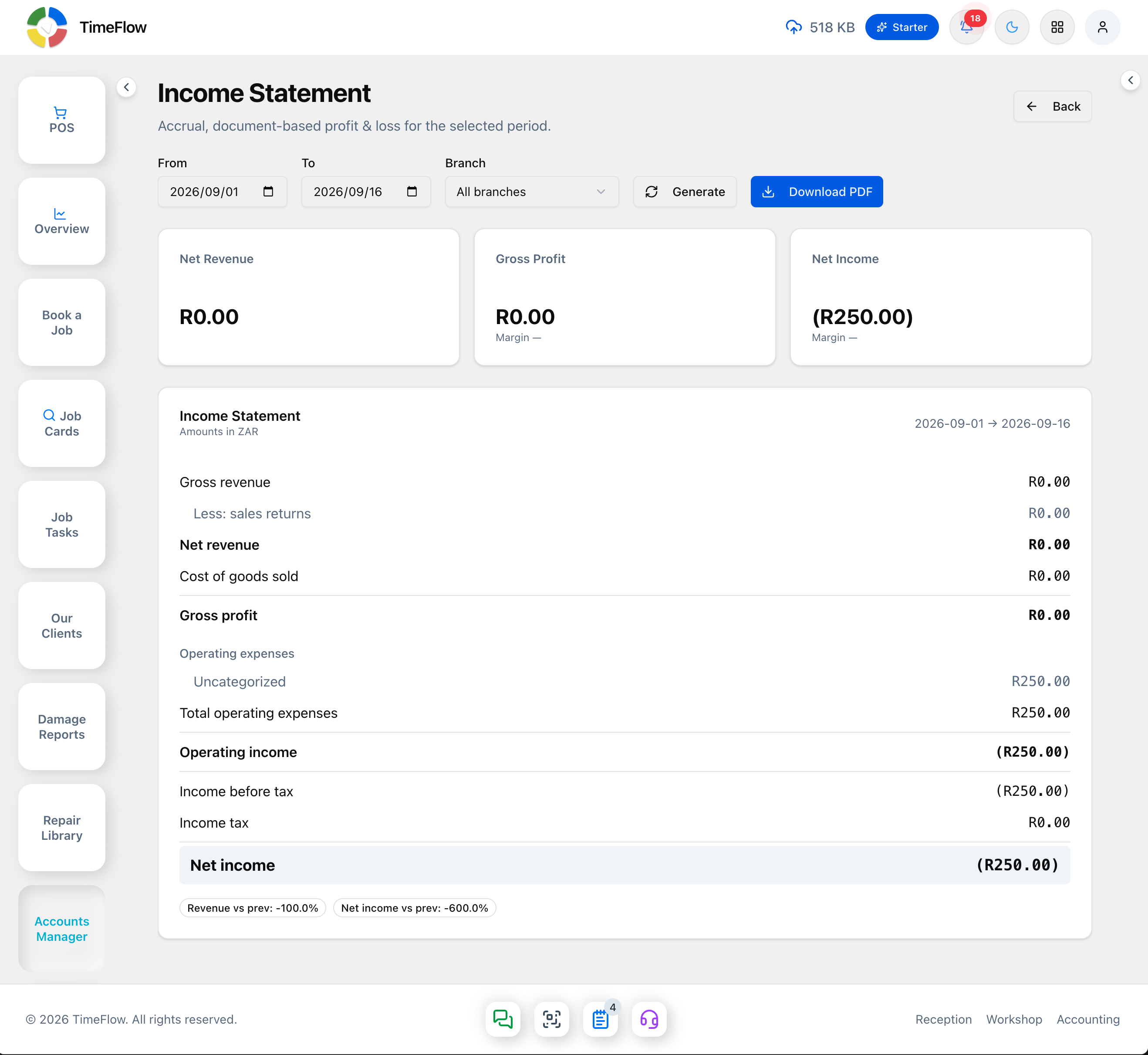
- Income Statement — "Did we make a profit?" Defaults to the current month. Shows Net Revenue, Gross Profit (with margin %), and Net Income (with margin %), then a full breakdown: gross revenue, sales returns, COGS, operating expenses by category (an expense with no Expense Category set shows under "Uncategorized" — see Expense Categories), operating income, other income/expenses, and net income — all accrual-basis (counted when invoiced, not when paid). A comparison line at the bottom shows revenue and net income versus the previous equivalent period.
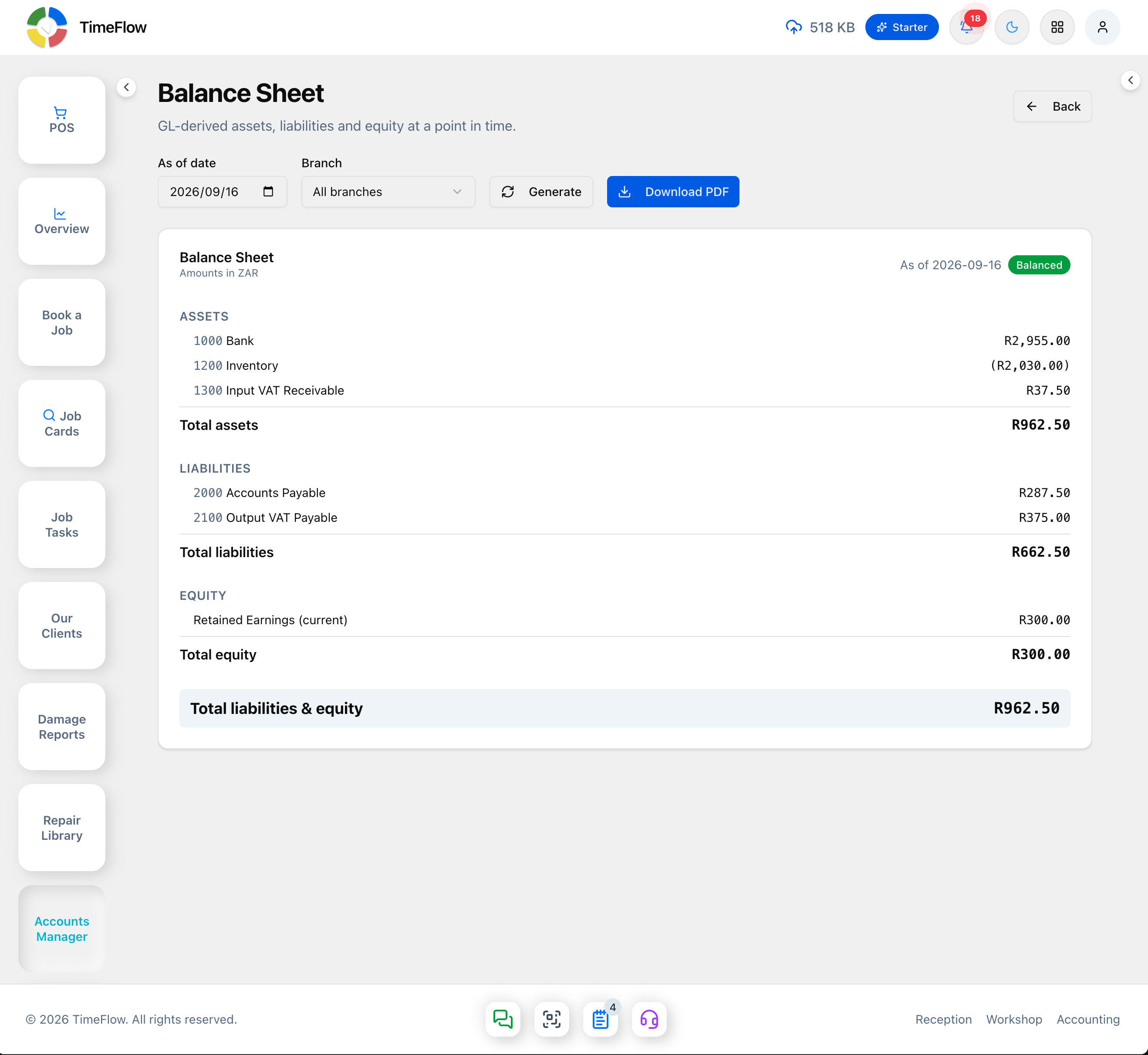
- Balance Sheet — "What do we own and owe right now?" Pick an As-of date. Lists Assets, Liabilities, and Equity; a "Balanced" badge confirms Assets = Liabilities + Equity, with Retained Earnings calculated automatically.
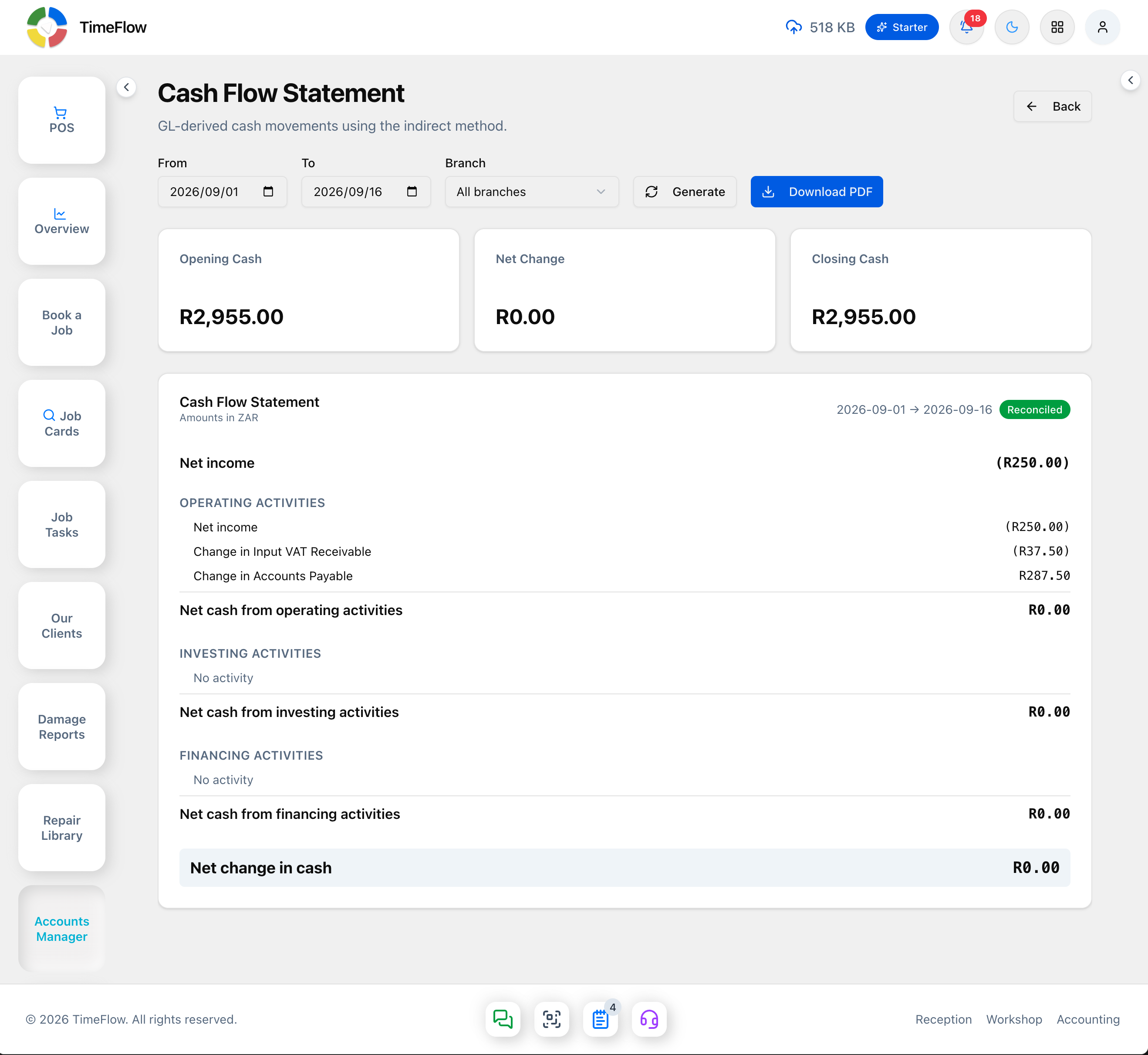
- Cash Flow Statement — "Where did the cash go?" Uses the indirect method over a date range: Opening Cash, Net Change, Closing Cash, broken into Operating, Investing, and Financing activities, with a Reconciled status badge.
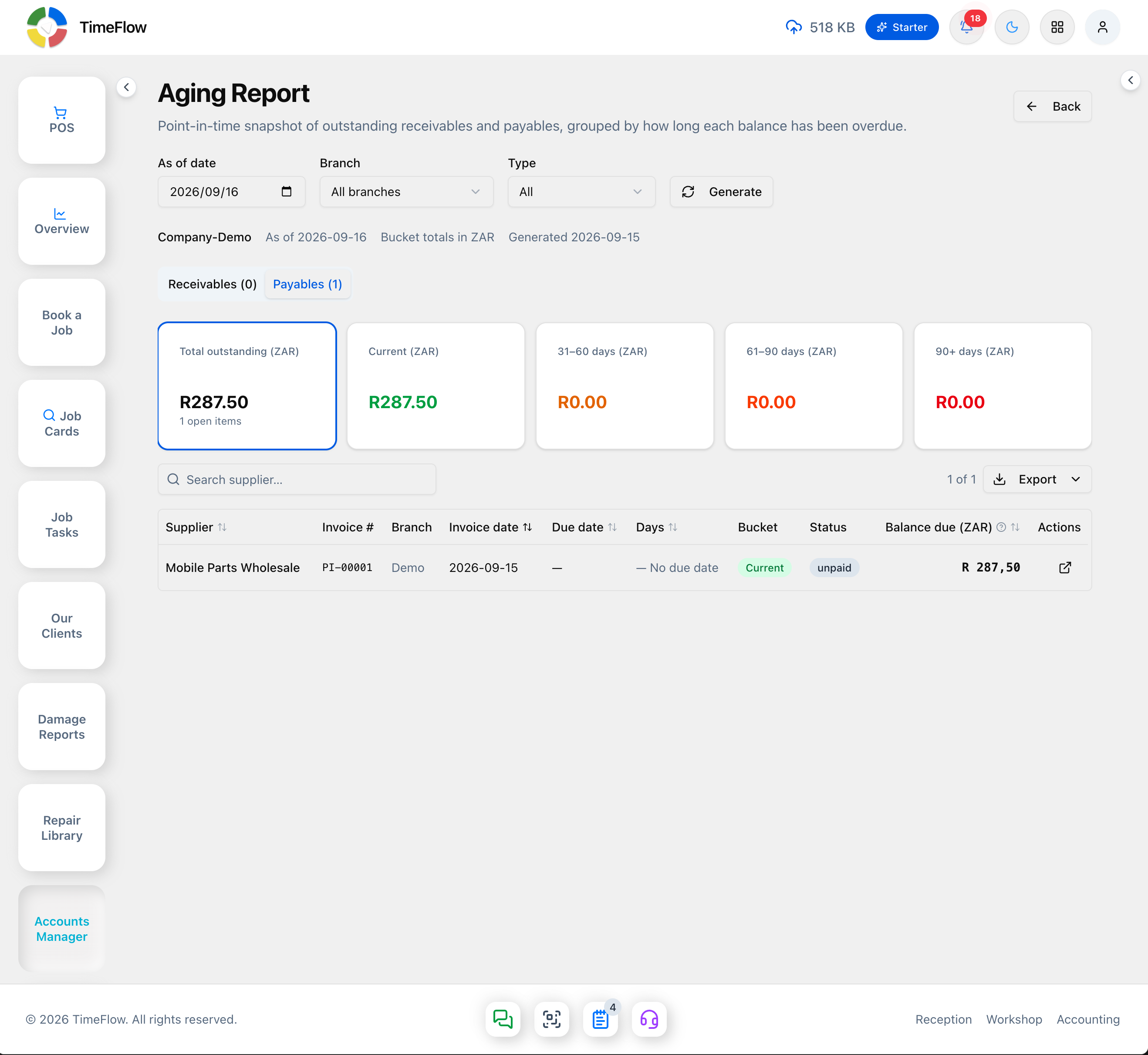
- Aging Report — outstanding receivables and payables as of a date, in four buckets: Current, 31–60 days, 61–90 days, 90+ days (there's no separate 1–30 bucket — anything not yet 31 days overdue is Current). Set an As-of date, optional branch, and Type (All/Receivables/Payables) filter, or use the Receivables/Payables tabs above the bucket cards (each showing a live count). Click a bucket to filter the detail table (Client or Supplier/Invoice #/Branch/Invoice date/Due date/Days/Bucket/Status/Balance due), search by name, and use the external-link icon on a row to open the underlying invoice.
- Tax Reports — a separate card linking to
/dashboard/accounting/tax-reportsfor VAT/statutory summaries.
Tips
- All three core statements are derived from the same General Ledger data, so totals stay consistent across reports.
- Branch filtering only appears if your company has branches configured.
- Use Cash Flow alongside the Income Statement when accrual revenue and actual cash received in the period diverge.
Frequently asked questions
Is the TimeFlow income statement cash or accrual based?
Accrual — revenue is counted when invoiced, not when paid. Use the Cash Flow Statement alongside it to see actual cash movement.
Related guides
- General ledgerDouble-entry books for your repair shop: chart of accounts, automatic journal posting from invoices and payments, period locking, and trial balance.
- Expense categoriesClassify supplier bills and expenses — rent, salaries, stock purchases — as cost of sales, operating, or other expenses so your P&L is right.
- VAT settings & tax reportsConfigure VAT (e.g. South Africa's 15%) with registration, rates, and reporting period, then review output and input tax entries and tax periods.
