
Tax Reports & VAT Settings in TimeFlow
Configure your company's tax registration (VAT and other tax systems) and review the tax entries and reporting periods TimeFlow collects for statutory filing.
Updated · Accounting & VAT
On this page
Before you start
You need company account permission for Tax Configurations, and accounting permission for Tax Reports.
Finding this in the UI
- Tax Configurations: Header → profile menu → Company Account, then the Tax Configs tab.
- Tax Reports: Left sidebar → Accounts Manager → Reports → Financial Statements hub, then the Tax Reports card (or go directly to
/dashboard/accounting/tax-reports).
Setting up a tax configuration
Go to Company Account → Tax Configs tab. Existing configurations show as cards — e.g. a "VAT" card might show VAT (Value Added Tax) for South Africa, Active, with its registration number, Standard Rate, Country, Region, Registration Date, Reporting Period, Fiscal Year Start, Currency, and Branch, plus badges like "Zero Rate Applicable" and "Export Zero Rated". Click Edit on a card to update it.
Click Add Tax Configuration to create a new one. The Create New Tax Configuration form has:
- Branch (Optional) — leave unset for a company-wide configuration, or pick a specific branch.
- Tax Configuration Active checkbox (checked by default).
- Tax System* — dropdown, defaults to "VAT (Value Added Tax)"; other tax systems are selectable if your country uses something else.
- Tax Name* — text field, prefilled "VAT".
- Tax Registration Number — optional (no asterisk), unlike what you might expect.
- Country*.
- Region/Province.
- Standard Rate (%)*, plus optional Reduced Rate (%) and Super Reduced Rate (%) for tax systems that use them.
- Zero Rate Applicable checkbox (checked by default).
- Reverse Charge Applicable checkbox (unchecked by default).
- Export Zero Rated checkbox (checked by default).
- Tax Registration Date.
- Fiscal Year Start Month — dropdown, defaults to January.
- Reporting Period — dropdown, defaults to Monthly.
- Currency — dropdown; check this, it can default to a currency other than your company's base currency.
- Threshold Amount — optional.
- Notes — optional.
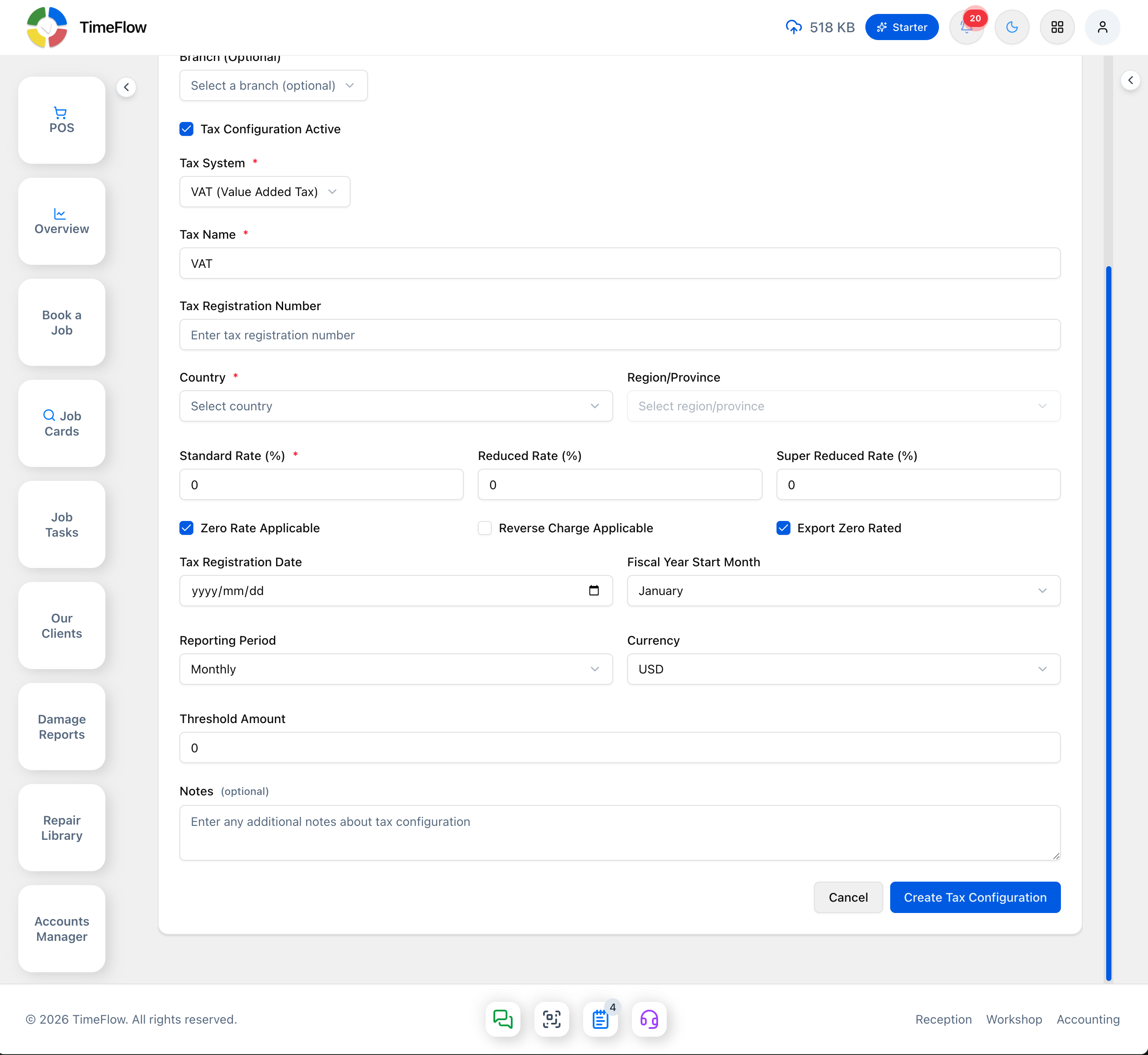
Click Create Tax Configuration to save. There's no certificate upload field on this form — if you need to keep a copy of a VAT certificate or registration document, store it outside TimeFlow.
Reviewing tax reports
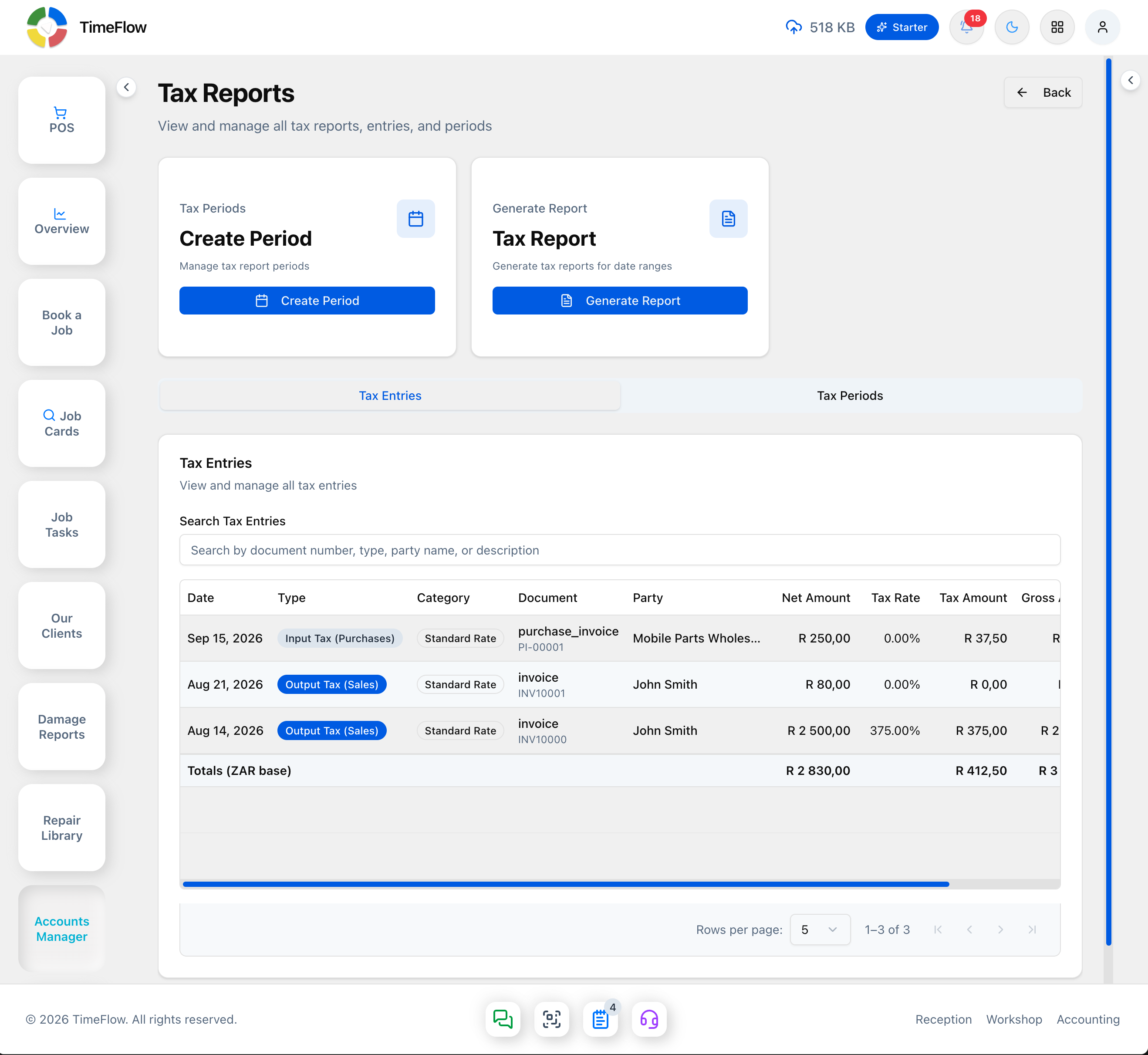
Go to Tax Reports (/dashboard/accounting/tax-reports). At the top there are two shortcut cards — Tax Periods → Create Period and Generate Report → Tax Report → Generate Report — and below them two tabs:
- Tax Entries — every individual tax line item collected from invoices, credit notes, and purchase invoices, with a search box and a table (Date, Type, Category, Document, Party, Net Amount, Tax Rate, Tax Amount, Gross Amount) plus a totals row. "Type" shows things like Output Tax (Sales) for invoices and Input Tax (Purchases) for purchase invoices.
- Tax Periods — a table of reporting periods (Period, Status, Output Tax (ZAR), Input Tax (ZAR), Net Tax (ZAR), Total Sales (ZAR), Total Purchases (ZAR), Actions). Click Create Tax Report Period (or the Create Period shortcut card) to open a dialog: Period Start*, Period End*, Status* (dropdown, defaults to Draft), Submission Date, Payment Date, Payment Reference, Notes, then Cancel/Reset/Create Period.
Tips
- VAT and other tax configurations feed directly into invoice and quotation tax calculations — set them up before processing real sales.
- Credit notes and purchase invoices both contribute to tax entry data, so keep those current for accurate statutory summaries.
Frequently asked questions
Where do I set up VAT in TimeFlow?
Profile menu → Company Account → Tax Configs. Click Add Tax Configuration and set the tax system, rate, country, registration details, and reporting period.
Where do I see my output and input VAT?
Accounts Manager → Financial Statements → Tax Reports. The Tax Entries tab lists every tax line, and Tax Periods summarises output, input, and net tax.
Related guides
- InvoicesCreate repair invoices for parts and labour with per-line VAT and discounts, link job cards and insurance claims, take payments, and post to the ledger.
- Financial statementsGenerate your income statement, balance sheet, cash flow statement, and receivables/payables aging report from the general ledger, with PDF export.
- Company accountManage your repair shop's company details, banking, branches, currency, VAT settings, team members and permissions, and timezone from the Company Account page.
