
Quotations in TimeFlow
Send a client a priced estimate before committing to an invoice, with the same line-item and tax engine as invoices.
Updated · Sales, invoicing & POS
On this page
Before you start
You need accounting permission.
Finding this in the UI
- Left sidebar → Accounts Manager, then Quotations → Add Quotation.
- From a job card ticket's ⋯ more actions menu, choose Quotation to start one pre-linked to that job.
- The header and footer do not have direct links to Quotations.
The Quotations list
Go to Accounts Manager → Quotations to see all quotations. The page opens with a date-range bar (Today, Yesterday, Last 7 Days, ... All Time, or Custom) and a Search Quotations box (by quote number, job card number, client, account, or quoted by). The table lists Quote Number, Job Card, Type, Client, Account, Quoted By, Expiry Date, Currency, Total Amount, and Actions.
Creating a quotation
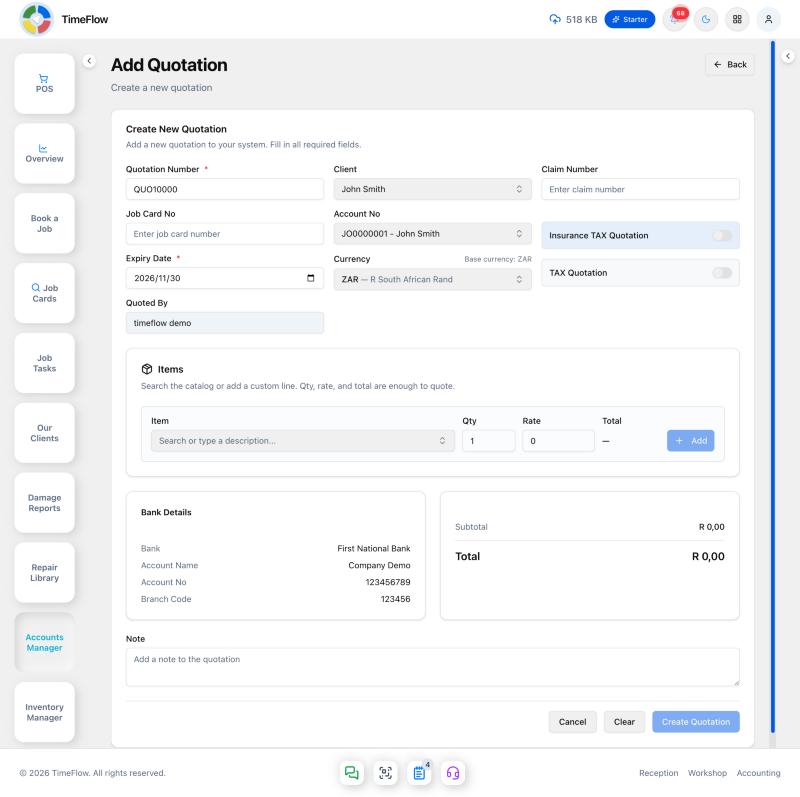
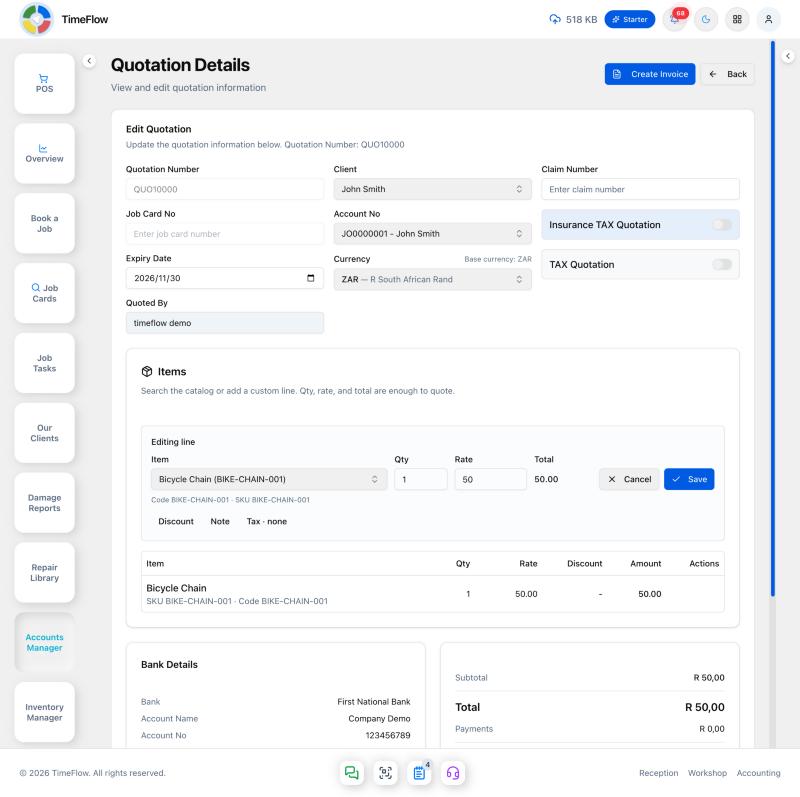
Click Add Quotation. Fill in:
- Quotation Number* — assigned automatically (e.g.
QUO10002) and read-only. - Client — search and select.
- Claim Number — free text, if this quote relates to an insurance claim.
- Job Card No — optional link back to a job card.
- Account No — search and select the client's financial account this quote posts against.
- Insurance TAX Quotation toggle.
- Expiry Date* — how long the quote is valid for.
- Currency (shows your base currency, e.g. ZAR).
- TAX Quotation toggle — include/exclude VAT.
- Quoted By — read-only, filled in automatically with your account name.
There's no "Order" picker on this form — order linkage, if any, happens elsewhere (e.g. via the job card the quotation is linked to).
Adding line items
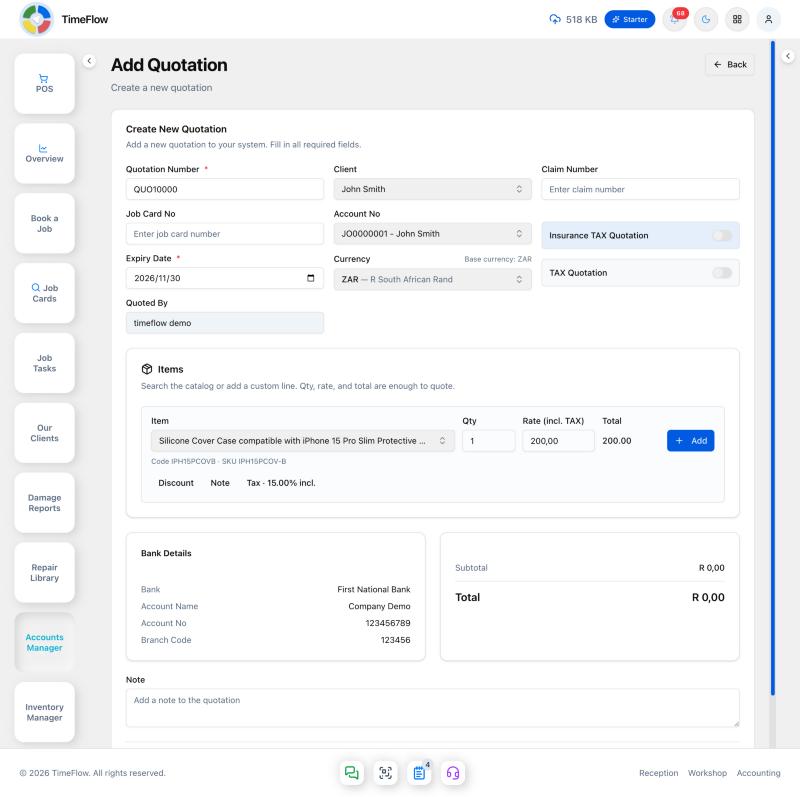
The section is titled Items. One row is enough to add a line: Item, Qty, Rate, a calculated Total, and Add. Item code and SKU sit under that row, so they don't shift the other fields.
- Item — search the catalog, or type a description. The last option in the menu is Add a custom line, highlighted with a plus icon; after you type a search it reads Add "…" as a custom line.
- Choosing a catalog item fills the description, rate, and tax. Its code and SKU appear under the row.
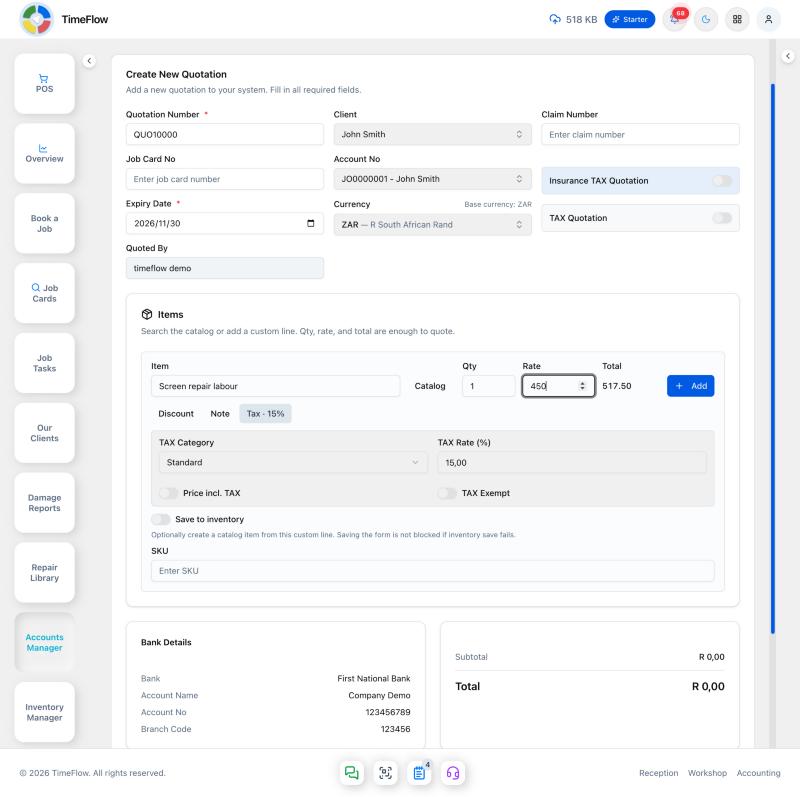
- A custom line replaces the search with a description and a Catalog button to go back. SKU stays visible. Save to inventory is off until you turn it on; then Item Code and SKU are required and a catalog item is created from the line. The quotation still saves if that inventory save fails.
- Discount, Note, and Tax stay closed until you open them. Tax sets the category, rate, Price incl. TAX, and TAX Exempt. The line Total already includes tax.
- Serial or IMEI fields appear only for a serialized catalog item. On a quotation they're recorded on the line and are not taken out of stock.
Add stays disabled until you pick a catalog item or enter a custom description. The line then appears in the table below (Item, Qty, Rate, Discount, Amount) — qty and rate on a line you just added can be changed right there in the table. Remove a line with the trash icon. Repeat Add for each item. Nothing is saved until you click Create Quotation.
Bank Details shows a single read-only block (Bank, Account Name, Account No, Branch Code) pulled from your company's bank details — it's not something you fill in here. A Subtotal/Total summary and a single Note field ("Add a note to the quotation") sit below it. Click Create Quotation to save (or Clear to reset the form, Cancel to leave).
Editing a quotation
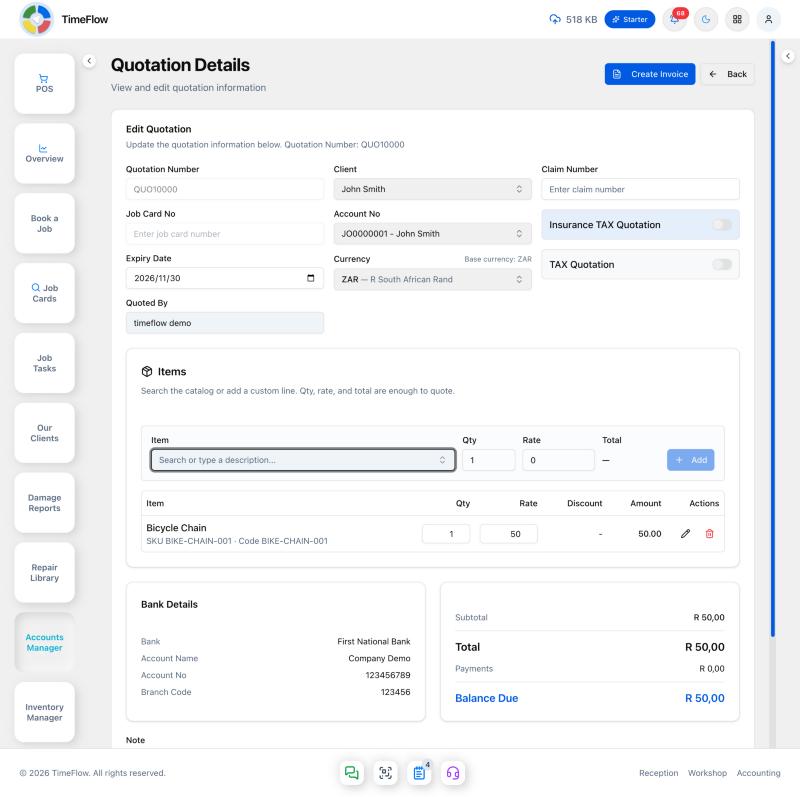
From Accounts Manager → Quotations, click the pencil on a row. The same Items row is used to add another line, and each saved line can be changed right in the table — qty and rate save as soon as you leave the field. The pencil on a saved line opens Editing line, with Save and Cancel, for the description, discount, note, tax, or serial numbers. Removing a saved line asks you to confirm. Click Update Quotation to save the quotation header; line adds, edits, and removals are already saved as you make them.
After saving
A saved quotation can be downloaded/printed as a PDF, and — once the client accepts — converted into an invoice so you don't have to re-key the line items.
Tips
- Quotations don't post to the General Ledger; only invoices and payments do.
- Use the same client and financial account on the quotation and the invoice it becomes, so history stays linked.
Frequently asked questions
Can I turn a repair quote into an invoice?
Yes. Once the client accepts, a saved quotation can be converted into an invoice so you don't have to re-key the line items.
Do quotations affect my accounts?
No. Quotations don't post to the General Ledger — only invoices and payments do.
Related guides
- InvoicesCreate repair invoices for parts and labour with per-line VAT and discounts, link job cards and insurance claims, take payments, and post to the ledger.
- Booking a job cardBook a device or vehicle in for repair: create a digital job card with client details, IMEI/serial, condition, fault, insurance claim, and intake photos.
- VAT settings & tax reportsConfigure VAT (e.g. South Africa's 15%) with registration, rates, and reporting period, then review output and input tax entries and tax periods.
