
Serialized Items (IMEI / Serial Tracking) in TimeFlow
Track high-value items — phones, tablets, laptops — as individual units by IMEI and/or serial number, rather than just a quantity count.
Updated · Inventory & purchasing
On this page
Before you start
You need inventory permission. Once turned on for an item, tracking cannot be turned off, and converting a bulk item to tracked units cannot be undone.
Finding this in the UI
- Left sidebar → Inventory Manager → Items. There's no separate "Serialized Items" page — it's a setting on individual items, with its own Units table on that item's edit page.
Turning on tracking for a new item
Go to Inventory → Items → Add Item, fill in item code, SKU, product details, and pricing as usual, then under Inventory Information turn on Track IMEI / serial per unit and save. Quantity, sold, available, and defective are no longer entered by hand — they're counted automatically from received units, and the item-level Serial Number field disappears.
Converting an existing bulk item
Open the item's edit page and click Track IMEI / serial (next to the Inventory Information heading). A dialog explains: "Scan one identifier for each of the N units currently in stock. This cannot be undone. Historical sold and defective counts stay as anonymous placeholders." Optionally set supplier, unit cost, condition, and physical location, then scan/type each identifier into the box and press Enter — a counter shows "X of N identifiers scanned" and each one appears as a removable chip. Once the counter matches, click Convert item — this is permanent.
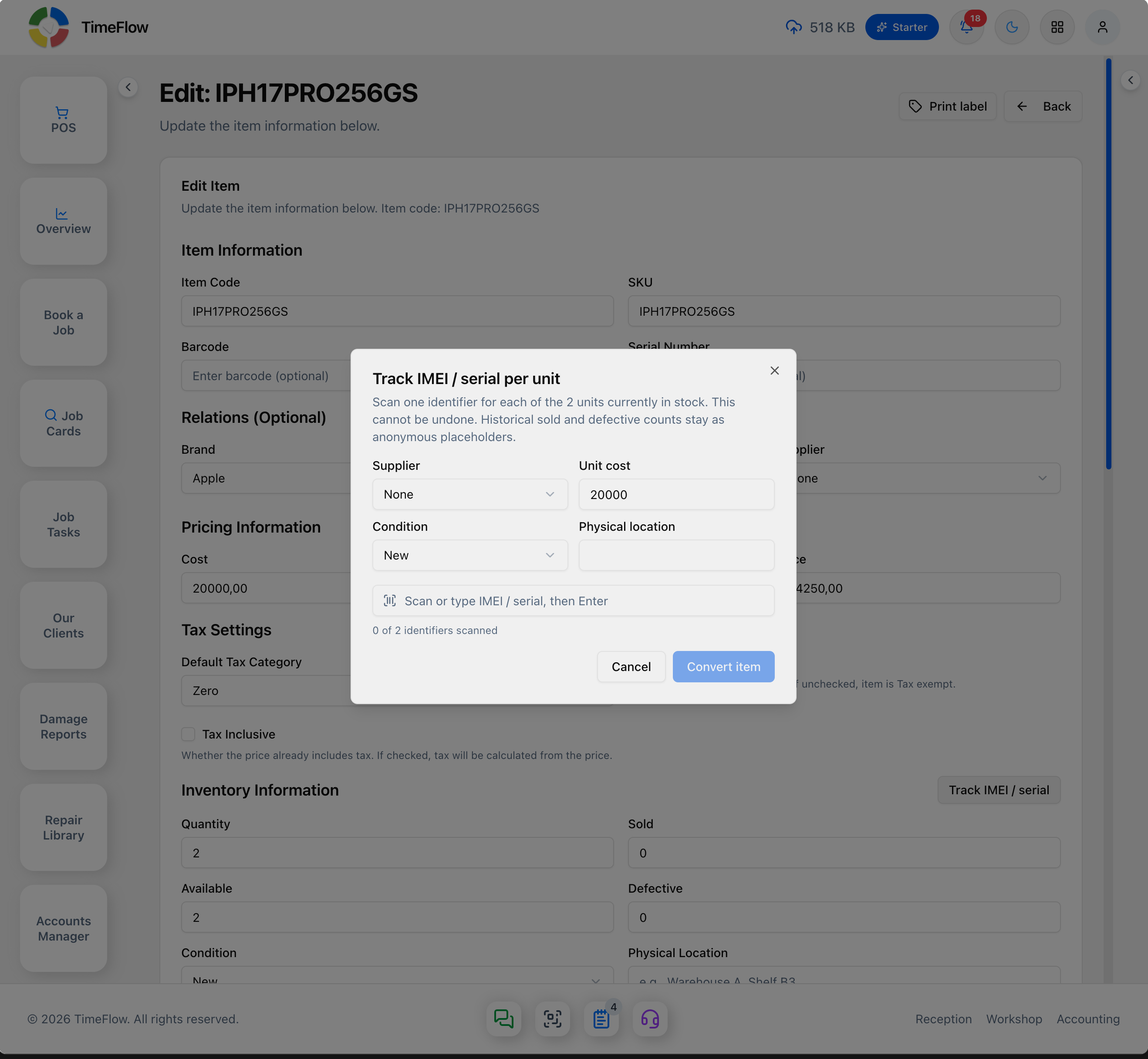
Once converted, the item shows an IMEI / serial tracked badge, its Quantity/Sold/Available/Defective fields become read-only ("Derived from received units"), and a Units table and Receive units button appear.
Receiving units
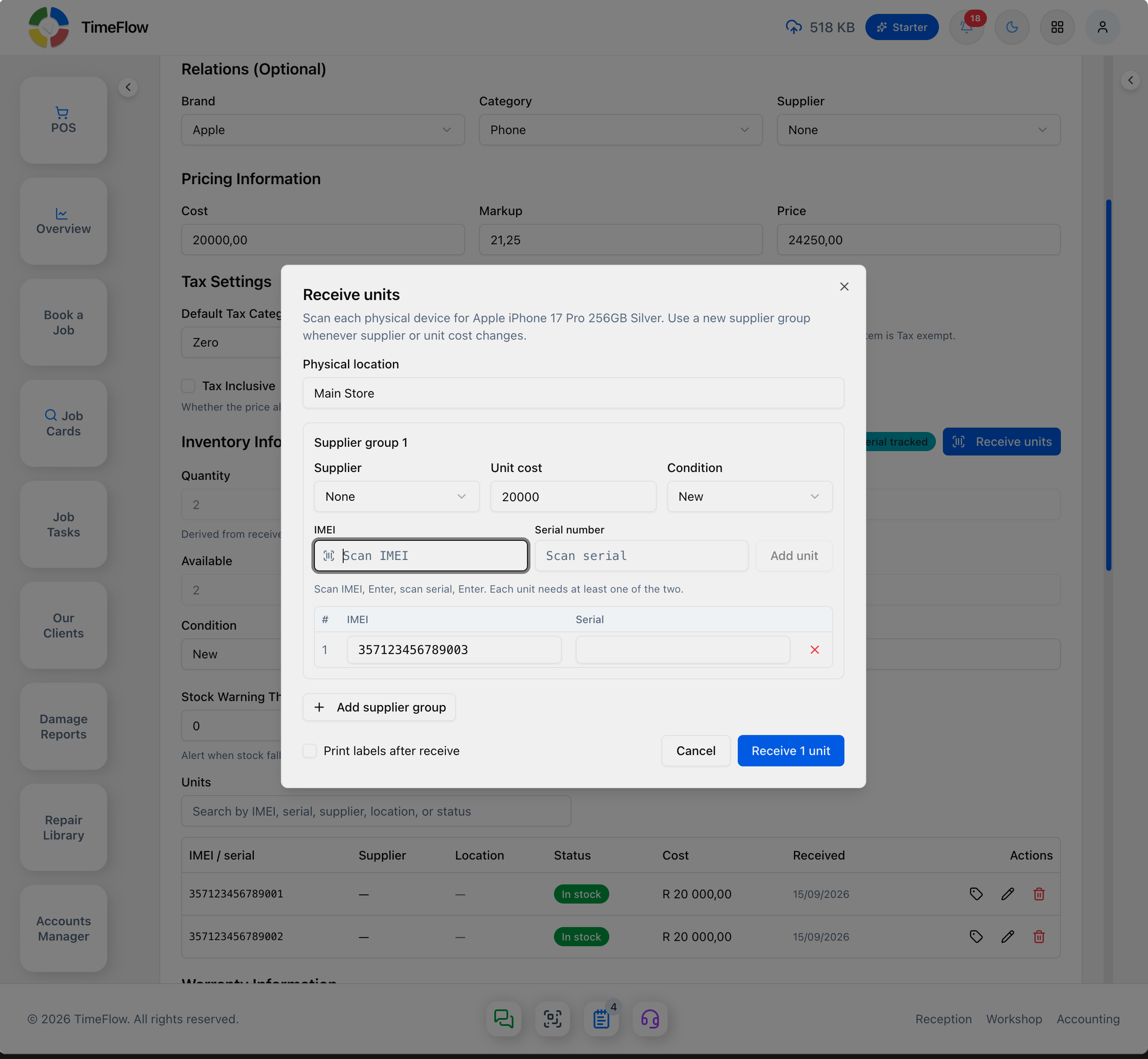
Open the item (now showing the IMEI / serial tracked badge) and click Receive units:
- Set the Physical location (e.g. Main store).
- Each supplier group has its own Supplier, Unit cost, and Condition — click + Add supplier group whenever those change.
- Scan each device: type/scan into IMEI, press Enter (focus moves to Serial number), optionally scan Serial number, then click Add unit (or press Enter again). Each unit needs at least one identifier; added units appear in a table below with a remove (×) action. The submit button updates live, e.g. "Receive 2 units".
- Turn on Print labels after receive to print a barcode label per scanned unit automatically (see the Hardware Setup guide).
Managing units
The item's Units table lists IMEI/serial, Supplier, Location, Status (a colored badge, e.g. "In stock"), Cost, Received date, and actions — quantity/sold/available/defective on the item itself are read-only, derived from this table.
- Search units by IMEI, serial, supplier, location, or status.
- Click the pencil to open Edit stock unit: IMEI, IMEI 2, Serial number, Unit cost, Condition, Physical location, Status, and Notes, then Save changes. Status can only be changed to In Stock, Defective, or Returned while the unit isn't sold, consumed, reserved, or in transit.
- Click the trash icon to remove an In Stock or Defective unit — this marks it Returned (to supplier) and is not reversible from here.
- Click the tag icon to print that specific unit's barcode label.
Selling and consuming units
- POS: serialized products show an IMEI badge. Scan a device's IMEI/serial to pin that exact unit to the cart, or tap the product card and leave identifiers empty to sell the oldest in-stock unit (FIFO).
- Invoices: after you select a serialized catalog item, an IMEI/serial field appears under the Items row. Scan identifiers, or leave them empty to use the oldest in-stock units when the invoice is saved. A custom line does not show this field.
- Quotations: the same field appears for a serialized catalog item. Identifiers are recorded on the quotation and are not taken out of stock.
- Job task parts: on a job task's Parts Used section, selecting a serialized item lets you scan IMEIs or leave empty to consume the oldest units.
If a scanned IMEI is already sold, reserved, or unavailable, TimeFlow shows an "IMEI/SN not available" dialog — choose Add in-stock unit to pick a different one, or cancel and search by product name.
Tips
- Reserve serialized tracking for individually-identifiable, high-value devices; keep bulk parts (screens, batteries, adhesives) unserialized.
- FIFO means whichever in-stock unit was received earliest gets used first whenever you leave identifiers empty.
- Unit statuses: In stock, Reserved, In transit, Sold, Consumed, Defective, Returned — the last four are locked from manual status changes.
Frequently asked questions
Can I turn off IMEI/serial tracking later?
No. Once tracking is on for an item, it can't be turned off, and converting a bulk item to tracked units can't be undone.
What happens if I don't scan an IMEI when selling?
TimeFlow uses FIFO and sells or consumes the oldest in-stock unit automatically.
Related guides
- Items, categories, brands & suppliersSet up repair parts and stock items with cost, markup, VAT, warranty, and low-stock thresholds, organised by category, brand, and supplier.
- Point of sale (POS)Sell accessories and devices at the counter with TimeFlow POS: barcode and IMEI scanning, held orders, discounts, and cash, card, EFT and other payments.
- Receipt & label printersConnect thermal receipt printers (58/80mm ESC/POS) and barcode label printers (Zebra ZPL, Brother, Dymo) to TimeFlow using QZ Tray.
