
Goods Receipt Notes (GRNs) in TimeFlow
Record what actually arrived against a purchase order, then confirm receipt to lock the note and update the PO's received quantities.
Updated · Inventory & purchasing
On this page
Before you start
You need accounting permission. This is a Beta feature; each GRN ties to exactly one purchase order.
Finding this in the UI
- Left sidebar → Accounts Manager, then Goods Receipt Notes (Beta) → View Goods Receipt Notes, or go directly to
/dashboard/accounting/goods-receipt-notes. - From a specific PO: open its detail page and click Add GRN, which brings you here with that PO pre-selected.
Creating a GRN
- Pick an eligible purchase order (not closed or cancelled, with at least one line item) if it isn't pre-selected.
- The GRN number is suggested automatically from your last one (e.g. GRN-10001 after GRN-10000) — adjust if needed.
- Set the receipt date and optional header notes.
- The Items to Receive table loads every PO line showing Description, Ordered, Already Received, Remaining, Qty to Receive, and a per-line Notes field — fill in at least one line's Qty to Receive. Entering more than Remaining is flagged as a possible over-receipt but doesn't block saving.
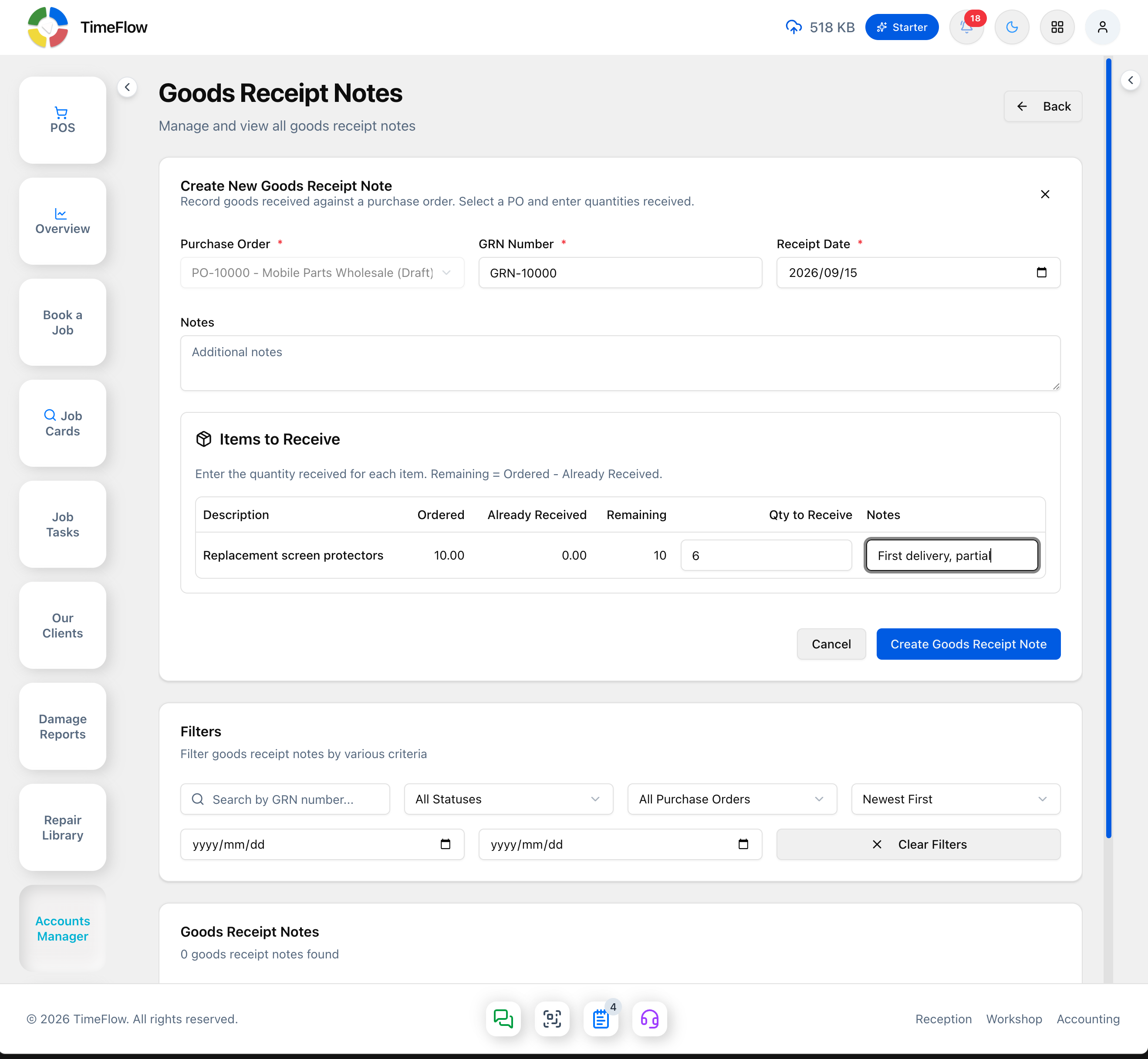
- Submit Create Goods Receipt Note — it's created in Draft status. You can create multiple GRNs against the same PO for partial deliveries.
Confirming and locking
While a GRN is Draft, its detail page shows Confirm Receipt, Edit, and Delete buttons — Edit lets you change the number, date, notes, and quantities.
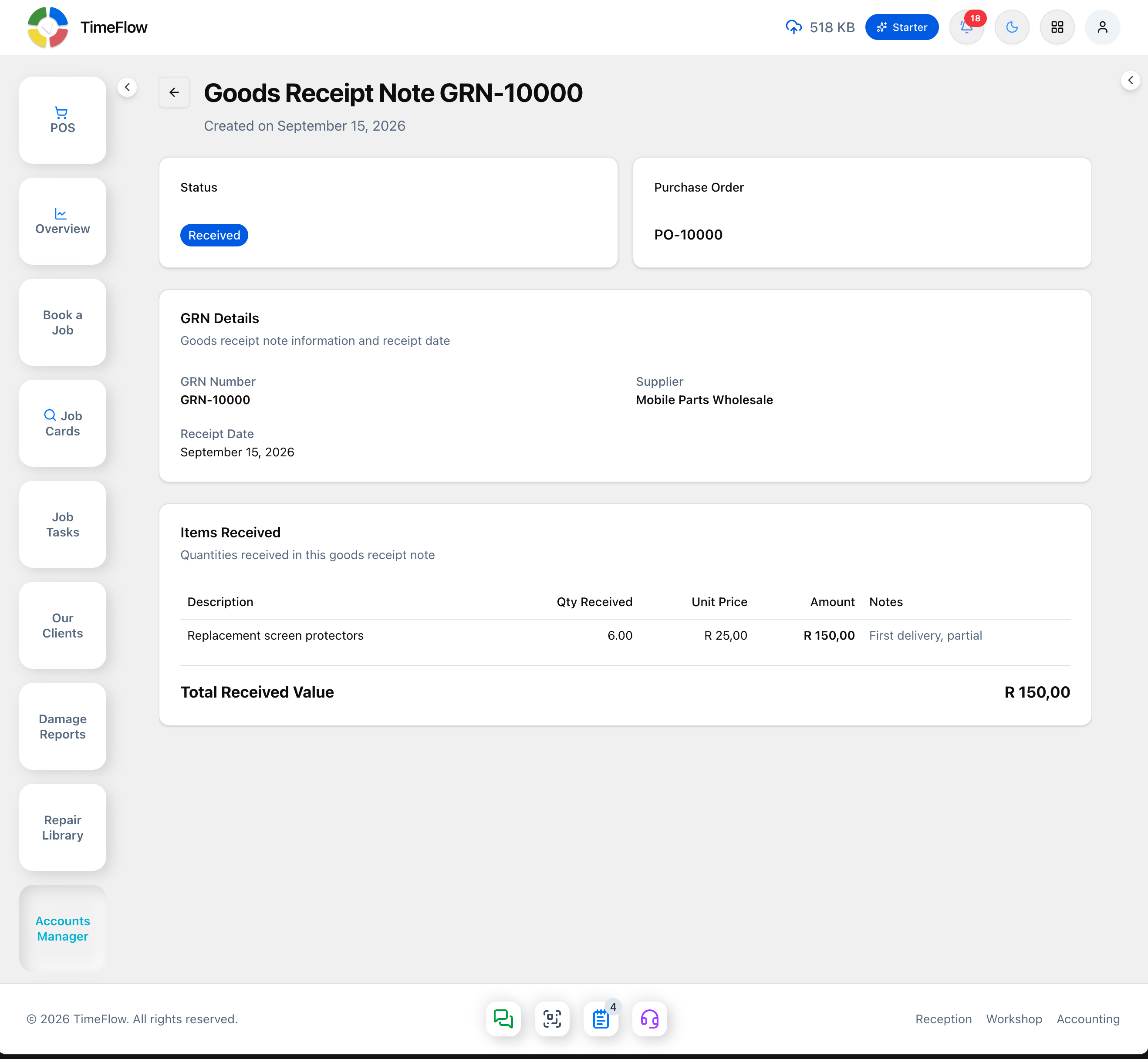
Click Confirm Receipt; a confirmation dialog asks "Confirm that goods have been received... This will lock the GRN and update the purchase order receipt status." Confirming sets the GRN to Received and removes Confirm Receipt/Edit/Delete from the page entirely — a Received GRN can't be edited, deleted, or confirmed again (use PDF/print from the list instead). The linked PO's line-item Qty Received/Remaining and its own status (e.g. Partially Received) update immediately to match.
Finding and exporting
Filter the list by search (GRN number), status (Draft/Received), purchase order, receipt date range, and sort by date. Use the download menu for Download PDF or Print.
Tips
- Receiving a second partial shipment against the same PO automatically reflects the first GRN's quantities in "Already Received."
- Once a PO is Closed, no new GRNs can be created against it.
Frequently asked questions
Can I receive a purchase order in several deliveries?
Yes. Create multiple GRNs against the same PO; each shows what was already received so you only enter the new quantities.
Related guides
- Purchase ordersCreate supplier purchase orders for parts and stock, send them, and track them from draft to partially received and received with goods receipt notes.
- Purchase invoicesRecord supplier invoices with or without a purchase order, claim input VAT, approve, and track payment status from unpaid to paid.
