
Notification Settings in TimeFlow
Choose which categories send you email alerts, in-app notifications, or both.
Updated · Getting started & account
Before you start
The Notifications tab only appears for the owner or a manager job title, even though the toggles it controls are your own personal preferences.
Finding this in the UI
- Header → profile menu → Settings, then the Notifications tab.
- The left sidebar and footer do not have direct links here.
Changing your preferences
The page is headed "Notification preferences" — "Control how you receive alerts for each category. Changes save automatically when you toggle a switch." Each category (currently all under one "Jobs & repairs" group: Job Card, Task, Task Status, Task Overdue, Job Comment, Job Report, Damage Report — TimeFlow may add more over time) has two independent switches, in an Email/In-app table:
- Email notifications — send an email when something happens in this category.
- In-app notifications — show a notification in the bell icon in the header.
Toggle any switch and it saves immediately — there's no separate Save button.
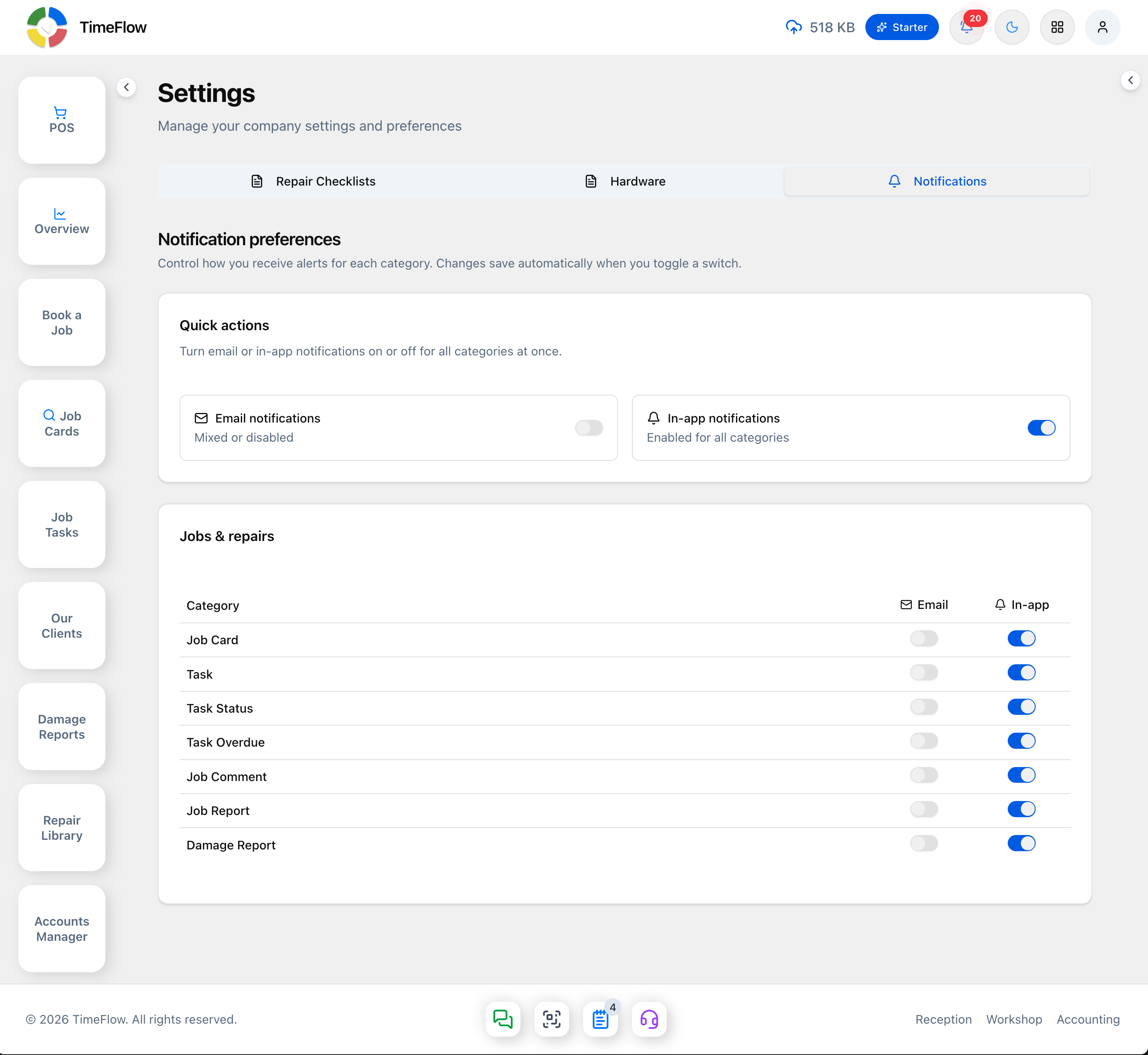
Use the Quick actions card at the top to turn all email notifications, or all in-app notifications, on or off in one click, instead of toggling every row individually — each of its two switches also summarizes the current state below its label (e.g. "Mixed or disabled" or "Enabled for all categories").
Tips
- Don't assume every category starts the same way — email and in-app switches can differ per category, so check the actual state rather than assuming a default.
- If you're missing an alert you expected, check both switches for that category — email and in-app are controlled separately.
Frequently asked questions
Who can change notification settings in TimeFlow?
The Notifications tab appears only for the owner or manager job titles. Changes save automatically as soon as you toggle a switch.
Related guides
- NotificationsUse the TimeFlow notification bell and full notifications page to see job, task, and comment alerts, mark them read, and jump straight to the related record.
- Account settingsFind TimeFlow's Settings page and its three tabs — repair checklist templates, receipt and label printer hardware, and notification preferences.
