
Account Settings in TimeFlow
The Settings page is where repair checklists, connected hardware, and (for owners/managers) notification preferences all live, organized into tabs.
Updated · Getting started & account
Before you start
You need settings permission. The Notifications tab additionally requires the owner or manager job title.
Finding this in the UI
- Header → profile menu → Settings, or go directly to
/dashboard/accounts/settings. - The left sidebar and footer do not have direct links here.
The tabs
- Repair Checklists — define the pre-repair and post-repair checklist templates technicians work through on job tasks (see Repair Checklist Templates for the full guide).
- Hardware — connect and configure receipt printers, label printers, and barcode scanners (see Hardware Setup for the full guide).
- Notifications (owner/manager only) — turn email and in-app alerts on or off per category (see Notification Settings for the full guide).
Tips
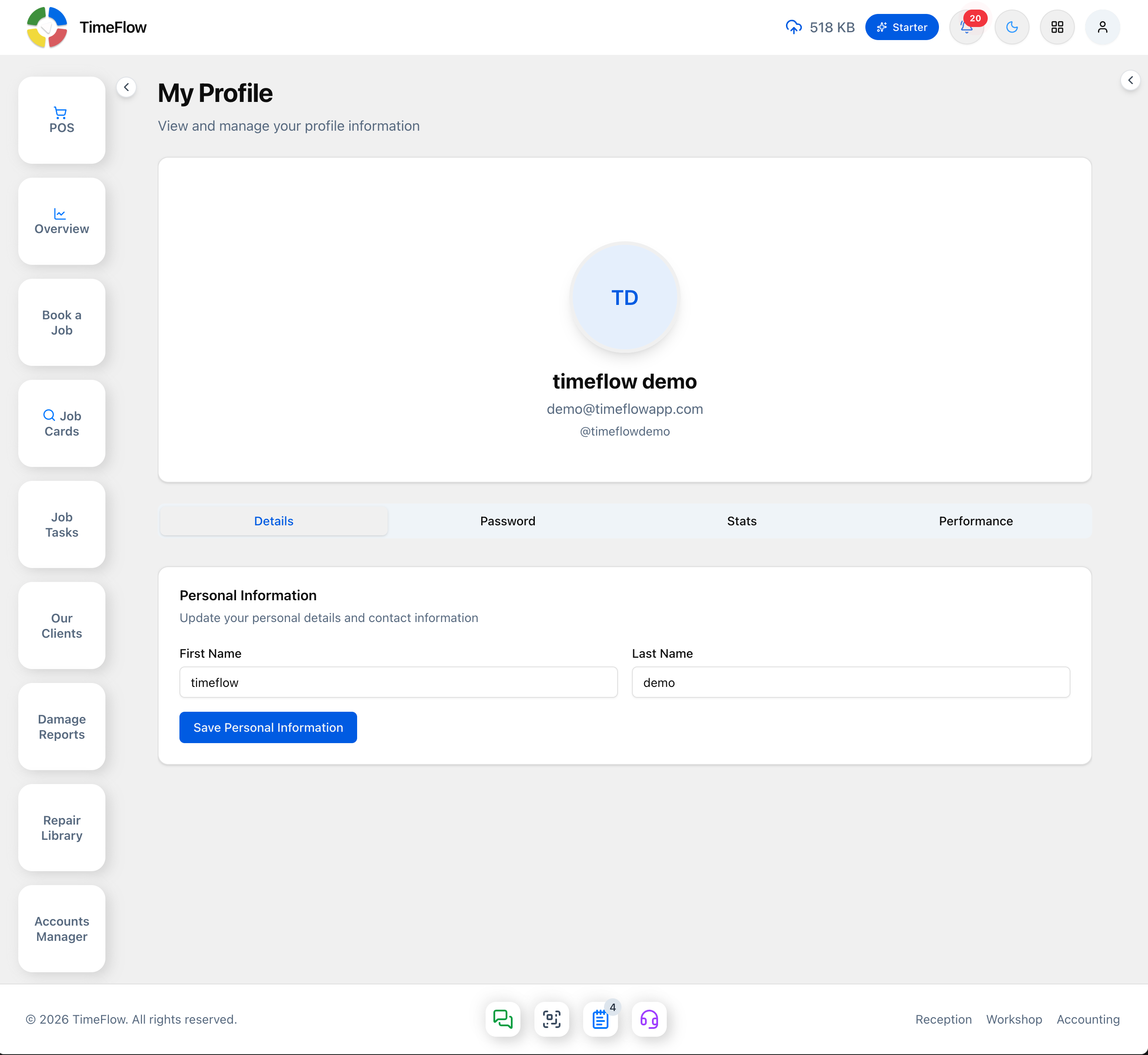
- This Settings page is distinct from two other pages reached from the same profile menu: Company Account (company details, banking, branches, currency, VAT/tax configs, team members, timezone — see the Company Account guide) and My Profile (your own Details, Password, Stats, and Performance tabs — this is where you change your password, not Company Account or Settings).
Frequently asked questions
Where do I change my password in TimeFlow?
Passwords are changed on My Profile → Password (profile menu → My Profile), not on the Settings or Company Account pages.
Related guides
- Repair checklist templatesBuild pre-repair and post-repair quality-control checklists for technicians, with required items, branch-specific templates, and per-item notes.
- Receipt & label printersConnect thermal receipt printers (58/80mm ESC/POS) and barcode label printers (Zebra ZPL, Brother, Dymo) to TimeFlow using QZ Tray.
- Notification settingsChoose which job card, task, overdue, comment, and report events send email or in-app alerts in TimeFlow, with quick actions to switch everything on or off.
