
Repair Library in TimeFlow
A shared library of repair files — schematics, manuals, guides, and firmware — that technicians can search, download, and contribute to.
Updated · Workshop & technicians
On this page
Before you start
You need technician permission.
Finding this in the UI
- Left sidebar → Repair Library opens the library directly (
/dashboard/workshop/repair-library). - From the Workshop hub, Quick Actions or the sidebar's Dashboard item (for technicians) gets you to the hub, from which Repair Library is also reachable.
Browsing and filtering
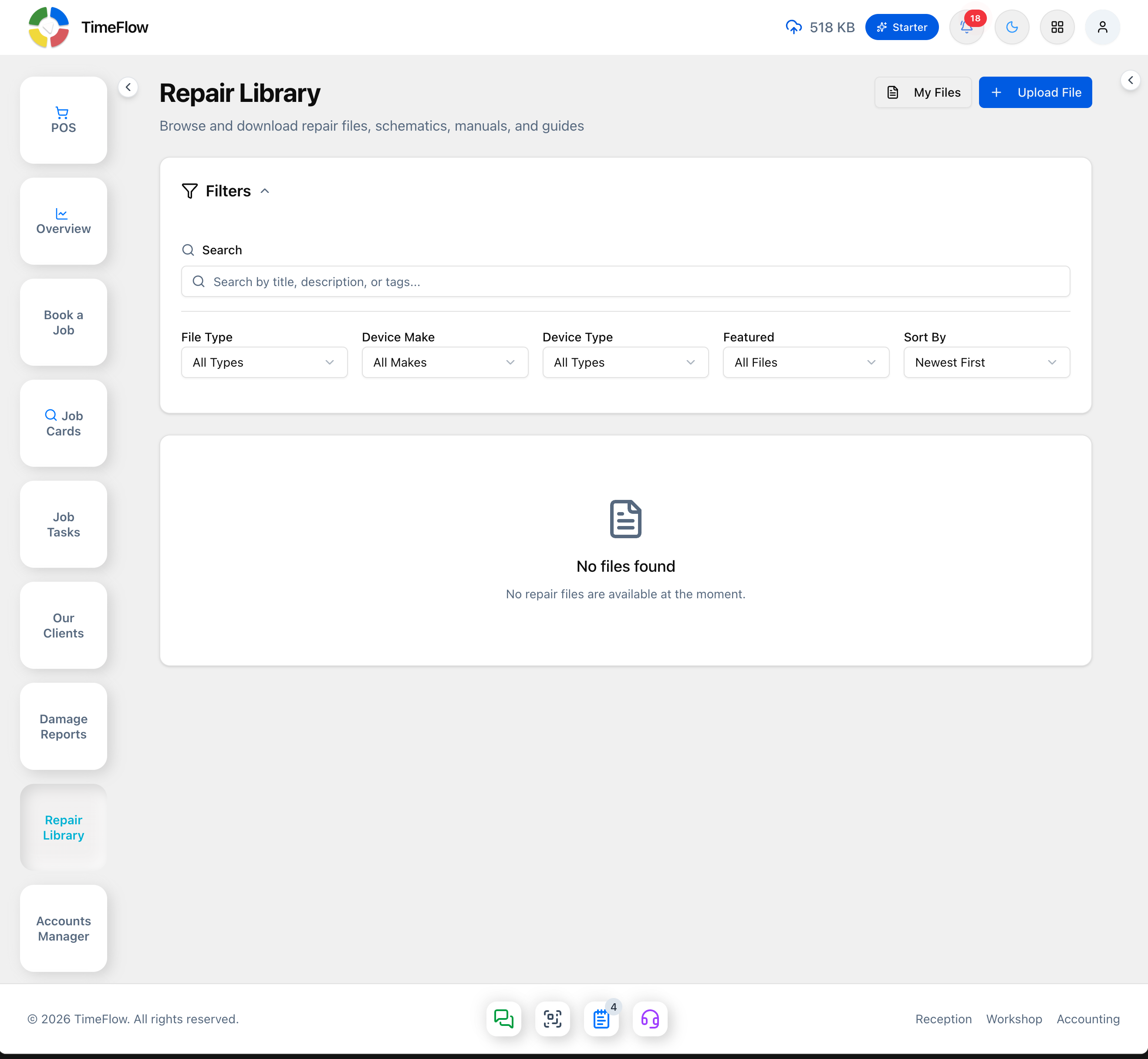
Go to Repair Library. Use the search box and filters to narrow results by:
- File Type
- Device Make
- Device Type
- Featured (featured files only)
- Sort By (e.g. Newest First)
Uploading a file
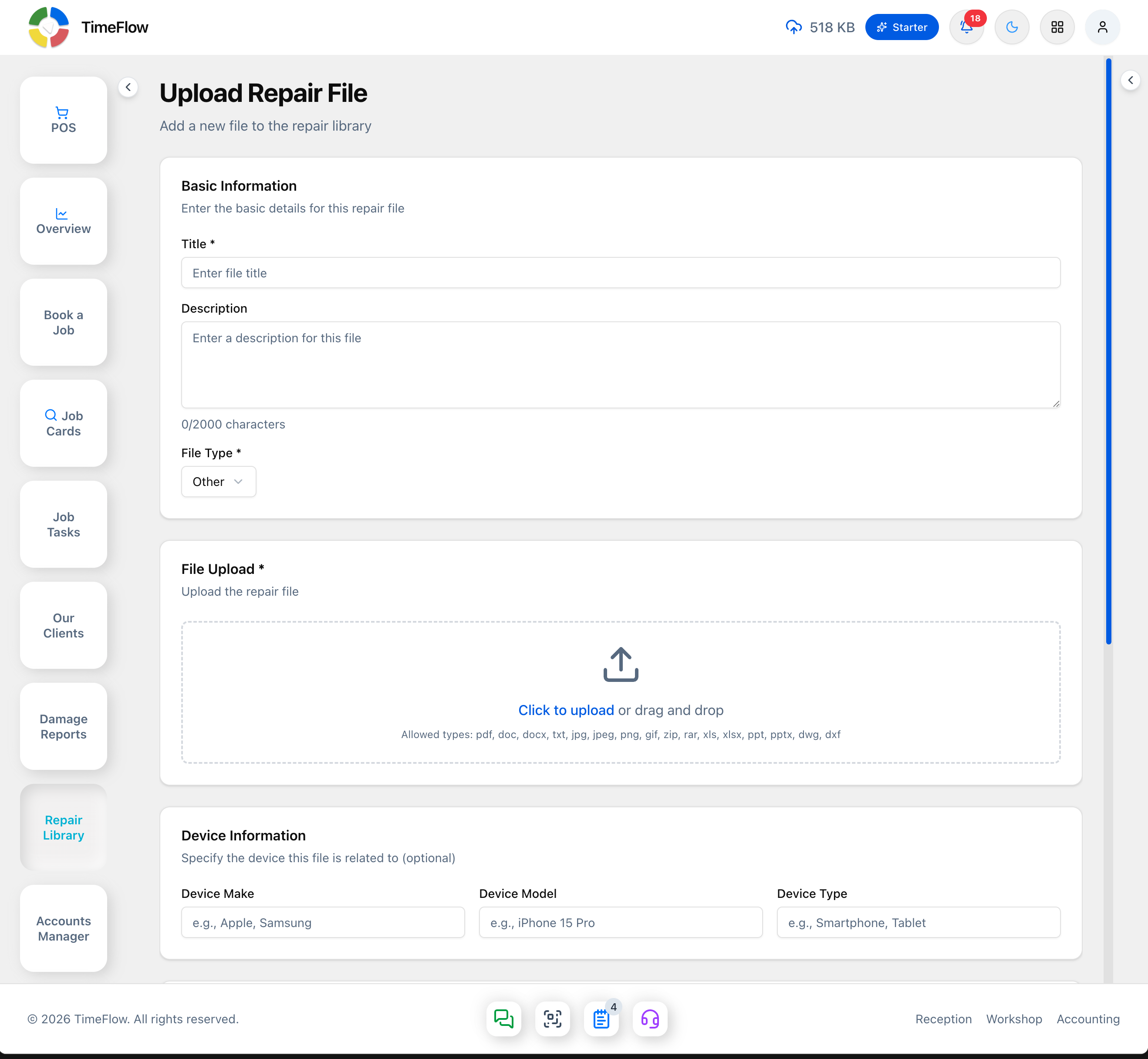
Click Upload File (top right, or go to /dashboard/workshop/repair-library/create). The page is titled "Upload Repair File" and has four sections:
Basic Information
- Title (required)
- Description — up to 2,000 characters (live counter).
- File Type (required, default: Other).
File Upload
- Click to upload or drag and drop the file. Allowed types: pdf, doc, docx, txt, jpg, jpeg, png, gif, zip, rar, xls, xlsx, ppt, pptx, dwg, dxf.
Device Information (optional)
- Device Make (e.g. Apple, Samsung), Device Model (e.g. iPhone 15 Pro), Device Type (e.g. Smartphone, Tablet).
Additional Details (optional)
- Version (e.g. 1.0, v2.3), Language (e.g. English, Spanish), Tags — comma-separated (e.g. "repair, schematic, motherboard") to help others find it in search.
Settings
- Active toggle (off by default) — make this file visible publicly and available for download. A note here warns that the file will be reviewed by an admin before being made public — there's no separate Featured toggle on this form; featuring appears to be admin-controlled.
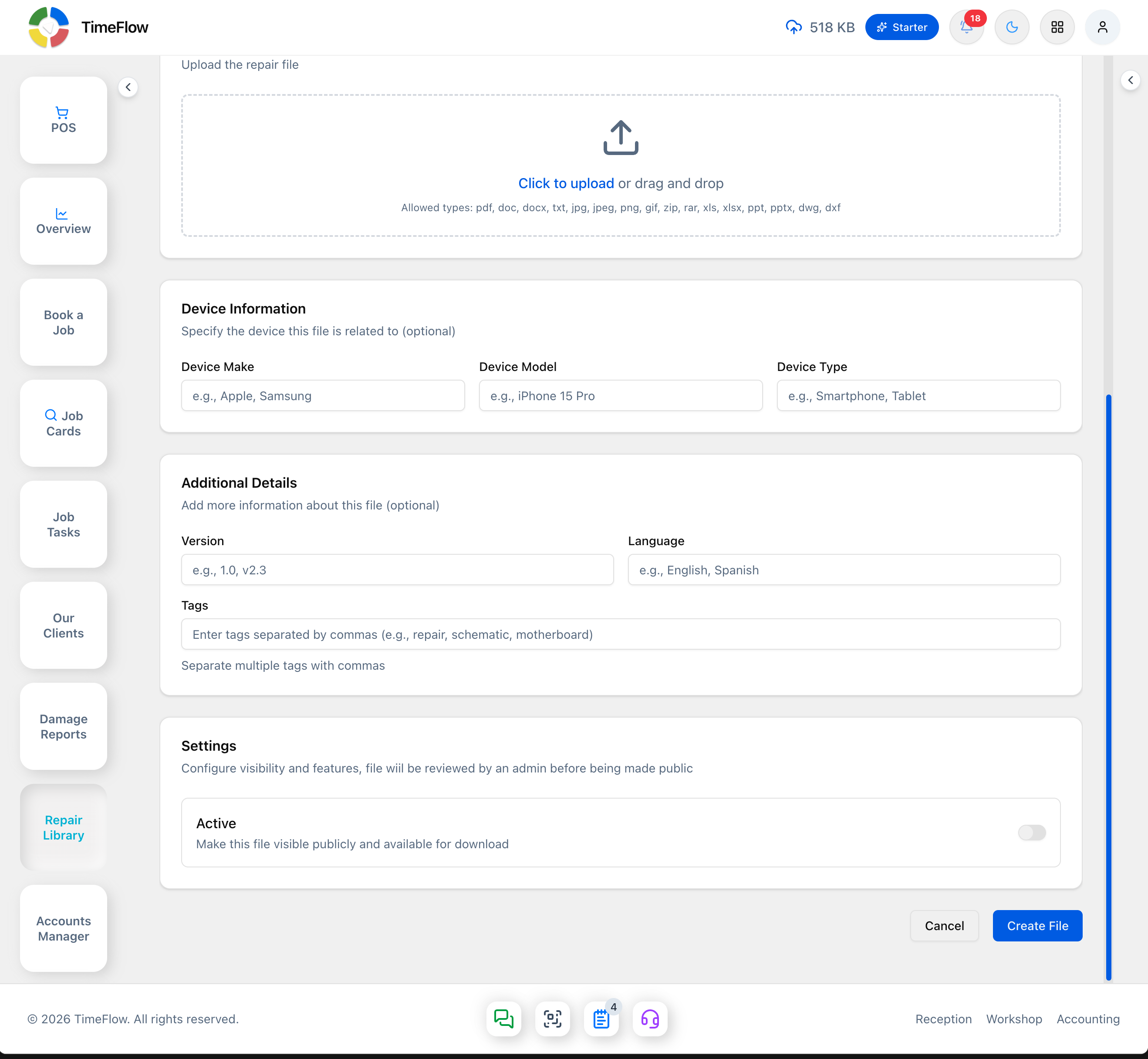
Click Create File to submit, or Cancel to discard.
Managing your own uploads
Go to Repair Library → My Files (/dashboard/workshop/repair-library/my-files) to see everything you've uploaded, and edit or remove entries you've contributed.
Tips
- Good tags make a big difference in a growing library — include the model number, fault type, and repair type where relevant.
- Turn off Active rather than deleting a file if it needs review, so you don't lose the upload.
Frequently asked questions
What files can I upload to the repair library?
PDF, Word, text, images, ZIP/RAR, Excel, PowerPoint, and DWG/DXF files. Add device make, model, type, and tags so others can find them.
Related guides
- Job tasksAssign job cards to technicians with priority and due dates, move repairs through statuses like Awaiting Parts, log parts used, comments, and technical reports.
- Cloud storage usageSee how much cloud storage your repair shop uses for photos, repair library files, and documents, and what usually takes up the most space.
