
Trade-In in TimeFlow
Record a trade-in transaction when a customer sells or trades in goods (e.g. a used device or vehicle) to your business, including the legal/compliance details typically required for second-hand goods.
Updated · Reception & job cards
On this page
Before you start
You need trade_in permission.
Finding this in the UI
- Left sidebar → Trade In opens the Trade In list directly.
- The Reception hub, header, and footer don't provide a separate shortcut — use the sidebar.
Viewing trade-ins
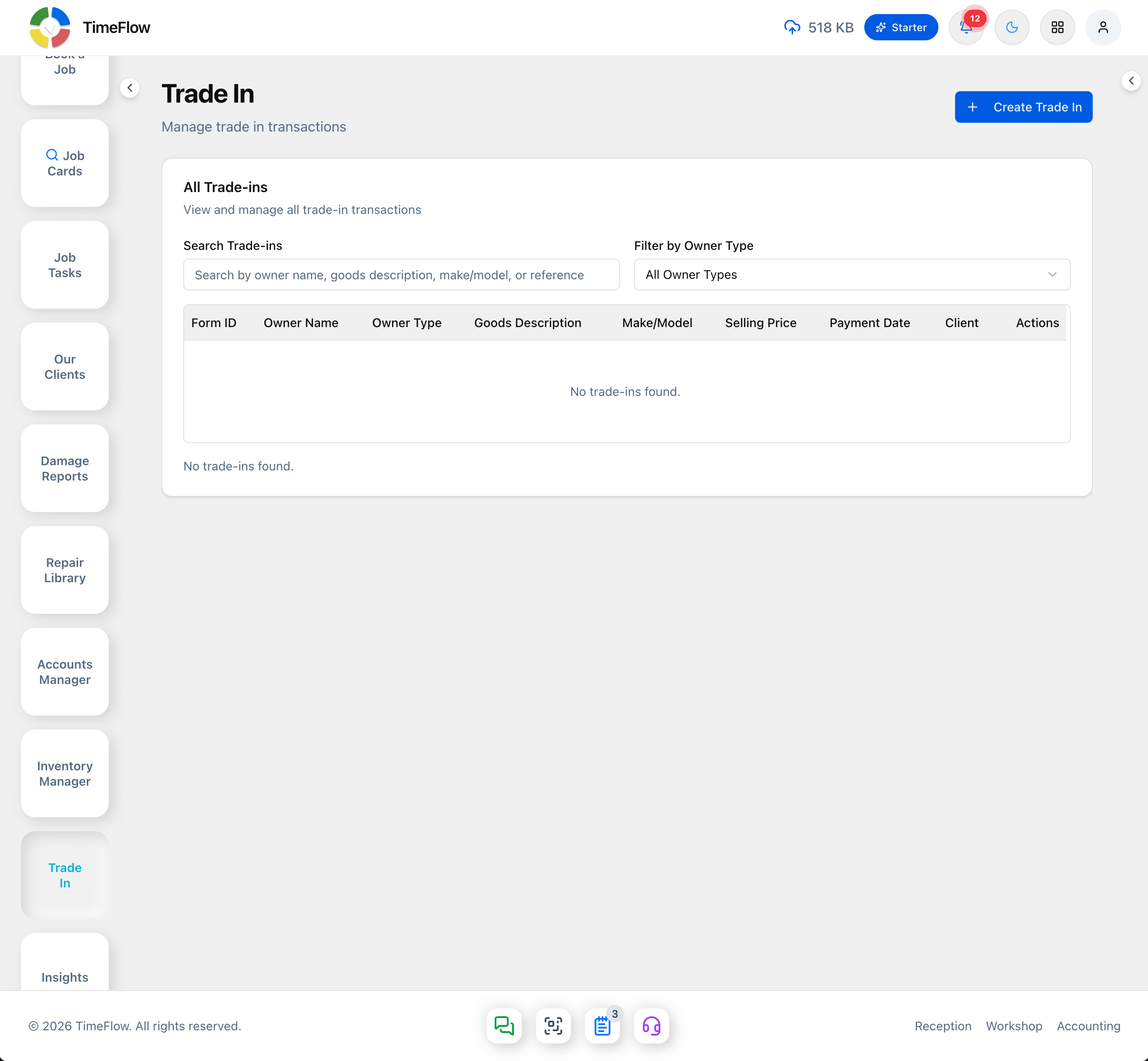
Go to Trade In (/dashboard/reception/trade-in) to see all recorded trade-ins. A Search Trade-ins box filters by owner name, goods description, make/model, or reference, and a Filter by Owner Type dropdown narrows to individuals or companies. The table lists Form ID, Owner Name, Owner Type, Goods Description, Make/Model, Selling Price, Payment Date, Client, and an edit action. Click a row to view its details, or click Create Trade In (top right) to start a new one.
Creating a trade-in
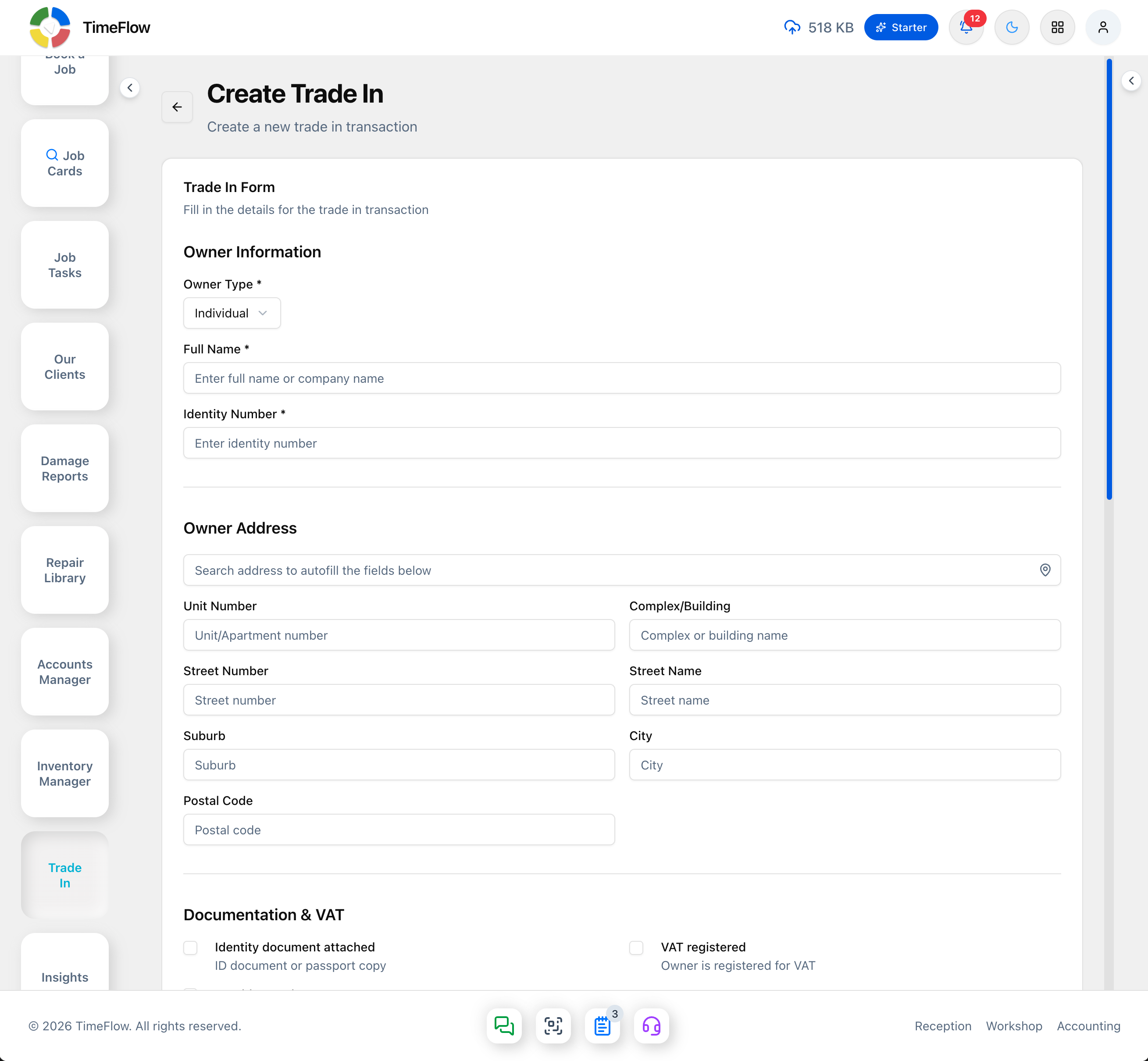
Go to Trade In → Create (/dashboard/reception/trade-in/create). The form is organized into sections:
Owner Information
- Owner Type — Individual or Company. Switching it changes the next two fields:
- Individual: Full Name and Identity Number.
- Company: Company Name and Registration Number.
Owner Address
- Address search (autocomplete) to fill the fields below automatically, or enter manually: Unit Number, Complex/Building, Street Number, Street Name, Suburb, City, Postal Code.
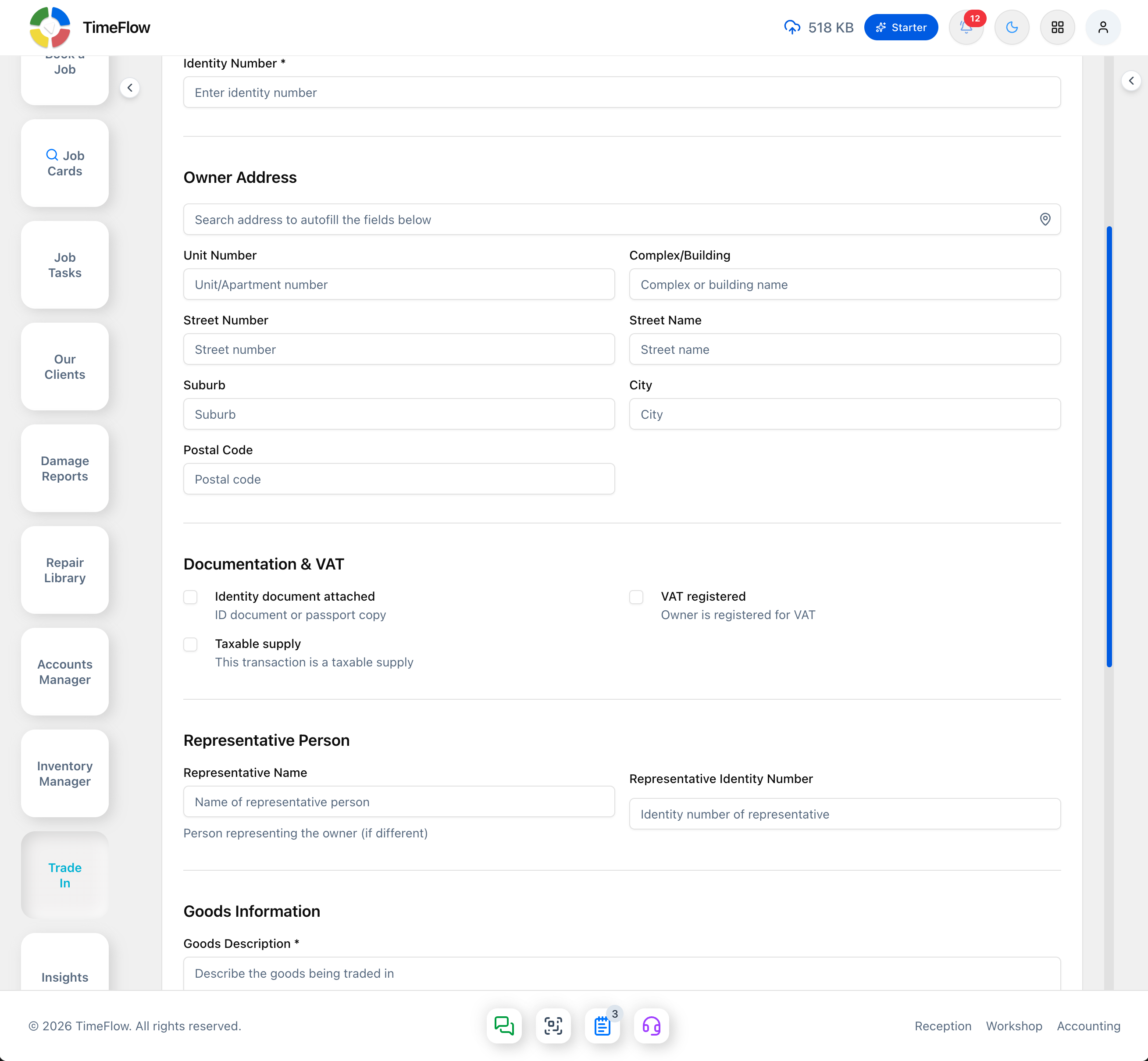
Documentation & VAT — checkboxes, all unchecked by default:
- Identity document attached (ID/passport copy for an individual, company registration documents for a company).
- VAT registered — owner is registered for VAT (no separate VAT number field).
- Taxable supply — this transaction is a taxable supply.
- Letterhead attached (company only) — company letterhead document.
Representative Person (optional, either owner type)
- Representative Name and Representative Identity Number — for whoever is signing on the owner's behalf, if different from the owner.
Goods Information
- Goods Description (required), Quantity, Make/Model.
- Vehicle-specific fields (shown for any trade-in, not just vehicles): Registration Number, Chassis Number, Engine Number, Odometer Reading, VIN Number.
Payment Information
- Selling Price, Payment Reference Number, Payment Date (date picker), Trade In Invoice Number.
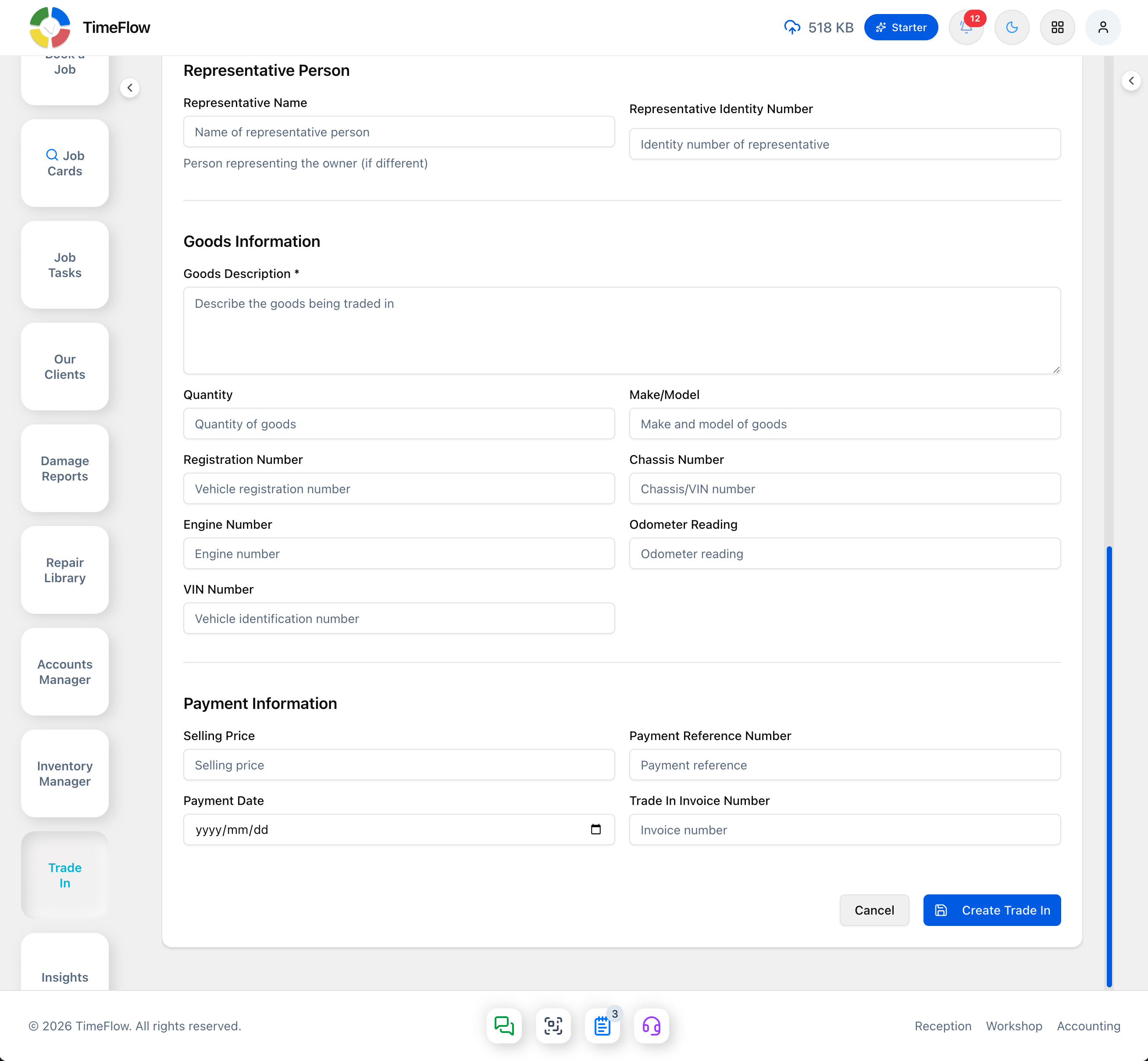
Click Create Trade In to save, or Cancel to discard.
Viewing/editing trade-in details
Open a trade-in from the list to go to its details page (/dashboard/reception/trade-in/details/[id]), which shows the same fields as the create form (editable) plus the record's history.
Tips
- Fill in the identity/registration and address fields carefully — trade-in records like this are often used to meet second-hand goods compliance requirements.
- Use the address search field rather than typing the full address manually where possible, to keep formatting consistent.
Frequently asked questions
What details does a TimeFlow trade-in record capture?
Owner type and identity or registration number, address, document and VAT checkboxes, an optional representative, the goods (including vehicle details like VIN and odometer), and payment information.
Related guides
- Managing clientsKeep a customer database for your repair shop: add and edit clients and insurance companies, record SMS/WhatsApp consent, and reuse details when booking.
- IMEI & serial trackingTrack phones, tablets, and laptops as individual units by IMEI or serial: receive units, print labels, and sell or consume them FIFO across POS and invoices.
