
Client Portal in TimeFlow
The Client Portal (currently in Beta) is where staff manage what customers can see about their jobs — status updates and shared documents — from a slide-out drawer available anywhere in the dashboard.
Updated · Reception & job cards
Before you start
No special permission gate beyond being logged in; it appears in the footer for everyone.
Finding this in the UI
- Footer → Client Portal icon (the notepad icon, next to the chat and code scanner icons) opens the Client Portal drawer from anywhere in the dashboard.
- It is not in the left sidebar or header — the footer icon is the only entry point. A badge on the icon shows how many portal jobs currently exist.
Using the Client Portal
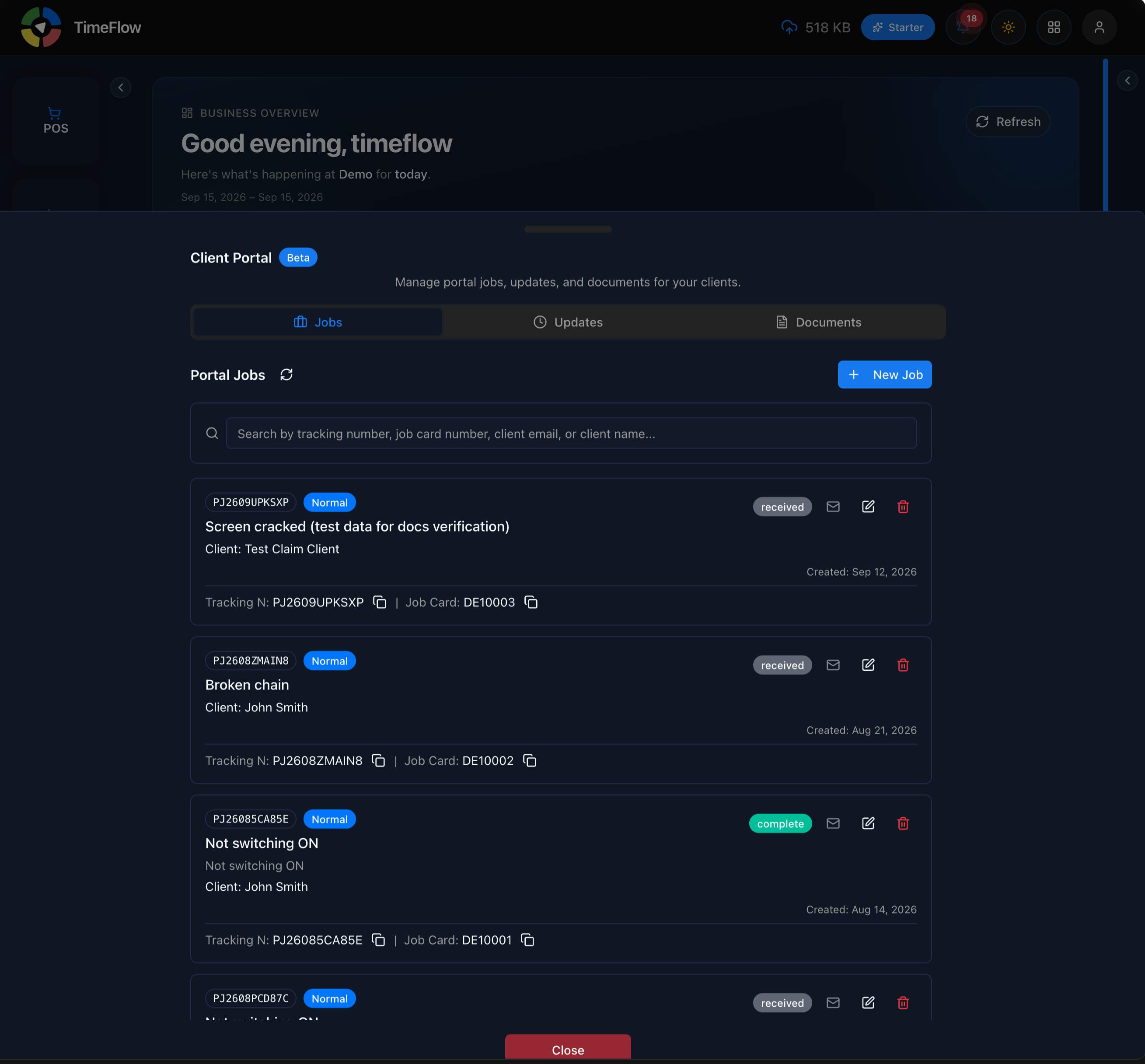
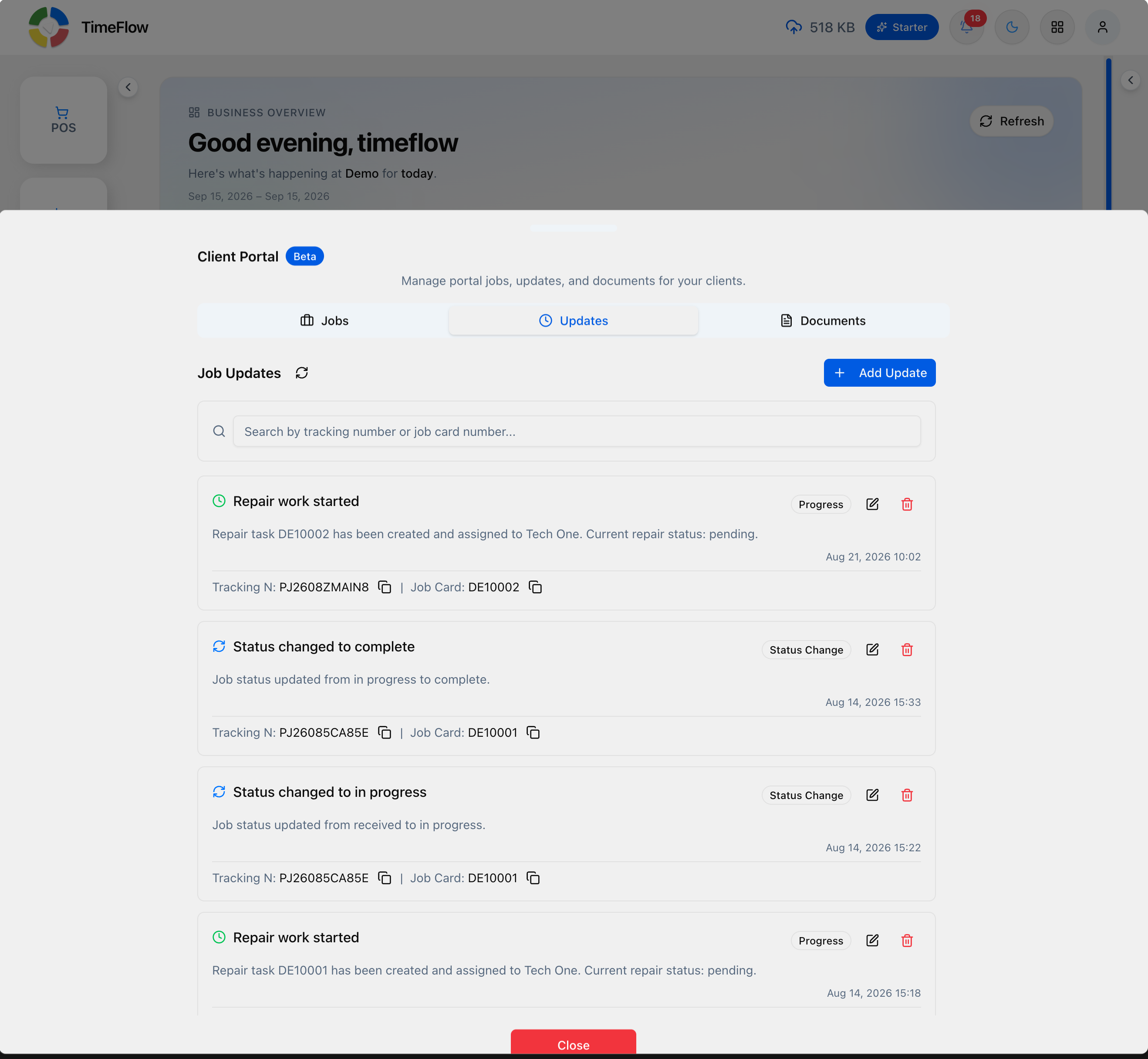
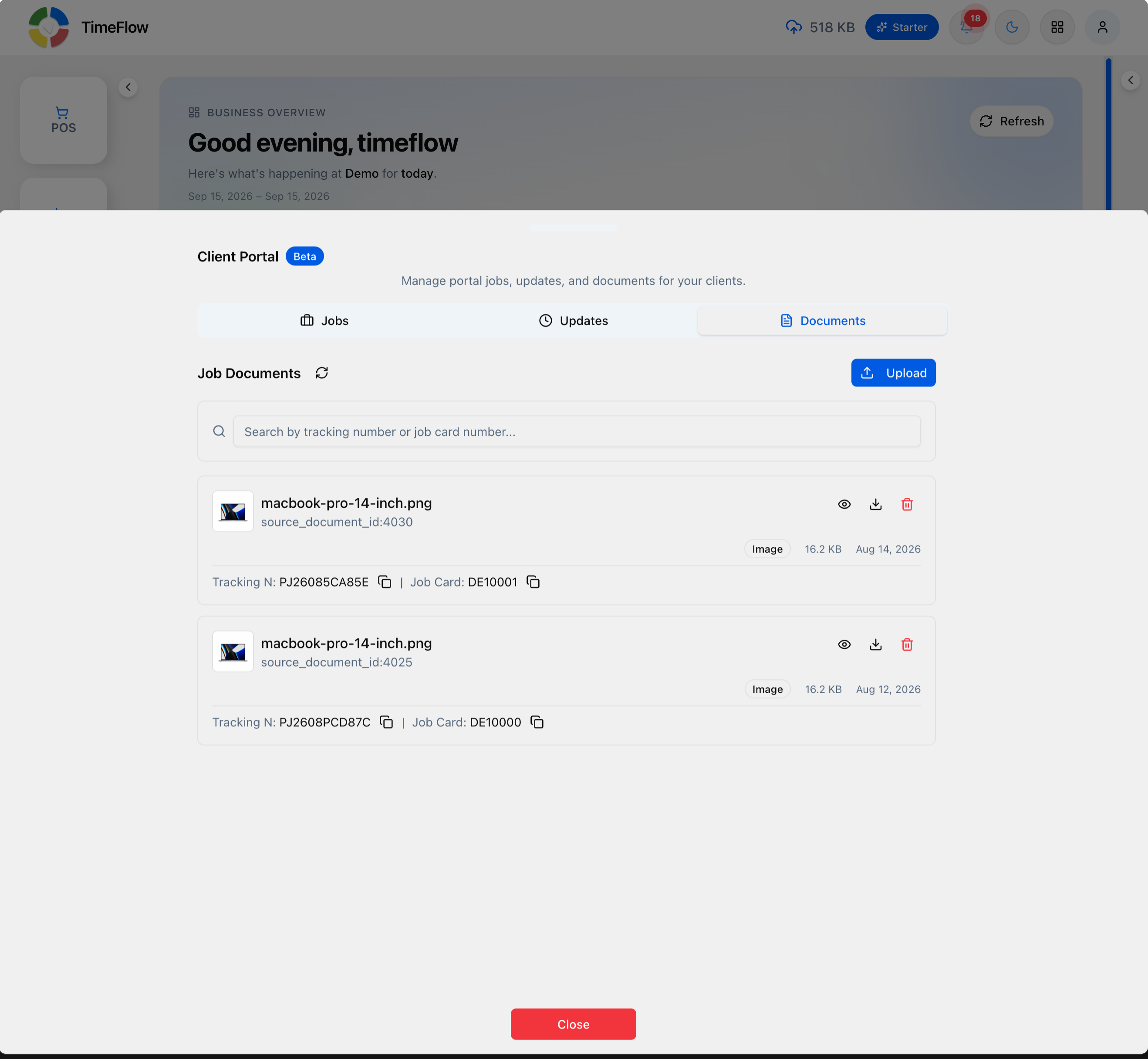
Click the Client Portal icon in the footer to open the drawer. It has three tabs, each with its own search box:
- Jobs — Portal Jobs, with a New Job button to add one. Each job card shows a tracking number, priority badge, title/fault, client name, a status badge (e.g. Received, Complete), the job card it's linked to, and email/edit/delete actions.
- Updates — Job Updates, with an Add Update button. Each entry shows an update type badge (e.g. Progress, Status Change), a title and description, a timestamp, and the linked tracking number/job card, plus edit/delete actions. If SMS or WhatsApp integration is connected, updates can go out through those channels from here too.
- Documents — Job Documents, with an Upload button. Each entry shows a thumbnail, file name, type, size, upload date, and the linked tracking number/job card, with view/download/delete actions.
Click Close at the bottom of the drawer when you're done.
Tips
- Whether clients can receive updates via SMS or WhatsApp depends on whether those integrations are connected — see the SMS Integration and WhatsApp Integration guides.
- Since this feature is in Beta, expect it to change — check TimeFlow's release notes or User Guide page for the latest behavior.
Frequently asked questions
Can customers track their repair status?
Yes. Portal jobs have a tracking number, and updates you post in the Client Portal can also go out by SMS or WhatsApp if those integrations are connected.
Related guides
- SMS notificationsAutomatically SMS customers when a job is booked, completed, closed, or waiting for collection, with message templates and allowance, prepaid, or PAYG billing.
- WhatsApp notificationsConnect your WhatsApp Business number and send Meta-approved template messages when a job is received, its status changes, a quote is ready, or it's ready for collection.
- Booking a job cardBook a device or vehicle in for repair: create a digital job card with client details, IMEI/serial, condition, fault, insurance claim, and intake photos.
