
WhatsApp Integration in TimeFlow
Connect a WhatsApp Business number so TimeFlow can send Meta-approved template messages for job updates, quotes, and collection notices.
Updated · Customer messaging
On this page
Before you start
You need integrations permission. This feature is in Beta and only sends pre-approved template messages (no free-form chat from TimeFlow).
Finding this in the UI
- Header → Tools menu (grid icon, top right) → Integrations, then choose WhatsApp. Also reachable directly at
/dashboard/integrations/whatsapp. Not available from the sidebar or footer.
Connecting a number
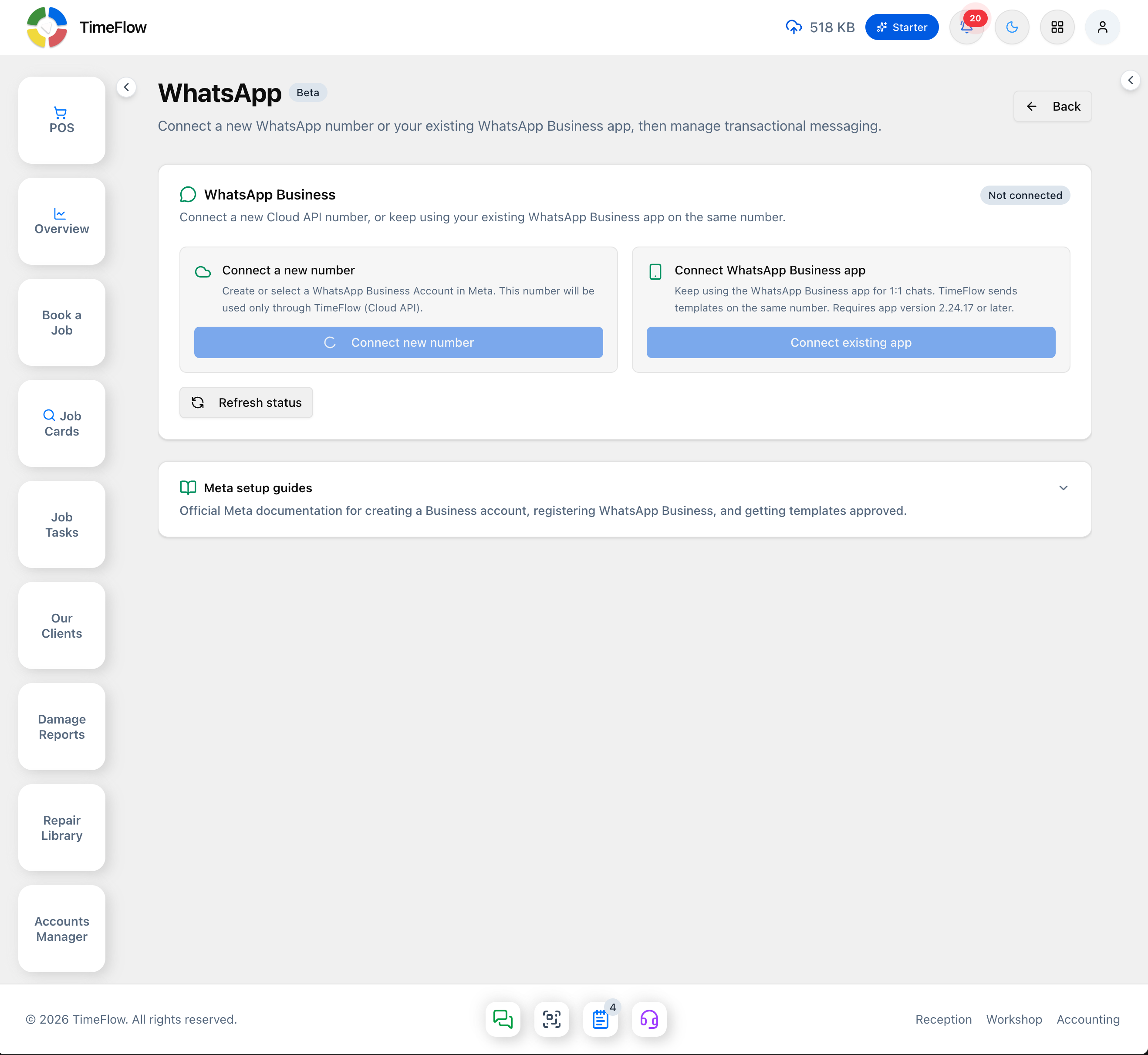
The WhatsApp Business card starts Not connected, with two connection-type cards side by side:
- Connect a new number — "Create or select a WhatsApp Business Account in Meta. This number will be used only through TimeFlow (Cloud API)." Button: Connect new number.
- Connect WhatsApp Business app — "Keep using the WhatsApp Business app for 1:1 chats. TimeFlow sends templates on the same number. Requires app version 2.24.17 or later." Button: Connect existing app. Only available if Embedded Signup is configured for your environment.
A Refresh status button sits below both, and a collapsible Meta setup guides panel links out to Meta's own documentation, grouped under "Account & Number" (Create a Meta Business account, WhatsApp Business Accounts, Register a business phone number, Connect an existing WhatsApp Business app, Display name guidelines, Two-step verification PIN) and "Templates, Pricing & Limits" (Message templates, Template review, Pricing, Messaging limits).
Click connect and complete Meta's Embedded Signup, which opens as a popup — allow pop-ups for the site or the flow can't proceed. After connecting, the card shows the display name, phone, connection type, and status.
- Cloud API numbers: if prompted, enter a 6-digit two-step verification PIN and click Register phone number — save this PIN, you'll need it again in WhatsApp Manager or to reconnect.
- WhatsApp Business app: keep the app open while contacts/chats sync; "History declined" still allows sending templates, but "Failed" means disconnect and reconnect.
Turning on notification events
Once connected and registered, turn on the events you want — each needs a Meta-approved template before it will actually send:
- Job received, Status changes, Job completed, Job closed, Ready for collection, Quote ready.
On each client's record (Our Clients, or when creating/editing a client), leave Accept WhatsApp notifications checked so they can receive messages.
Creating a message template
- Click New template, pick the portal event and category (Utility for job/quote/collection notices, Marketing for promotions — reviewed more strictly).
- Name it using lowercase letters, numbers, and underscores (e.g.
tf_job_received), and set a Meta language code (e.g.en,en_US). - Write the body (required, max 1024 characters), optional header (max 60 chars, one parameter max), and optional footer (max 60 chars, no parameters). Insert placeholders:
{{client_name}},{{job_number}},{{tracking_number}},{{tracking_link}},{{branch_name}},{{company_name}},{{status}},{{old_status}},{{job_title}}. - Save draft or Submit for review — Meta review usually finishes within 24 hours. Use Refresh statuses to check.
- Already have a template in WhatsApp Manager? Use Link existing instead of recreating it — enter the exact Meta template name and language.
Template statuses: Draft, In review, Approved (usable), Rejected, Paused/Flagged, Disabled, In appeal, Pending deletion/Deleted.
Testing and disconnecting
- Once at least one template is Approved, use Send test message: enter a recipient in international format (e.g.
+27821234567), pick the template, fill parameters, and send. - Disconnect stops TimeFlow sending WhatsApp for the company. If you connected the Business app, also unlink it there (Settings → Account → Business Platform → Disconnect Account).
Tips
- Connecting a number requires completing Meta's own Embedded Signup flow with a real Meta Business account.
- An event only actually sends when all of these are true: connected, phone registered, the event toggle is on, its template is Approved, and the client accepts WhatsApp notifications.
- Save your two-step PIN somewhere safe — losing it blocks WhatsApp Manager changes and reconnection.
- Check delivery per job from the Client Portal drawer: open a portal job linked to a job card and click its WhatsApp icon to see queued/sent/delivered/read/failed status.
Frequently asked questions
Can I keep using the WhatsApp Business app?
Yes. Choose Connect WhatsApp Business app to keep 1:1 chats in the app while TimeFlow sends templates on the same number (app version 2.24.17 or later).
Why isn't a WhatsApp message sending?
A message only sends when the number is connected and registered, the event is on, its template is approved by Meta, and the client accepts WhatsApp notifications.
Related guides
- SMS notificationsAutomatically SMS customers when a job is booked, completed, closed, or waiting for collection, with message templates and allowance, prepaid, or PAYG billing.
- Client portalUse TimeFlow's client portal to give customers repair tracking numbers, post status updates, and share documents — with optional SMS and WhatsApp updates.
- Managing clientsKeep a customer database for your repair shop: add and edit clients and insurance companies, record SMS/WhatsApp consent, and reuse details when booking.
