
SMS Integration in TimeFlow
Send transactional SMS to customers for booking confirmations, status updates, and collection reminders, with either your subscription's included allowance, prepaid credits, or pay-as-you-go billing.
Updated · Customer messaging
Before you start
You need integrations permission and an active paid subscription — trial accounts can't turn SMS on until they upgrade. This feature is in Beta.
Finding this in the UI
- Header → Tools menu (grid icon, top right) → Integrations, then choose SMS. It's also reachable directly at
/dashboard/integrations/sms. Not available from the sidebar or footer.
Enabling SMS
- The "Enable SMS for your business" card summarizes what you get (included allowance with your plan, flexible prepaid or PAYG billing, job and portal notifications), with an Enable SMS button. If you're on a trial plan, you'll see a "Paid subscription required" prompt — open View subscription to upgrade first.
- Once enabled, an SMS status card shows an Active badge and an SMS enabled switch ("Turn off to stop sending SMS from TimeFlow") you can use later to pause delivery entirely without losing your configuration.
Setting up notifications
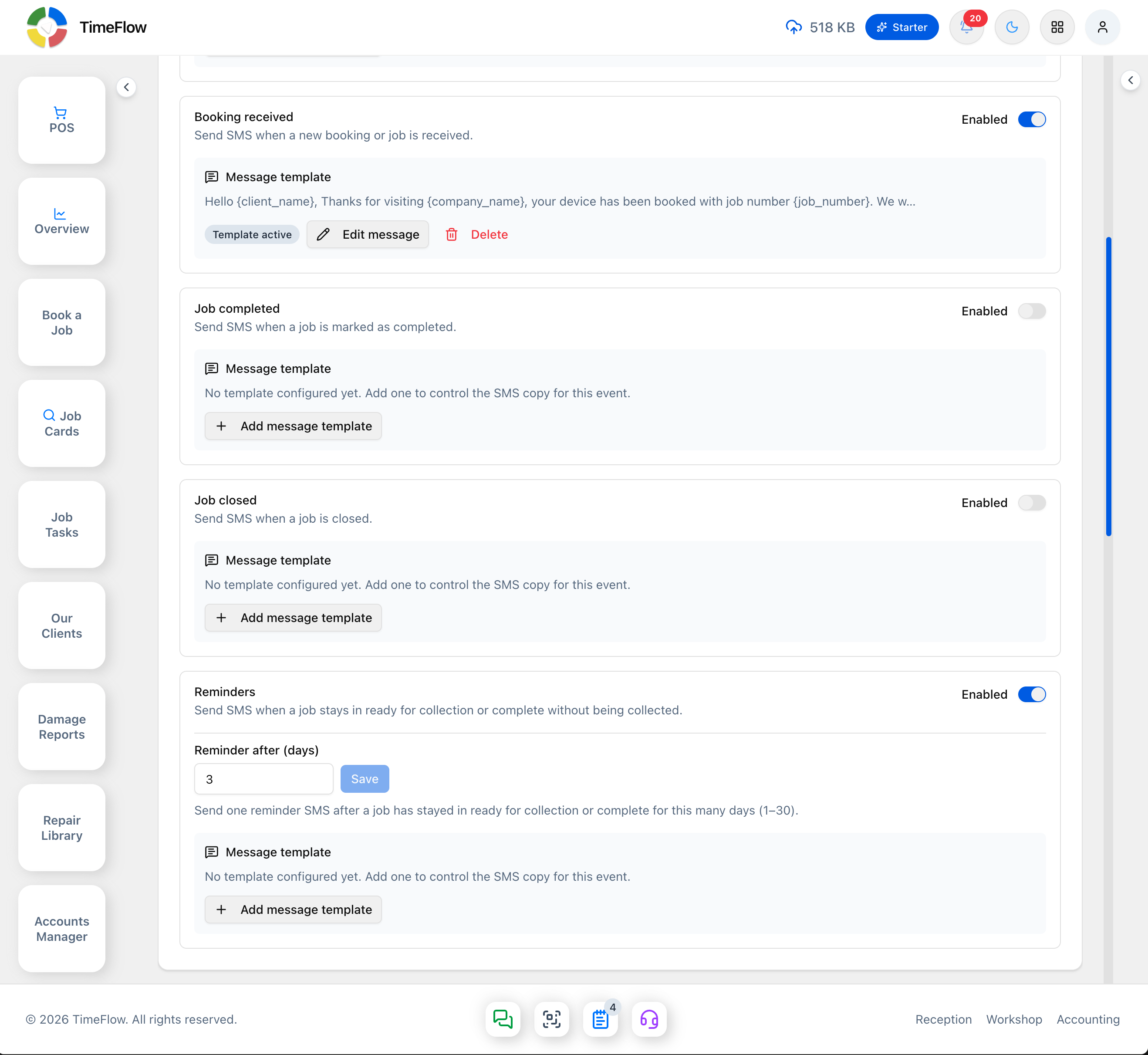
The Customer SMS notifications section lists events with an Enabled toggle and a Message template block each. Both the event toggle and an active template are required before SMS is sent for that event:
- Status updates — "Send SMS when a job status changes in the client portal."
- Booking received — "Send SMS when a new booking or job is received."
- Job completed — "Send SMS when a job is marked as completed."
- Job closed — "Send SMS when a job is closed."
- Reminders — "Send SMS when a job stays in ready for collection or complete without being collected." Toggling this on reveals a Reminder after (days) field (default 3, its own Save button) — "Send one reminder SMS after a job has stayed in ready for collection or complete for this many days (1–30)."
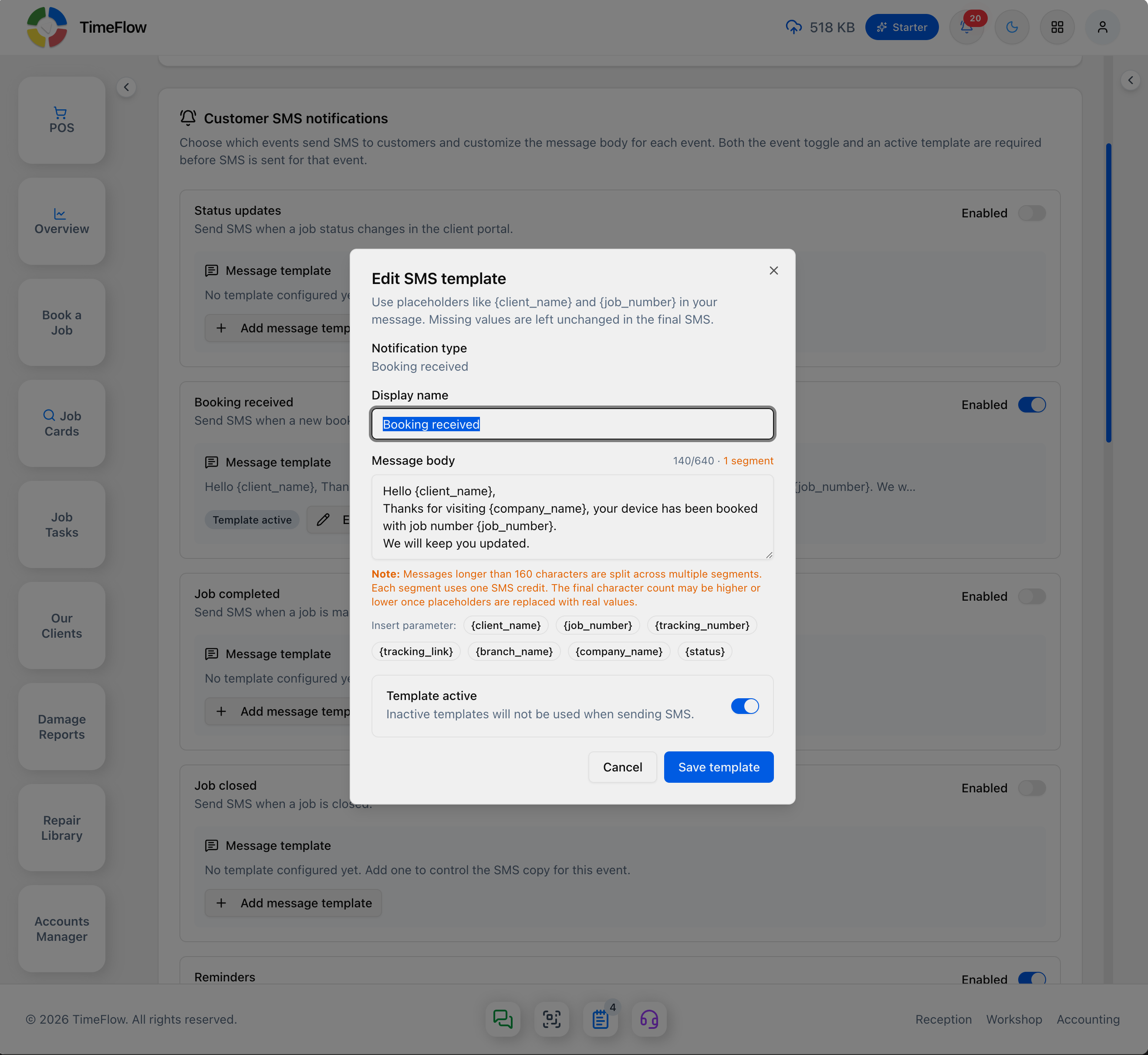
Creating a template: click Add message template (or Edit message on an event that already has one) to open the Edit SMS template dialog: a Display name, a Message body (max 640 characters, with a live character-count/segment counter, e.g. "140/640 · 1 segment" — a note explains messages over 160 characters split across multiple segments, each using one SMS credit), and Insert parameter chips for {client_name}, {job_number}, {tracking_number}, {tracking_link}, {branch_name}, {company_name}, and {status}. Toggle Template active ("Inactive templates will not be used when sending SMS"), then Save template.
Billing
- Subscription allowance shows remaining segments against the total for your current billing period (e.g. "30 segments remaining" / "0 segments used of 30 segments" for 01 Sept – 30 Sept), and is always used first, regardless of billing mode.
- Payment methods — "Saved cards used for SMS prepaid purchases and pay-as-you-go billing. Separate from your TimeFlow subscription payment." Click Add payment method; until one's on file it shows "No saved card yet."
- Choose a Billing mode:
- Subscription included — "Use your plan allowance only. SMS sending pauses when the allowance is exhausted."
- Prepaid credits — "After your allowance, messages are deducted from a prepaid balance you can top up anytime." Click Buy credits for a bundle or custom amount (1–100,000 segments); optionally enable Automatic top-up with a low-balance threshold.
- Pay as you go — "After your allowance, usage accrues. Enable automatic charging to bill your saved card on a schedule and at your threshold." Enable Automatic charging, set a USD Charge threshold, and pick a billing schedule (Daily/Weekly/Monthly).
- Without a saved card, Prepaid credits and Pay as you go show a "Payment method required" notice and stay unusable until you add one.
- Usage this period shows six figures for the billing period: Messages sent, Failed deliveries, From allowance (segments), From prepaid (segments), Pay-as-you-go (segments), and PAYG billed (USD).
Tips
- Keep "Status updates" off unless you need it — frequent portal status changes can burn through a lot of segments.
- Keep templates concise; every ~153 extra characters is a new (and more expensive) segment.
- If SMS stops sending mid-month on Subscription Included mode, your allowance is exhausted — switch to prepaid/PAYG or wait for the next cycle.
Frequently asked questions
Can TimeFlow remind customers to collect their device?
Yes. Turn on the Reminders event and set how many days (1–30) a job can sit in ready-for-collection or complete before one reminder SMS is sent.
Can I use SMS on a free trial?
No. SMS needs an active paid subscription; trial accounts are prompted to upgrade first.
Related guides
- WhatsApp notificationsConnect your WhatsApp Business number and send Meta-approved template messages when a job is received, its status changes, a quote is ready, or it's ready for collection.
- Client portalUse TimeFlow's client portal to give customers repair tracking numbers, post status updates, and share documents — with optional SMS and WhatsApp updates.
- Managing clientsKeep a customer database for your repair shop: add and edit clients and insurance companies, record SMS/WhatsApp consent, and reuse details when booking.
