
Code Scanner (QR & Barcode) in TimeFlow
Scan a job card's QR code or barcode with your device's camera to instantly pull up its details — handy at a service counter when a customer hands you a printed job card or receipt.
Updated · Reception & job cards
Before you start
No special permission is required beyond being logged in. You'll need to grant camera access in your browser the first time you use it.
Finding this in the UI
- Footer → Code Scanner icon opens the scanner from anywhere in the dashboard.
- It isn't in the left sidebar or header — the footer icon is the only entry point.
How to use it
- Click the scanner icon in the footer to open the "Scan QR Code or Barcode" dialog.
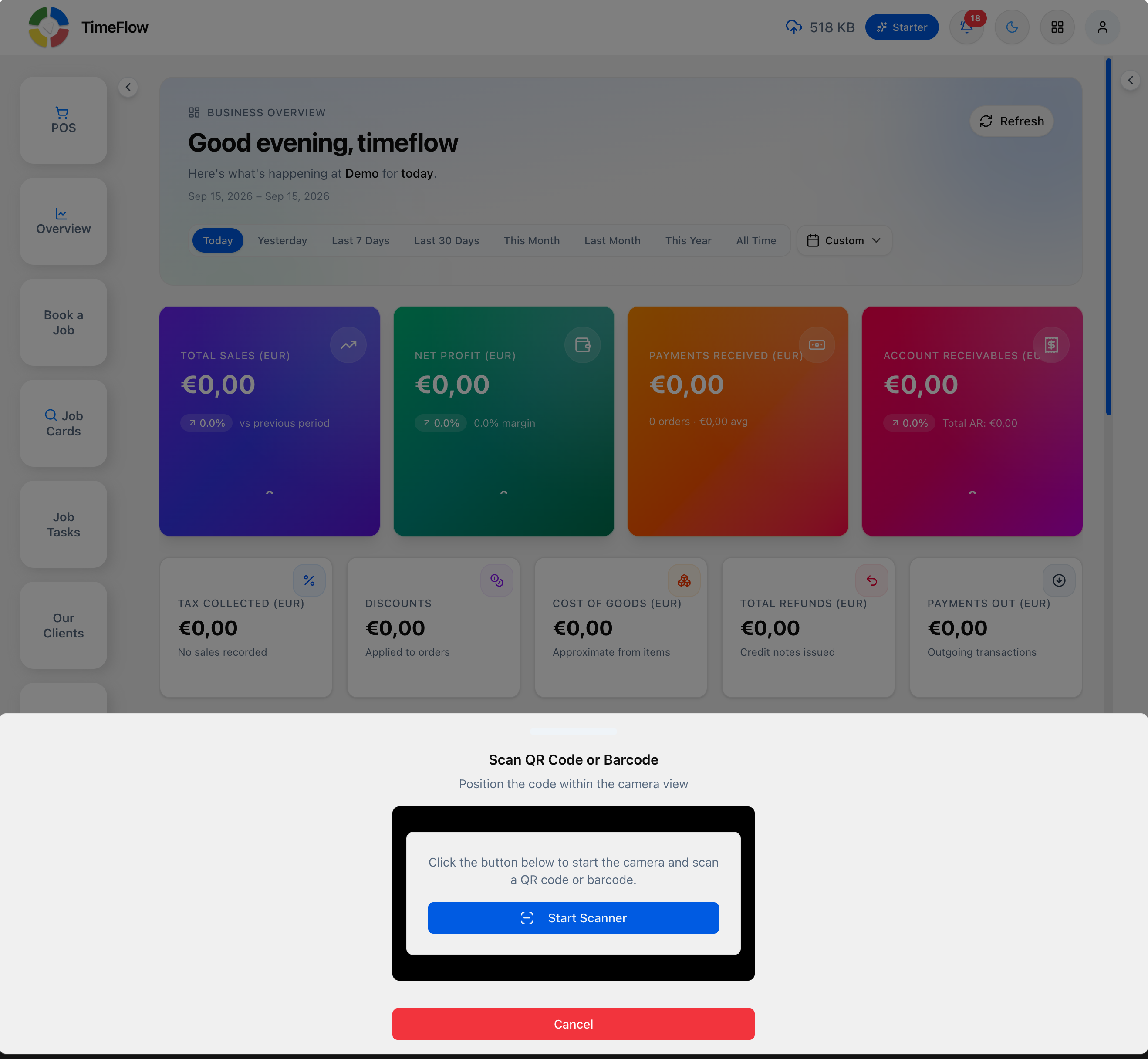
- Grant camera permission if your browser prompts you (only needed the first time).
- Click Start Scanner to activate the camera.
- Hold the QR code or barcode within the on-screen viewfinder.
- The scanner detects the code automatically and looks up the matching job card.
- Job card details are displayed: job card number, booking type, client info (name, phone, email, address), device info (type, make, model, serial number, colour, fault), insurance info (if applicable), and notes.
- Click Scan Again to scan another code, or Cancel to exit the dialog.
On mobile, the scanner automatically prefers the back camera and adjusts for battery efficiency; on desktop it uses a fixed scanning area and works with any connected camera.
Troubleshooting
- Camera won't start — check your browser's site permissions and make sure no other app/tab is using the camera.
- Scan not registering — ensure good lighting, hold the code steady, and check it isn't damaged or blurry.
- "Job card not found" — the scanned code doesn't match any job card number; confirm you're scanning the correct code and try again.
- Permission denied — enable camera access for TimeFlow in your browser's site settings, then reopen the scanner.
Frequently asked questions
Do I need a barcode scanner to look up job cards?
No. The footer's Code Scanner uses your device's camera to scan job card QR codes and barcodes; on mobile it prefers the back camera.
Related guides
- Searching job cards & tasksSearch job cards by date, job number, serial/IMEI, client name, or phone, and search job tasks by technician, assigner, or overdue status.
- Receipt & label printersConnect thermal receipt printers (58/80mm ESC/POS) and barcode label printers (Zebra ZPL, Brother, Dymo) to TimeFlow using QZ Tray.
- Booking a job cardBook a device or vehicle in for repair: create a digital job card with client details, IMEI/serial, condition, fault, insurance claim, and intake photos.
