
Searching Job Cards & Job Tasks in TimeFlow
Once job cards and job tasks start piling up, use TimeFlow's search screens to find them quickly.
Updated · Reception & job cards
On this page
Before you start
You need reception permission to search job cards, and technician or reception permission to view job tasks.
Finding this in the UI
- Left sidebar → Job Cards opens Search Job Cards directly.
- Left sidebar → Job Tasks opens the full Job Tasks list (Workshop).
- From the Reception hub (
Dashboard → Reception, reachable via the sidebar's Dashboard item or the footer's Reception link), the Quick Actions section has a Search button under "Search Job Cards" and another under "Search Job Tasks" (this one actually opens the Workshop's advanced search screen). - From the Workshop hub (
Dashboard → Workshop, reachable via the sidebar's Dashboard item if you're a technician, or the footer's Workshop link), Quick Actions has View Tasks (the full list) and Search (the filtered search screen).
Searching Job Cards
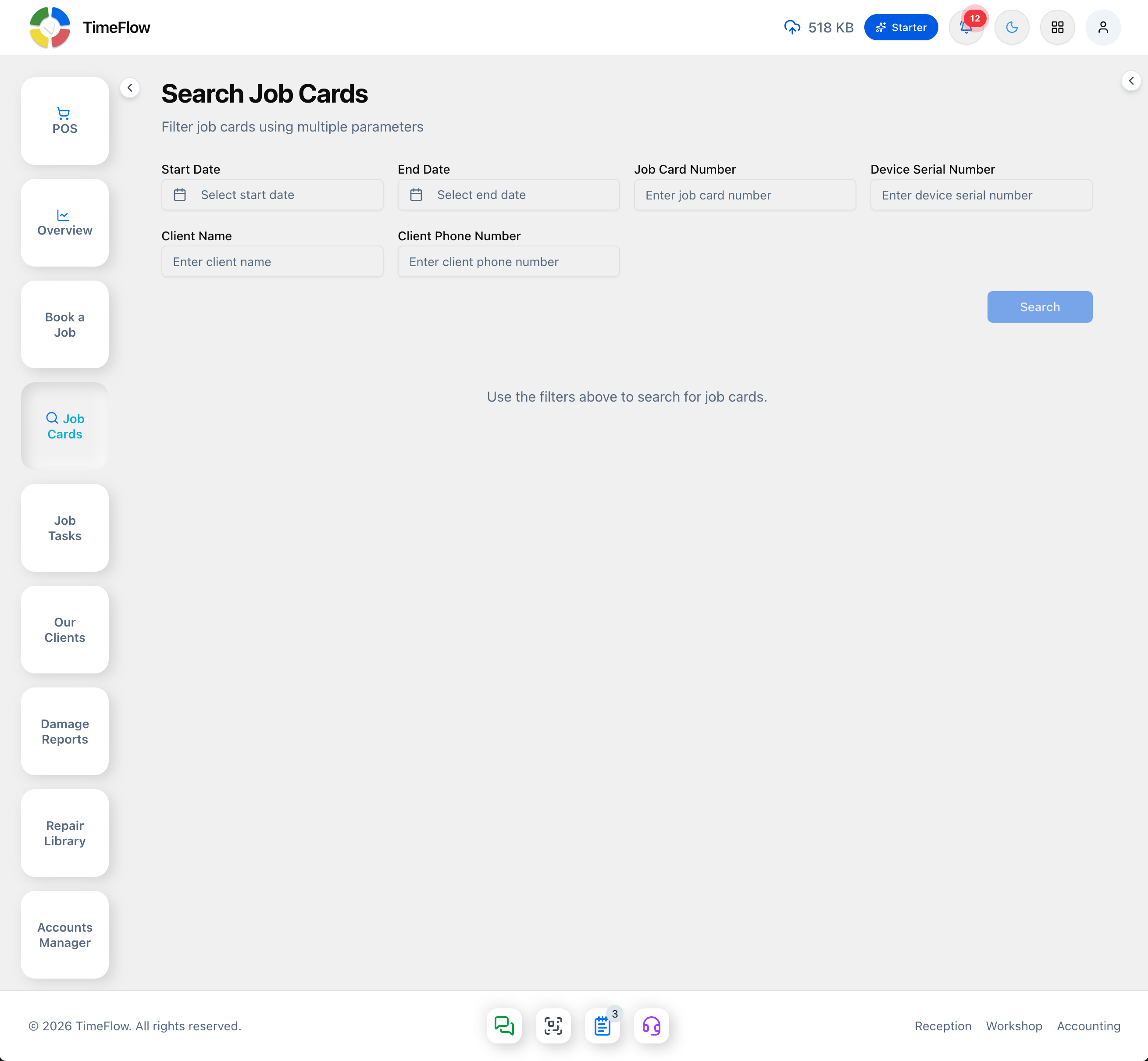
Go to Reception → Search Job Cards (/dashboard/reception/search-job-cards).
Filter by any combination of:
- Start Date / End Date — a date range picker.
- Job Card Number
- Device Serial Number
- Client Name
- Client Phone Number
Click Search once at least one filter is filled in (the button stays disabled otherwise), or Reset Filters to clear everything. Matching job cards appear as expandable cards below — click a card to expand it and see full client, device, and status details, or click View Details on a linked task to jump straight to it.
Job Tasks (full list)
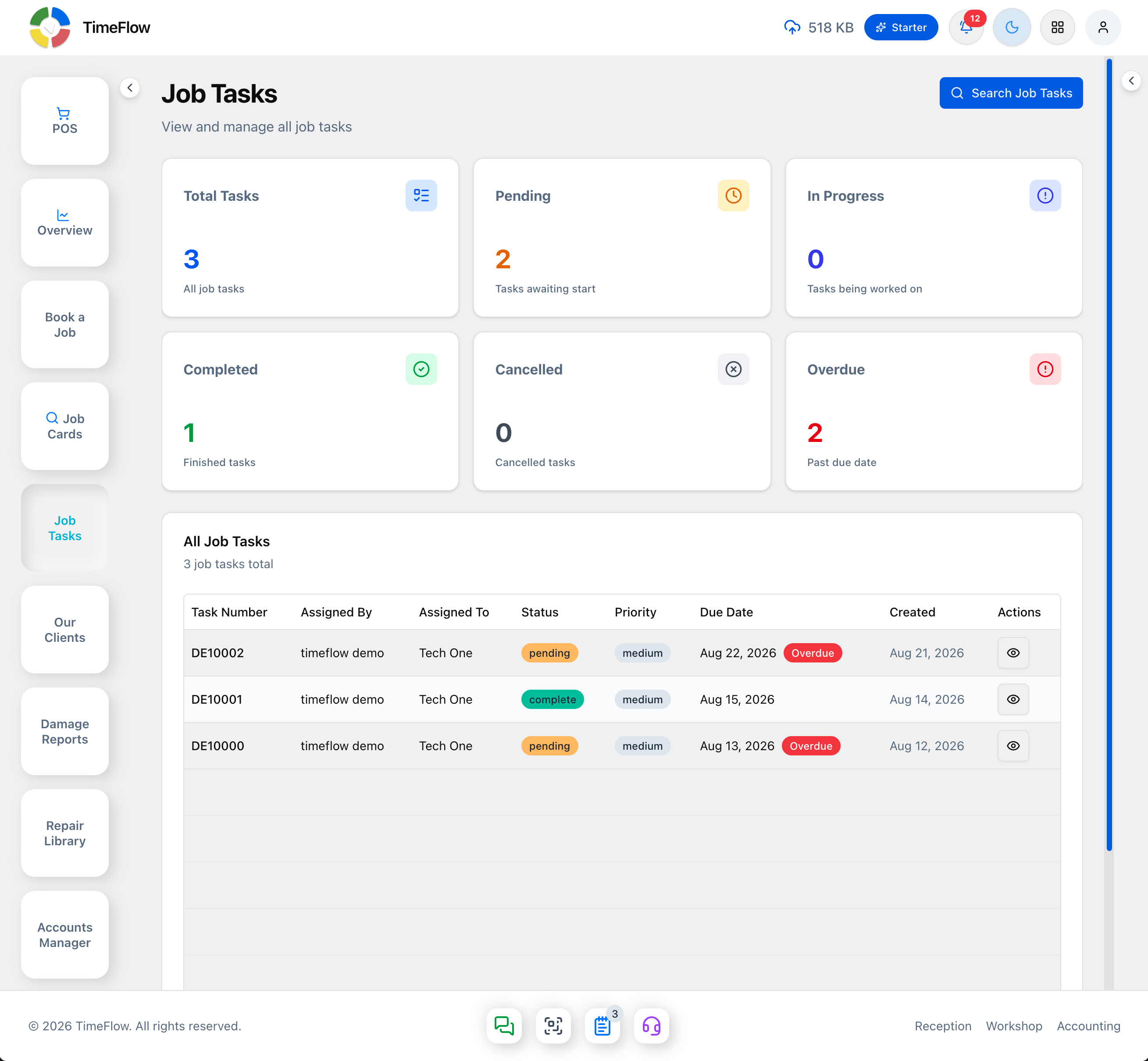
Go to Workshop → Job Tasks (/dashboard/workshop/job-tasks, sidebar item "Job Tasks"). At the top, six stat cards summarize the workshop's tasks: Total Tasks, Pending, In Progress, Completed, Cancelled, and Overdue. Below that, the All Job Tasks table lists every task with its Task Number, Assigned By, Assigned To, Status, Priority, Due Date, and Created date — click the eye icon to view a task. A Search Job Tasks button in the top-right jumps straight to the filtered search screen described below.
Searching Job Tasks
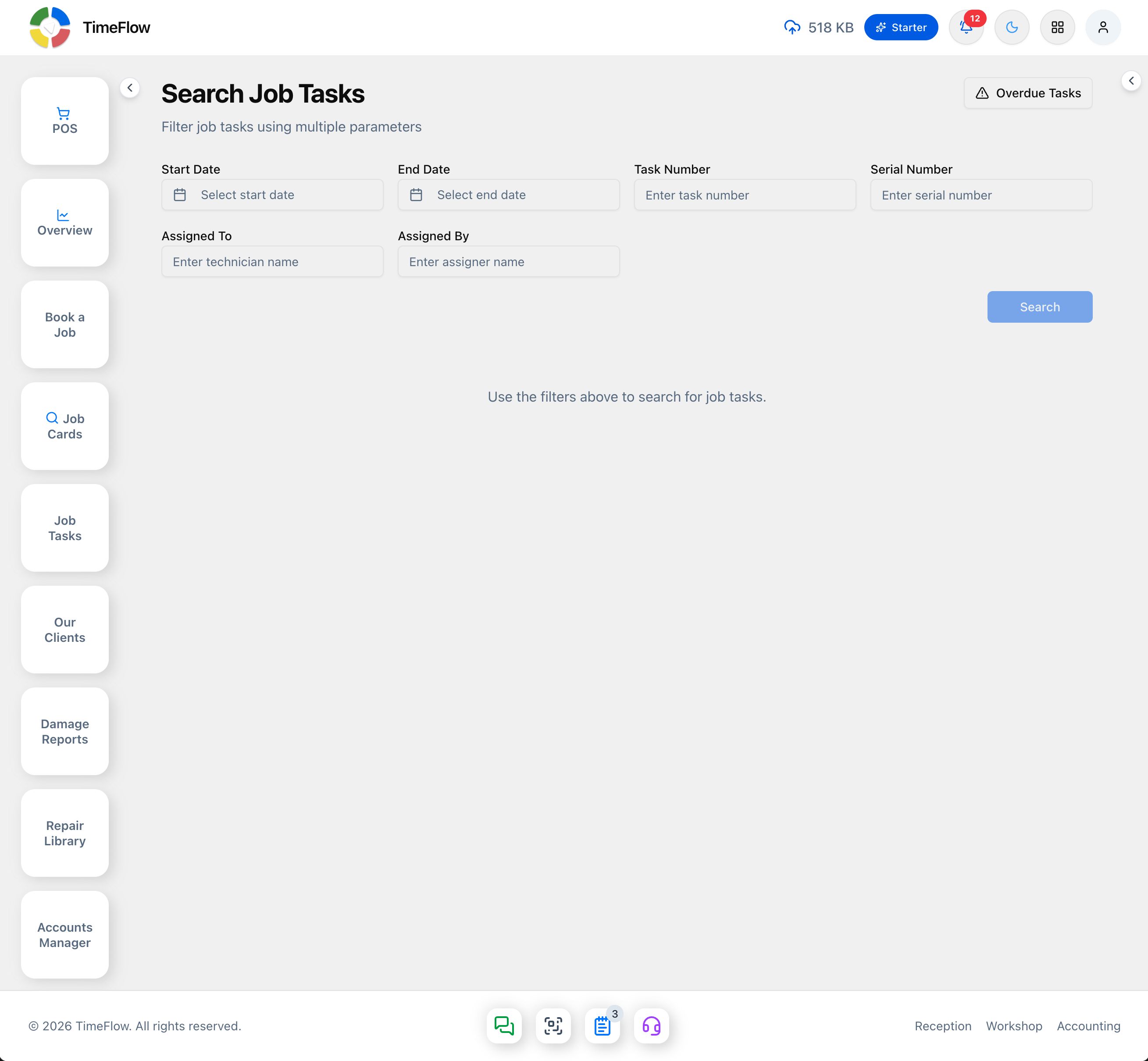
Go to Workshop → Search Job Tasks (/dashboard/workshop/search-job-tasks, reached via the Workshop hub's Search quick action, or the Search Job Tasks button on the Job Tasks list page).
Filter by any combination of:
- Start Date / End Date — a date range picker.
- Task Number
- Serial Number
- Assigned To (technician name)
- Assigned By (assigner name)
An Overdue Tasks button in the top-right filters straight to overdue tasks. Click Search once at least one filter is filled in. Results list matching tasks with their status, technician, and due date — click through to open the full task.
Tips
- Use Search Job Cards when you have client or device details but not the exact job number.
- Use Search Job Tasks when you're chasing a specific technician's workload or an overdue task.
- The plain Job Tasks list is best for a general "what's in the workshop right now" view rather than a targeted search.
Frequently asked questions
How do I find a job card without the job number?
Use Reception → Search Job Cards and filter by client name, client phone number, device serial number, or a date range.
How do I see overdue repair tasks?
On Workshop → Search Job Tasks, click the Overdue Tasks button in the top-right to filter straight to overdue tasks.
Related guides
- Booking a job cardBook a device or vehicle in for repair: create a digital job card with client details, IMEI/serial, condition, fault, insurance claim, and intake photos.
- Job tasksAssign job cards to technicians with priority and due dates, move repairs through statuses like Awaiting Parts, log parts used, comments, and technical reports.
- Code scannerUse your phone or computer camera to scan a printed job card's QR code or barcode and instantly pull up the job, client, and device details at the counter.
