
Damage Reports in TimeFlow
Damage reports document pre-existing damage or issues found on an item or claim — useful for insurance work and for protecting your shop from disputes.
Updated · Reception & job cards
On this page
Before you start
You need technician or reception permission.
Finding this in the UI
- Left sidebar → Damage Reports opens the list directly (
/dashboard/workshop/damage-reports). - From the Reception hub or Workshop hub, the Quick Actions section has a Damage Report action that opens the create form directly.
- No header or footer shortcut exists for this — use the sidebar or a hub's Quick Actions.
Creating a damage report
Go to Damage Reports → Create (/dashboard/workshop/damage-reports/create). There are two tabs depending on what the report is against:
Job Card Item tab
- Job Card (required) — search and select the job card.
- Task (required) — search and select the specific task on that job card.
- Report — a rich-text editor for describing the damage. Type
/to open a block menu for inserting media; images (JPEG, PNG, GIF, WebP) can be uploaded up to 10MB each. A live character counter (0 / 9,999 characters) shows under the editor.
Insurance Claim tab
- Claim (required) — search and select the insurance claim.
- Report — the same rich-text editor for describing the damage.
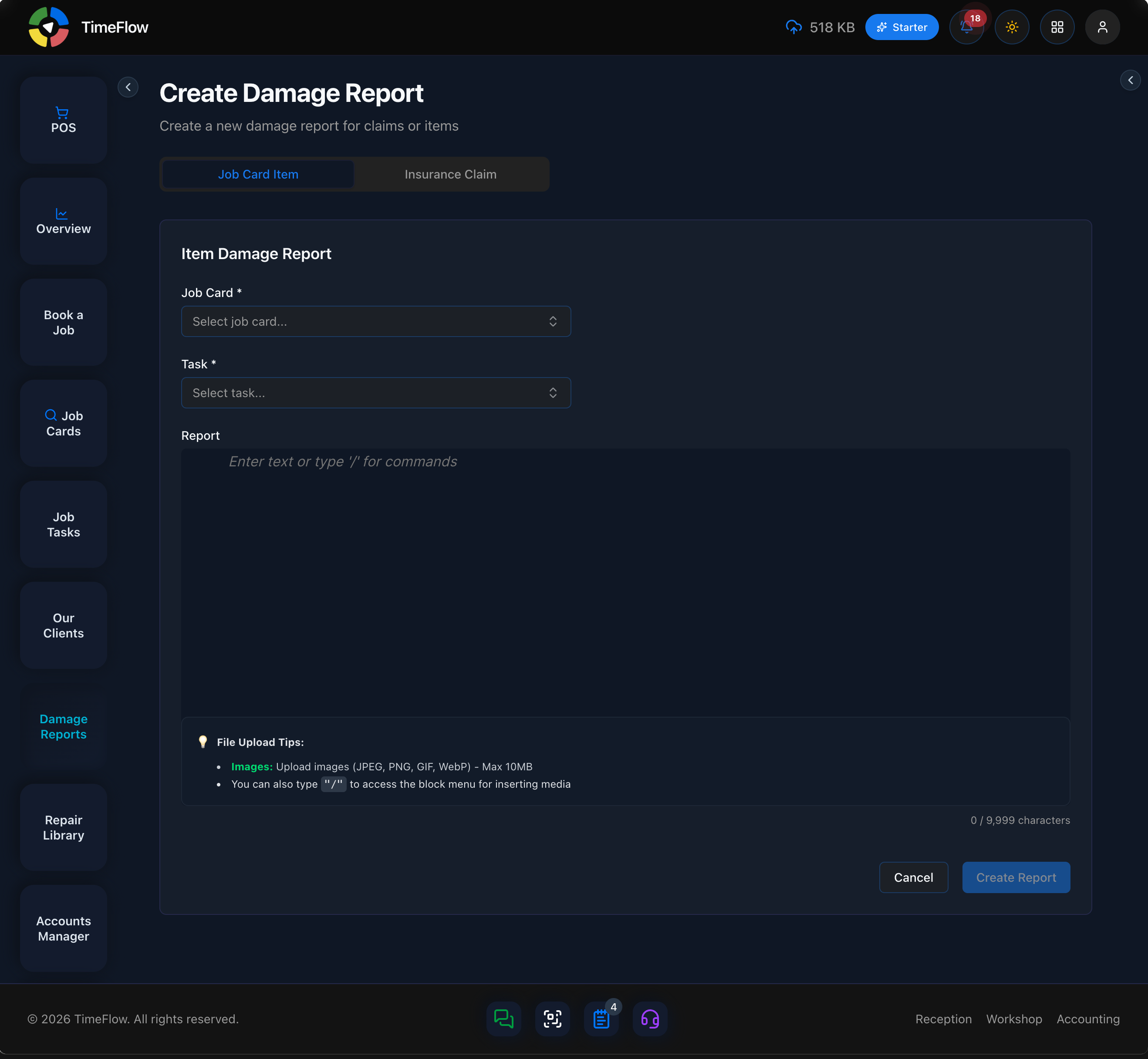
Click Create Report to save (disabled until the required fields are filled and you're under the character limit), or Cancel to discard.
Viewing damage reports
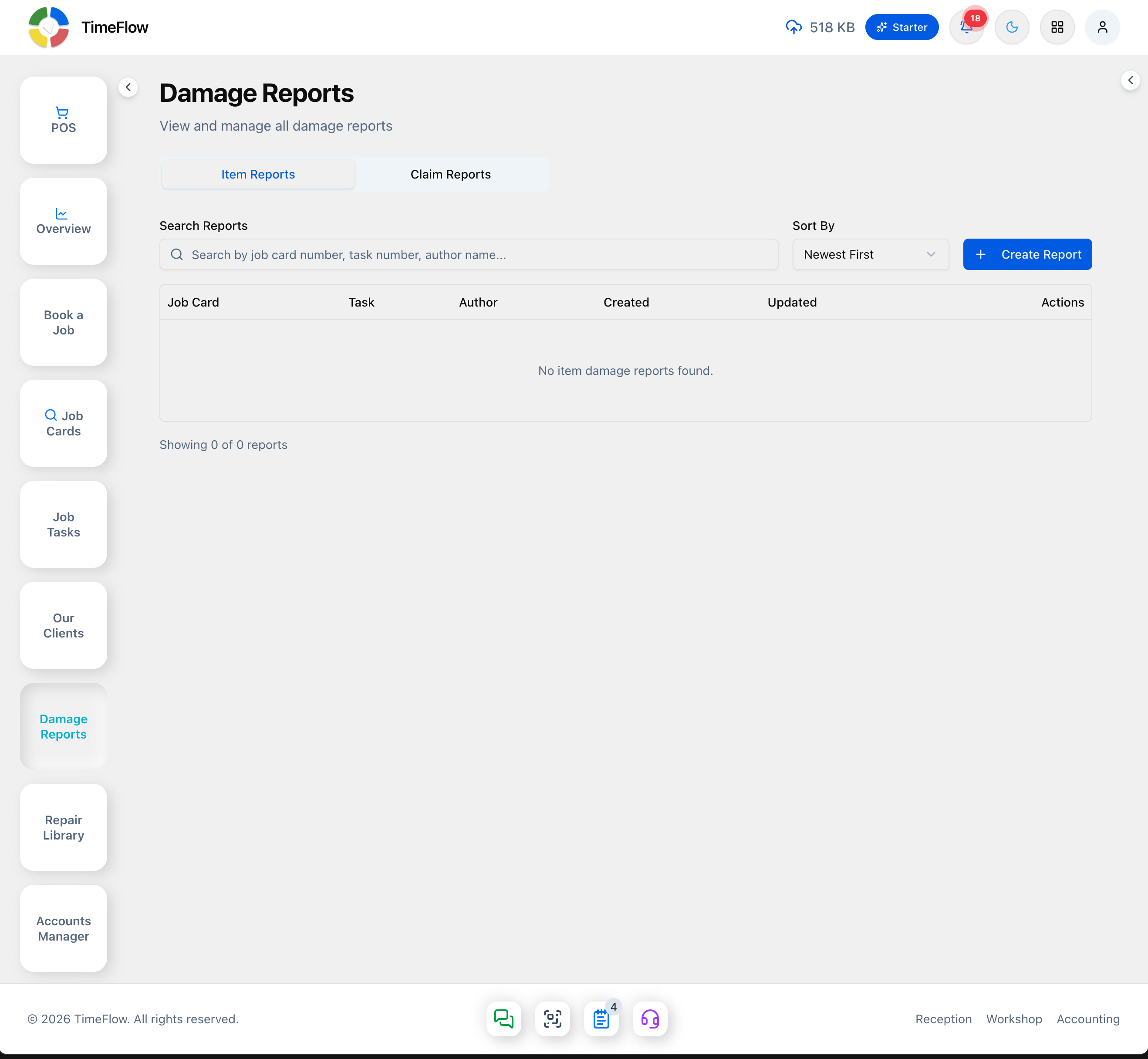
Go to Damage Reports to see the full list, split into Item Reports and Claim Reports tabs. Each has a Search Reports box (by job card/claim number, task number, or author name), a Sort By dropdown, and a table (Job Card/Claim, Task, Author, Created, Updated, Actions). Click a row to open the report, or open one from a job card/task/claim's detail view to see it in context. Each report shows its rich-text content and any embedded images.
Tips
- Attach photos as part of the report content whenever possible — they're often what settles a dispute or insurance query.
- Use the Job Card Item tab for repair-shop damage found during intake or work; use the Insurance Claim tab when the damage report needs to travel with a specific claim rather than one job card.
Frequently asked questions
Why should a repair shop record damage reports?
A damage report with photos documents pre-existing damage found at intake or during the repair, which is often what settles a customer dispute or insurance query.
Related guides
- Booking a job cardBook a device or vehicle in for repair: create a digital job card with client details, IMEI/serial, condition, fault, insurance claim, and intake photos.
- Insurance claimsTrack insurance repair claims in TimeFlow: create claims while booking, link multiple job cards to one claim, and see insurer, consultant, and device details.
- Job tasksAssign job cards to technicians with priority and due dates, move repairs through statuses like Awaiting Parts, log parts used, comments, and technical reports.
