
Job Card & Job Task Warranty in TimeFlow
Track warranty coverage against a job card — whether it's the manufacturer's warranty, a dealer warranty, or a warranty your shop is providing internally on the repair.
Updated · Reception & job cards
Before you start
Each job card can have at most one warranty record. You'll typically need reception or technician permission depending on where you access it from.
Finding this in the UI
Warranty isn't in the sidebar or header directly — it's reached in two places, both of which point at the same warranty record for a job card:
- Editing the job card: open it from Reception → Search Job Cards, then edit — the Warranty section is part of the job card edit form.
- The job task detail page:
Workshop → Job Tasks → [open a task]has a collapsible Warranty Information card.
Setting up a warranty
Open the Warranty Information section (on either screen above) and fill in:
- Warranty Provider — Manufacturer, Dealer, or Internal (default: Internal).
- Warranty Type — Parts Only, Labor Only, or Full (Parts & Labor) (default: Full).
- Warranty Status — Active, Inactive, or Expired (default: Active).
- Start Date and End Date.
- Warranty Notes — free text, up to 1,000 characters (live counter shown).
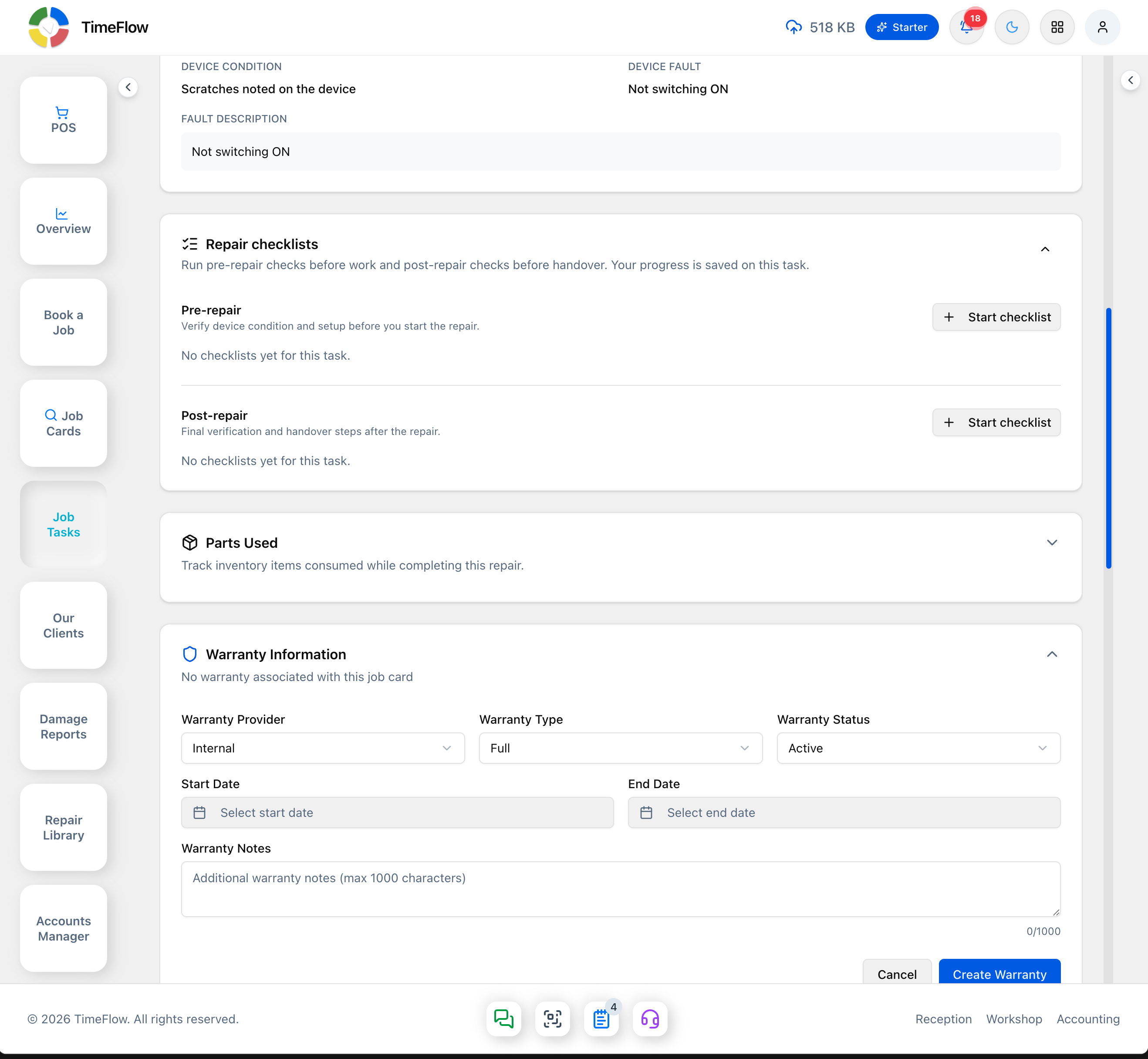
Click Create Warranty to save (or Cancel to discard). If a warranty already exists for the job card, the same form lets you update it instead.
Reading warranty status
Wherever the warranty appears, a colored badge shows its current state at a glance — including automatically flagging it as Expired once the end date has passed, regardless of what status was last set manually.
Tips
- Since only one warranty can exist per job card, use the Warranty Type field (Parts Only / Labor Only / Full) rather than creating separate records if a job needs mixed coverage.
- Set the End Date accurately — TimeFlow uses it to automatically show a job's warranty as expired without you having to change the status by hand.
Frequently asked questions
Does TimeFlow mark repair warranties as expired automatically?
Yes. Once the warranty end date has passed, the badge shows Expired regardless of the status that was last set manually.
Related guides
- Job tasksAssign job cards to technicians with priority and due dates, move repairs through statuses like Awaiting Parts, log parts used, comments, and technical reports.
- Booking a job cardBook a device or vehicle in for repair: create a digital job card with client details, IMEI/serial, condition, fault, insurance claim, and intake photos.
- Items, categories, brands & suppliersSet up repair parts and stock items with cost, markup, VAT, warranty, and low-stock thresholds, organised by category, brand, and supplier.
