
Orders in TimeFlow
A read-only ledger of the orders TimeFlow creates automatically behind your quotations and invoices.
Updated · Sales, invoicing & POS
Before you start
You need order or accounting permission.
Finding this in the UI
- Left sidebar → Accounts Manager → Orders, or go directly to
/dashboard/accounting/orders. - The header and footer do not have direct links to Orders.
What you'll see
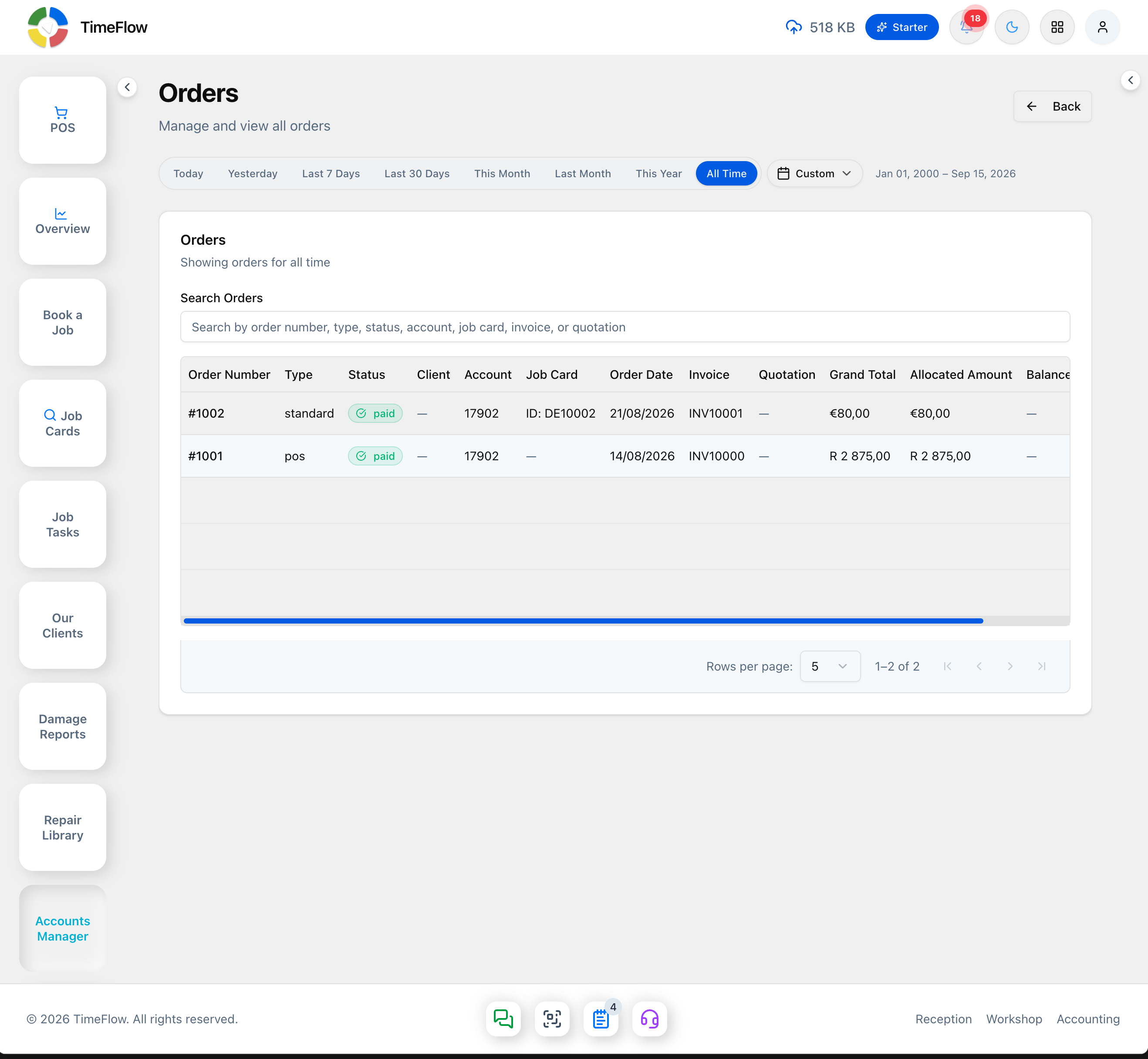
Orders aren't created from a form — TimeFlow generates one automatically behind the scenes for a quotation, an invoice, or a POS sale. This page is where you review them; there's no separate detail page — the row itself is the full record:
- Period filter — Today, Yesterday, Last 7/30 Days, This Month, Last Month, This Year, All Time, or a custom date range.
- Search Orders — by order number, type, status, account, job card, invoice, or quotation.
- The table shows: Order Number (e.g.
#1002), Type (e.g. "standard" for a quotation/invoice-driven order, "pos" for one from a Point of Sale sale), Status as a badge (e.g. green "paid"), Client, Account, Job Card, Order Date, Invoice, Quotation, Grand Total, Allocated Amount, Balance Due, and an Actions column with only a delete (trash) icon — there's no view/edit action. - Click the trash icon to delete an order, if it was created in error.
Tips
- Because orders are generated for you, the fastest way to find one is by searching for the invoice or quotation number you already know rather than browsing the full list.
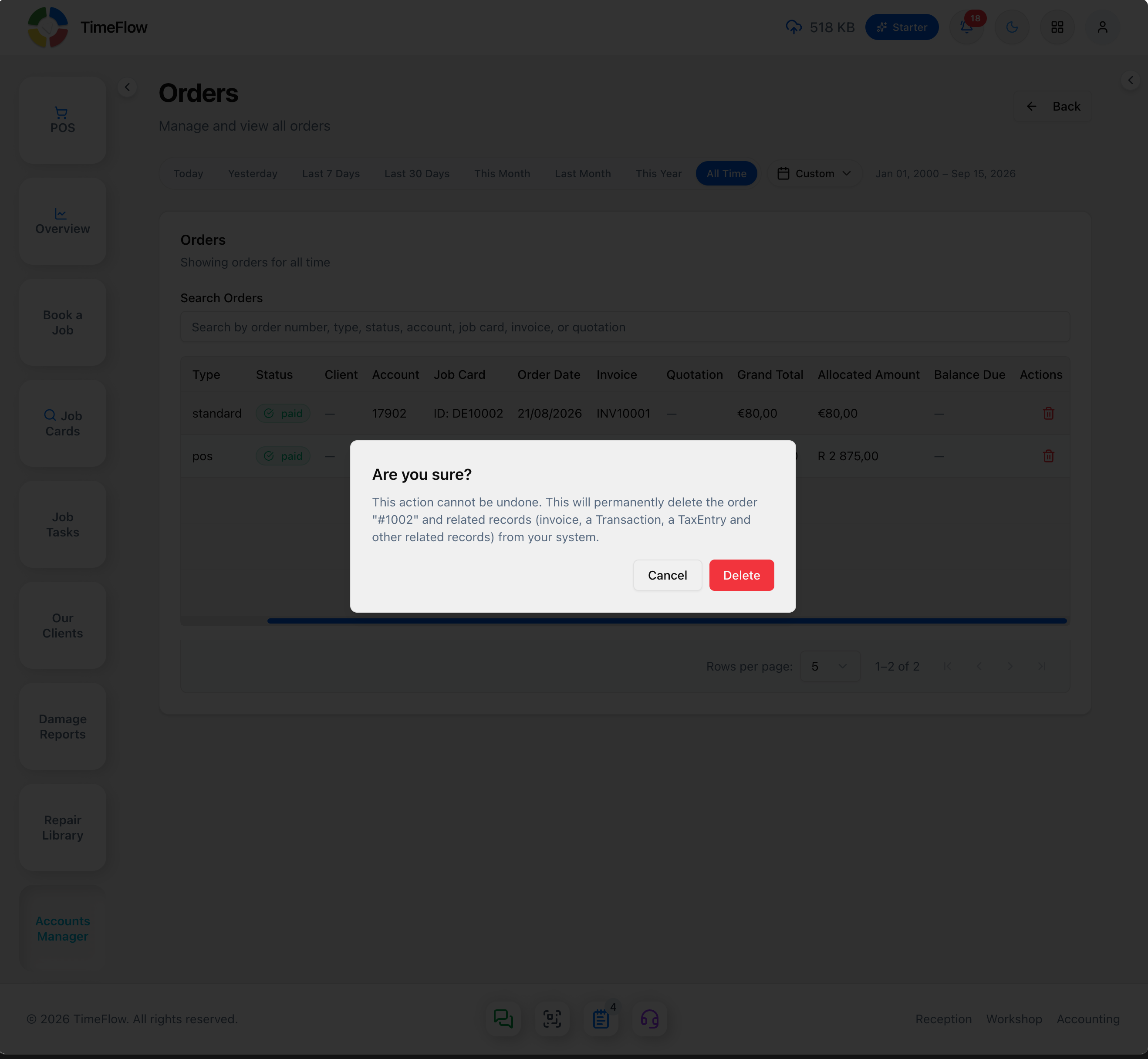
- Deleting an order is destructive beyond the order itself. The confirmation dialog warns: "This will permanently delete the order and related records (invoice, a Transaction, a TaxEntry and other related records) from your system." Only delete an order you're certain was created in error — it takes its linked invoice down with it.
Frequently asked questions
Do I need to create orders manually?
No. TimeFlow creates an order automatically behind every quotation, invoice, and POS sale. The Orders page is for reviewing them.
Related guides
- InvoicesCreate repair invoices for parts and labour with per-line VAT and discounts, link job cards and insurance claims, take payments, and post to the ledger.
- QuotationsSend customers a priced repair quote linked to a job card, with catalog or custom lines, VAT, discounts, and expiry date — then convert it to an invoice.
- Point of sale (POS)Sell accessories and devices at the counter with TimeFlow POS: barcode and IMEI scanning, held orders, discounts, and cash, card, EFT and other payments.
