
Stock on Credit (Beta) in TimeFlow
Record stock that moved in or out on credit — no purchase order, no invoice, just a handshake with a supplier or client that you'll settle later.
Updated · Inventory & purchasing
On this page
Before you start
You need inventory or accounting permission.
Finding this in the UI
- Left sidebar → Inventory Manager, or Left sidebar → Accounts Manager — Stock on Credit (Beta) is reachable from either hub. Not in the header or footer.
The Stock on Credit page
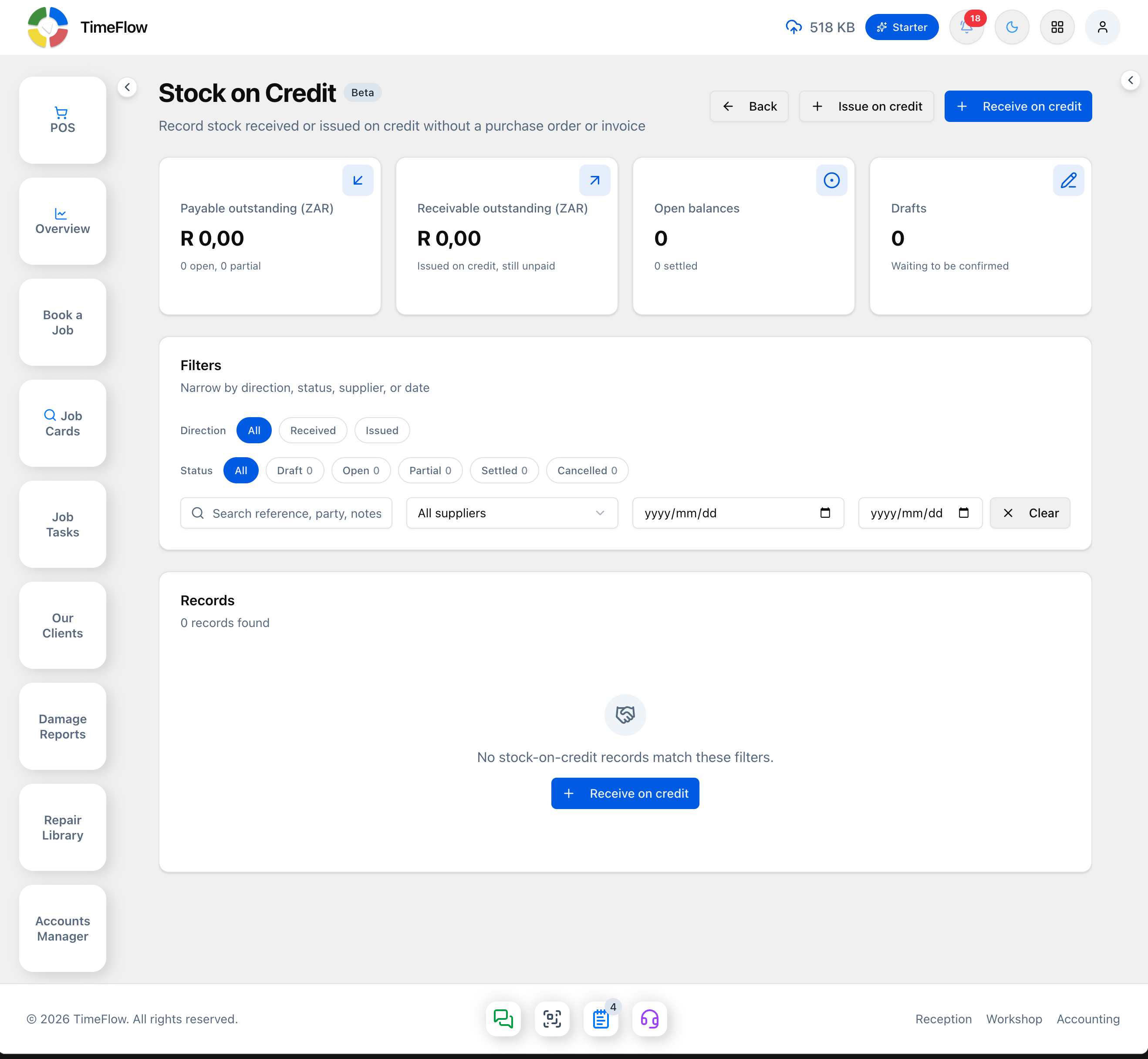
Go to Stock on Credit (Beta). The page opens on a dashboard: Payable outstanding, Receivable outstanding, Open balances, and Drafts stat cards, a Filters panel (Direction: All/Received/Issued; Status: All/Draft/Open/Partial/Settled/Cancelled; a search box; supplier filter; date range), and a Records table/list below. Two buttons at the top — Issue on credit and Receive on credit — both open the same record form; which one you click just pre-selects the Type.
Receiving stock on credit
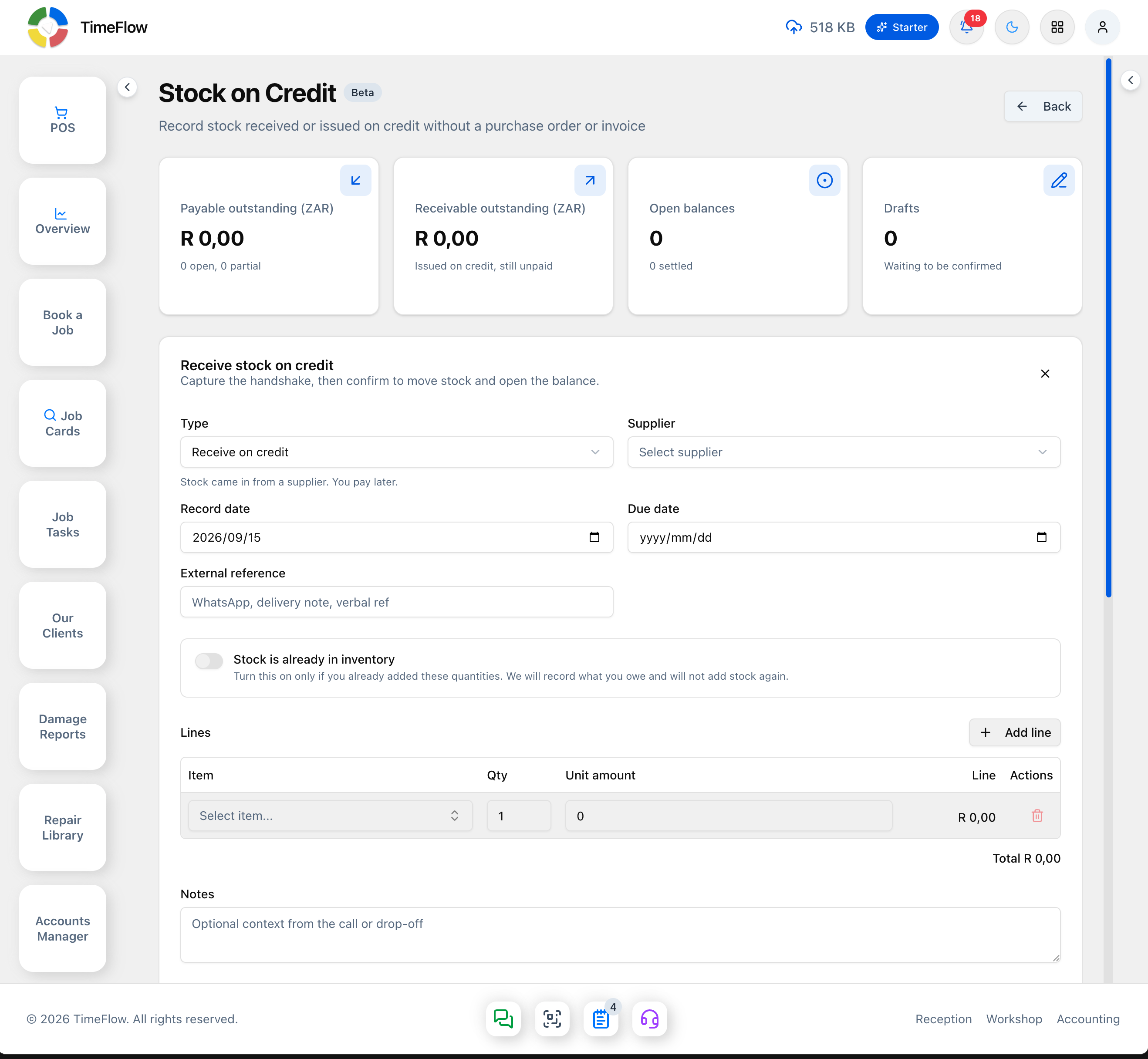
Use this when a supplier drops off stock and you'll pay later. Open the record form (via Receive on credit, or Issue on credit then switch Type to "Receive on credit") and fill in:
- Type — Receive on credit / Issue on credit (a dropdown; switches the rest of the form).
- Supplier, Record date (defaults to today), optional Due date, and an External reference (free text, e.g. "WhatsApp, delivery note, verbal ref").
- Stock is already in inventory toggle — turn on only if you already added these quantities separately; it records what you owe without double-adding stock.
- Lines — click + Add line and pick an Item, Qty, and Unit amount per row; a running Total is shown. Serialized items need an IMEI or serial per unit on confirm; non-serialized items just need a quantity.
- An optional Notes field for context from the call or drop-off.
Issuing stock on credit
Use this when you give stock to a client or another supplier and they'll pay you later. Open the same form and set Type to "Issue on credit" — a Party dropdown appears (Client or Supplier) instead of a plain supplier field. Add items the same way as above; confirming reduces available stock immediately.
Saving and settling
- Save as draft captures the handshake first, or Save and confirm applies the stock movement and opens the balance in one step.
- From a confirmed record, settle it without leaving the page: create a new payment and allocate it immediately, or apply an existing unallocated debit (inbound) or credit (outbound) payment. You can also allocate from the list later.
- Cancel reverses the stock movement only if this record is what moved it; records with allocated payments can't be cancelled.
Tips
- This is not a substitute for a formal Purchase Order, Purchase Invoice, or Sales Invoice — use those when a real bill exists.
- Inbound records are always against a supplier; outbound can be a client or a supplier. The same party can appear in both books, and balances aren't netted against each other.
- Serialized units issued on credit are reserved, so that IMEI can't be received again until the record is cancelled.
Frequently asked questions
When should I use Stock on Credit instead of a purchase invoice?
Use it for informal handshake deals where stock moves now and is paid later. When a real supplier bill exists, use a Purchase Order or Purchase Invoice instead.
Related guides
- Purchase invoicesRecord supplier invoices with or without a purchase order, claim input VAT, approve, and track payment status from unpaid to paid.
- Purchase ordersCreate supplier purchase orders for parts and stock, send them, and track them from draft to partially received and received with goods receipt notes.
- IMEI & serial trackingTrack phones, tablets, and laptops as individual units by IMEI or serial: receive units, print labels, and sell or consume them FIFO across POS and invoices.
