
Subscription & Billing in TimeFlow
View your current plan, switch plans, update your payment card, and review payment history and invoices.
Updated · Getting started & account
Before you start
You need account subscription permission.
Finding this in the UI
- Header → profile menu → Subscription (
/dashboard/accounts/subscription) and Header → profile menu → Billing (/dashboard/accounts/billing). - The left sidebar and footer do not have direct links to either.
Subscription page
- Current Subscription — a card showing your active plan (e.g. "Starter Plan — TimeFlow Starter Plan -Monthly") with an Active badge, price (e.g. "US$29,00/month", with any active discount shown as a green badge like "20% OFF"), Billing Date and Next Payment dates, and the account's Name/Email. Cancel and Pause buttons sit at the bottom right of the card.
- Update Card Details (top-right action) — redirects to PayFast's secure recurring-billing portal to change the card used for automatic charges, then returns you to TimeFlow.
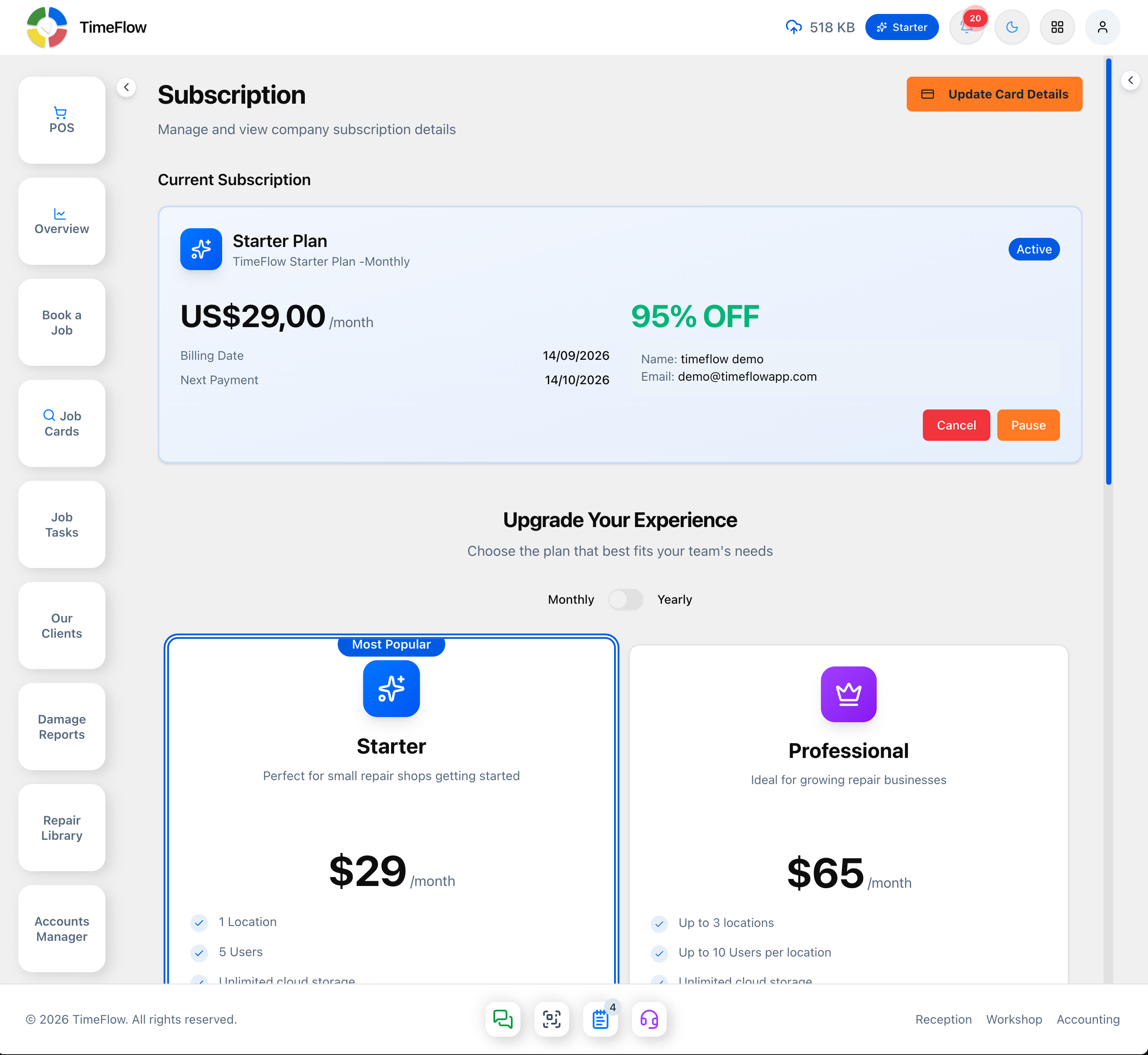
- Upgrade Your Experience — "Choose the plan that best fits your team's needs." Toggle Monthly / Yearly billing to see pricing change, including the per-month equivalent when billed yearly. Three plan cards, each with a full feature checklist:
- Starter ($29/month, "Most Popular" badge) — 1 Location, 5 Users, unlimited cloud storage, unlimited repairs, Schematics & Boardviews library, advanced inventory management, repair ticket management, single location, email notifications, advanced reporting & analytics, team management, email support, Point of Sale, remote training.
- Professional ($65/month) — up to 3 locations, up to 10 users per location, and the same core features as Starter but with multi-location support and priority support instead of single-location/email support.
- Enterprise (custom pricing) — everything in Professional plus unlimited locations, unlimited users, custom integrations, a dedicated account manager, 24/7 phone support, and custom training. Currently shows a Coming Soon button rather than being subscribable.
- Click Subscribe to <Plan> on any plan that isn't your current one to switch — a confirmation dialog summarizes the change (plan name and billing cycle) before it takes effect. Your current plan's button is disabled and marked Current Plan.
- Adding a team member beyond your plan's seat limit, or a branch beyond your plan's branch limit, triggers an Upgrade Required prompt that links back here.
Billing page
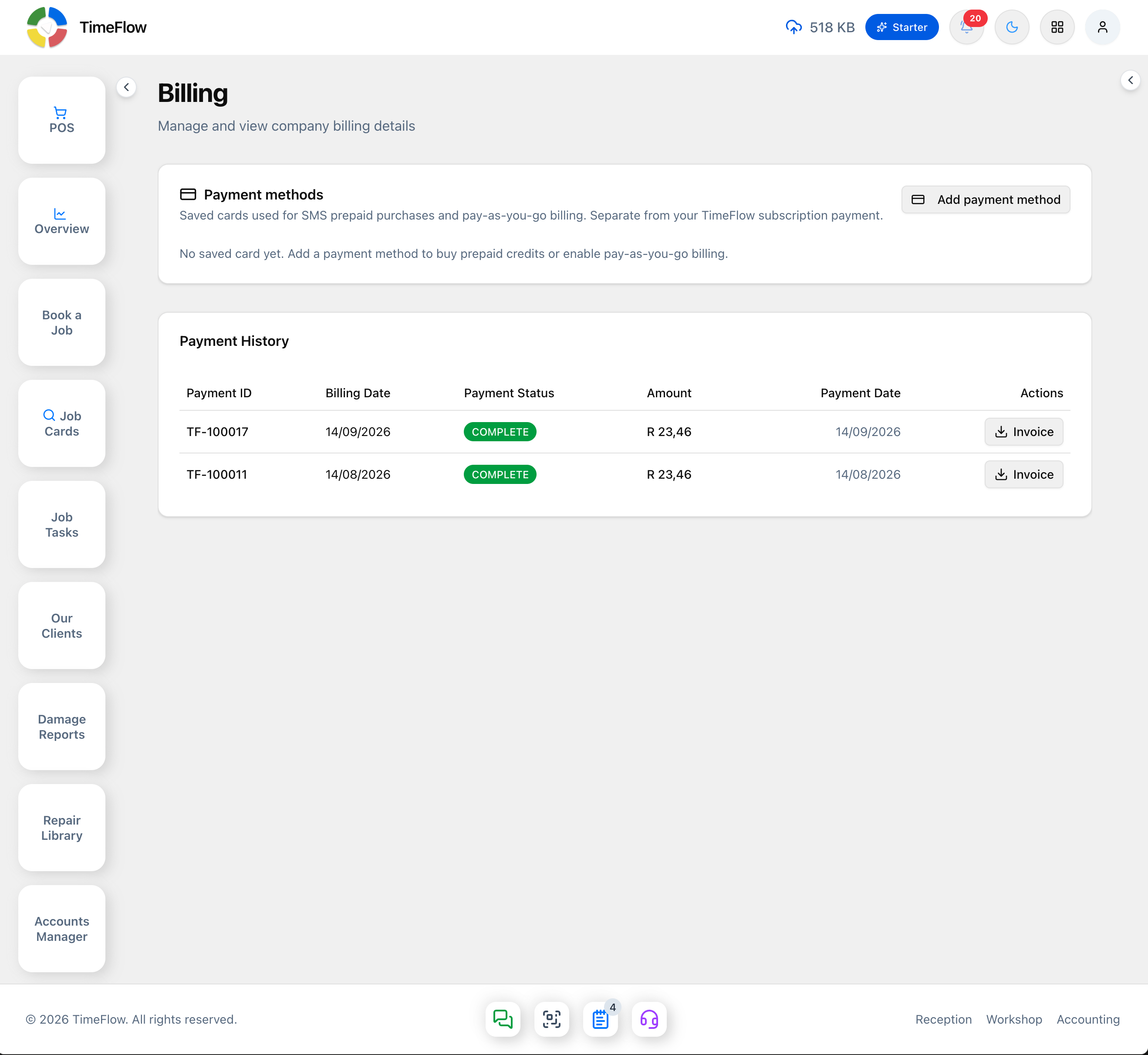
A Payment methods card at the top — the same saved-card system used for SMS prepaid/pay-as-you-go billing ("Saved cards used for SMS prepaid purchases and pay-as-you-go billing. Separate from your TimeFlow subscription payment.") — with an Add payment method button.
Below it, a Payment History table listing every charge: Payment ID, Billing Date, Payment Status (badge, e.g. green COMPLETE), Amount, and Payment Date. For a failed or outstanding payment, a Pay now button lets you retry it immediately. Every row has a direct Invoice button (with a download icon) to download that payment's invoice.
Tips
- Update your card before your next billing date if it's expired or changed, to avoid a failed payment appearing in Payment History.
- Switching plans takes effect immediately and adjusts your billing accordingly — there's no need to cancel first.
- The Billing page's saved payment methods are shared with SMS billing (see SMS Integration) — they're separate from the card used for your TimeFlow subscription itself, which is managed via Update Card Details on the Subscription page.
Frequently asked questions
Can I switch TimeFlow plans without cancelling?
Yes. Click Subscribe on the plan you want; a confirmation dialog summarises the change and it takes effect immediately with billing adjusted — no need to cancel first.
How do I update the card used for my TimeFlow subscription?
Use Update Card Details on the Subscription page. It opens PayFast's secure recurring-billing portal and returns you to TimeFlow when done.
Related guides
- Company accountManage your repair shop's company details, banking, branches, currency, VAT settings, team members and permissions, and timezone from the Company Account page.
- Signing up & logging inCreate a TimeFlow account, verify your email, set up your company, first branch and team, log in, and complete your profile — step by step.
- SMS notificationsAutomatically SMS customers when a job is booked, completed, closed, or waiting for collection, with message templates and allowance, prepaid, or PAYG billing.
