
Employees Performance in TimeFlow
Review each team member's individual performance and compare them against one another, from one page.
Updated · Reports & analytics
Before you start
You need the employee-performance permission (this is separate from general company account or reports permissions — most staff won't see this link).
Finding this in the UI
- Header → profile menu (your avatar) → Employees, or go directly to
/dashboard/accounts/employees. - Not on the left sidebar or footer — this only opens from the profile menu, and only if you have employee-performance permission (see Navigating the Interface).
What you'll see
The page is headed "Employees Performance" — "Review individual performance and compare team members." A single Team Members card lists every member of your company (avatar initials, name, job title badge) with the instruction "Expand each member to view their detailed performance."
Click a member's row to expand it and reveal the same three performance sections shown on their own My Profile → Performance tab (see Signing Up & Logging In):
- Pipeline & Bookings — a bar chart of Booked Devices, Sales Invoices, and Repair Bookings.
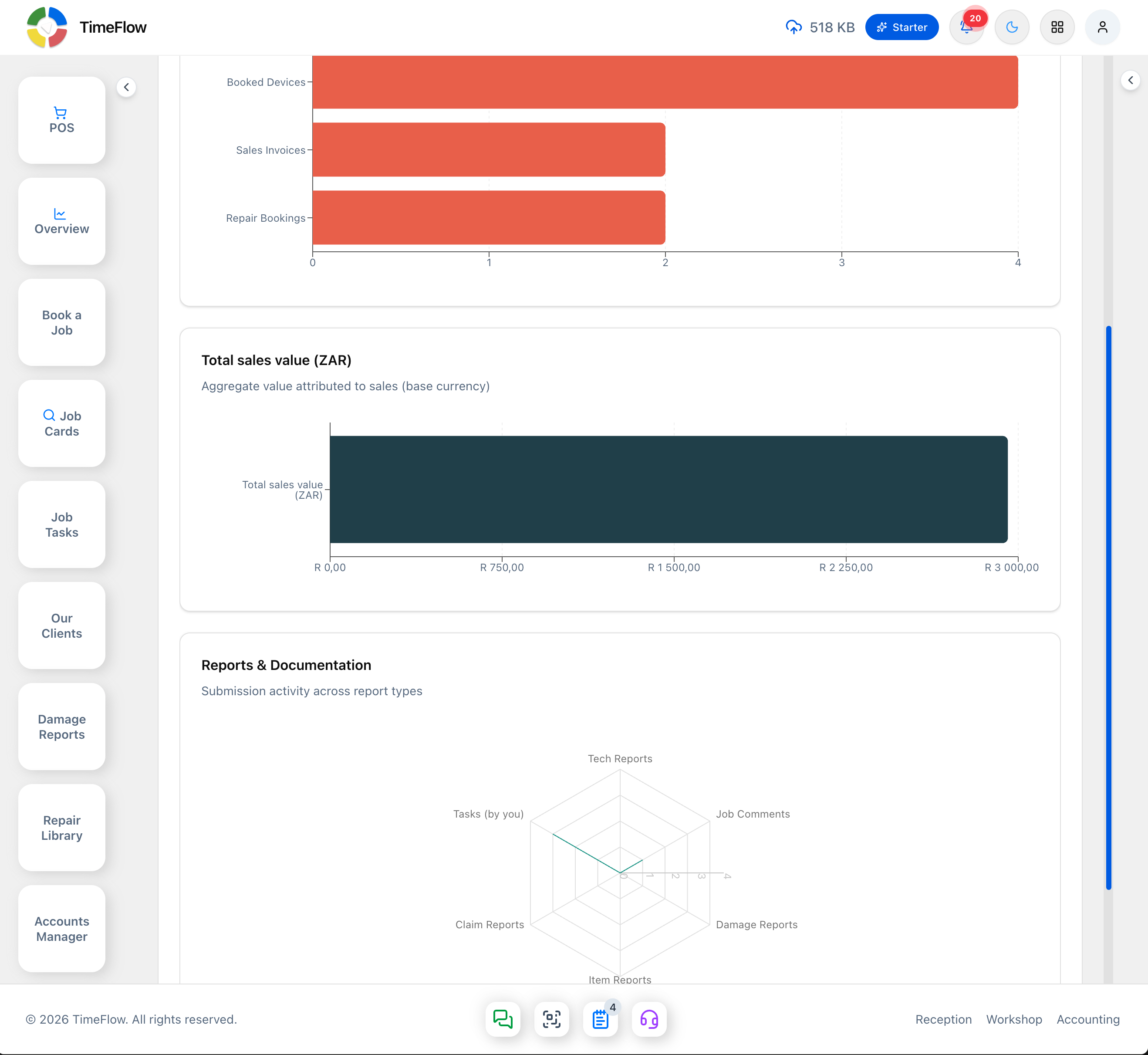
- Total sales value (ZAR) — a bar chart of aggregate sales value attributed to that member.
- Reports & Documentation — a radar chart of submission activity across Tech Reports, Job Comments, Tasks (by you), Damage Reports, Claim Reports, and Item Reports.
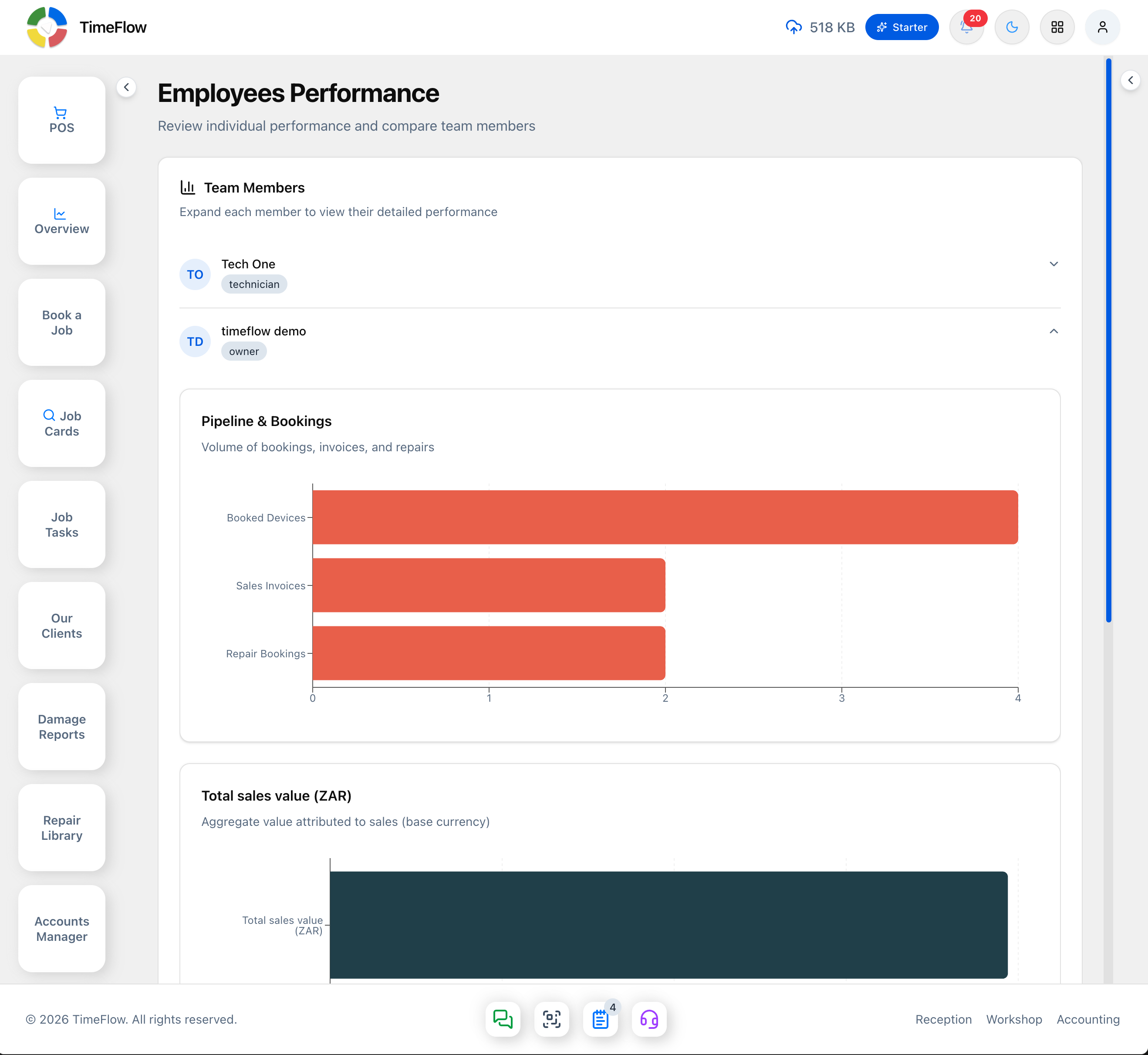
Only one member expands at a time — opening another collapses the previous one, so you're always comparing one person's full picture rather than several partial ones at once.
Tips
- This is the manager's view of the same data each staff member already sees for themselves on My Profile → Performance — nothing here is calculated differently, it's just viewable across the whole team from one place.
- If a member you expect to see isn't listed, check their Status on Company Account → Members — deactivated members may not appear here.
Frequently asked questions
Who can see employee performance in TimeFlow?
Only users with the employee-performance permission, via profile menu → Employees. Each staff member can see their own figures on My Profile → Performance.
Related guides
- Company accountManage your repair shop's company details, banking, branches, currency, VAT settings, team members and permissions, and timezone from the Company Account page.
- Analytics dashboardOne dashboard for your whole repair business: job cards, revenue, pending invoices, quote conversion, growth versus last month, and overdue items.
